
Author's Note: A detailed look at how Large Language Model APIs like GPT-4o, Claude, Gemini, and DeepSeek handle PDF inputs, including three processing strategies: text extraction, image understanding, and client-side handling.
"Can I pass a PDF directly into a Large Language Model API?" This is one of the most common questions developers ask. The answer is more complex than you might think—some models have native support for PDF input (Claude, Gemini, GPT-4o), while others, like DeepSeek, do not. Plus, the token cost for native support is often significantly higher than using a text extraction approach.
In this article, we'll look at the current state of PDF support across mainstream Large Language Model APIs from a developer's perspective. We'll also provide a comprehensive comparison and code examples for 3 PDF processing solutions to help you choose the best fit for your specific use case.
Core Value: After reading this, you'll understand exactly how each model handles PDFs and master three processing strategies, ranging from the most cost-effective to the most convenient.
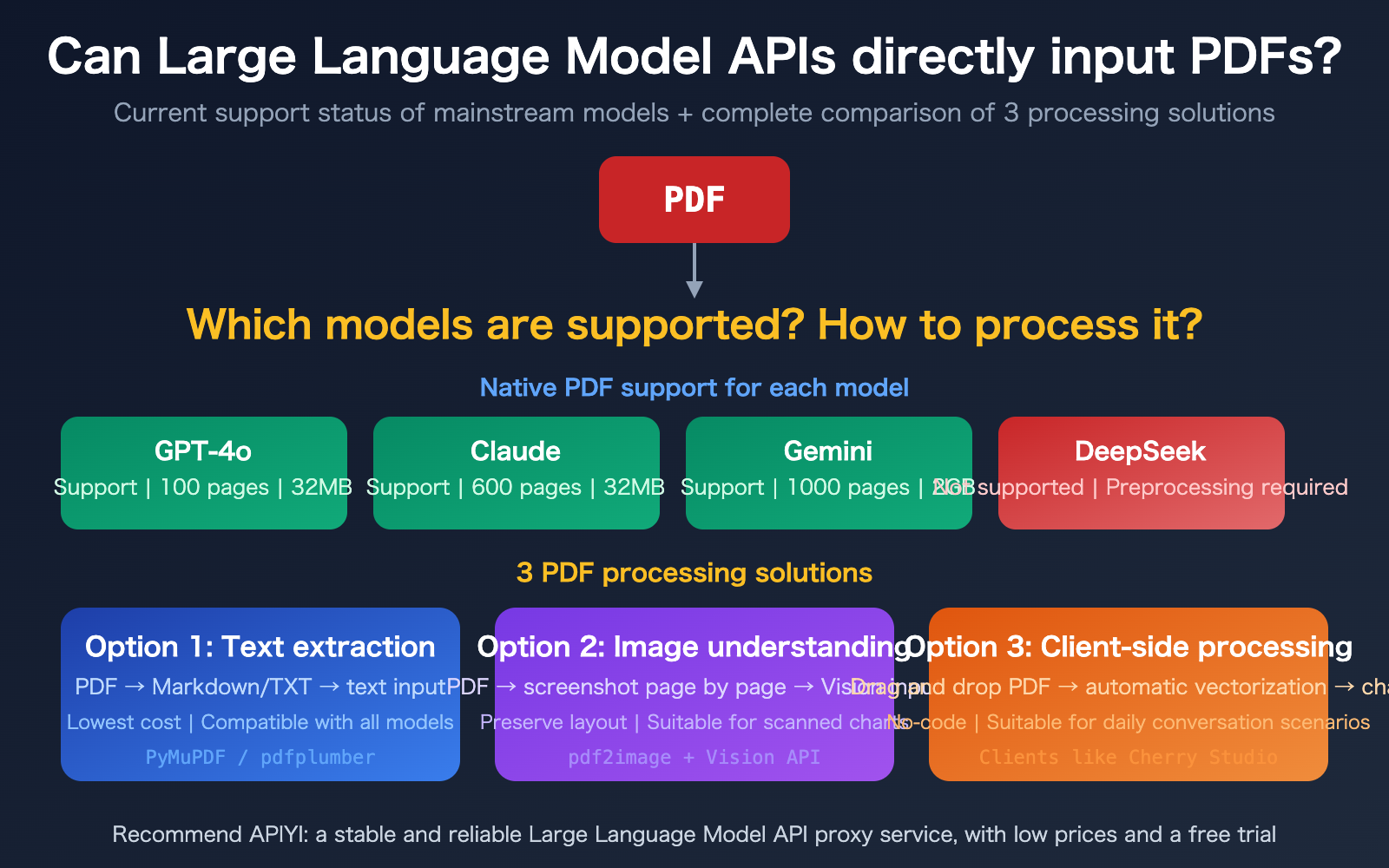
Key Takeaways for Large Language Model API PDF Support
| Key Point | Description | Value |
|---|---|---|
| 3 Models with Native PDF Support | Claude (600 pages), Gemini (1000 pages), and GPT-4o (100 pages) now support it | No preprocessing needed; upload directly via API |
| Others (e.g., DeepSeek) Lack Support | Requires prior text extraction or image conversion | Requires building a preprocessing pipeline |
| Significant Cost Differences | Native PDF costs 258-3000 tokens/page; plain text extraction is only 300-1500 | Choosing the right approach can save 10x in high-volume scenarios |
| 3 Approaches for Different Needs | Text extraction, image understanding, client-side processing | Choose based on your needs; no one-size-fits-all |
Current State of Native PDF Support in Large Language Model APIs
The good news is that since 2025, mainstream Large Language Models have started supporting direct PDF uploads via API. They generally implement this by extracting text from the PDF while simultaneously rendering each page as an image, allowing the model to understand both the textual content and visual elements (like charts and layout).
The bad news is that this "text + image dual-channel" processing consumes significantly more tokens than plain text input. A 50-page report uploaded as a PDF might consume 100,000+ tokens, whereas extracting the text first might only require 30,000 tokens.
Detailed Comparison of PDF Support Across Model APIs
| Model | PDF Support | Max Pages | Max File Size | Transmission Method | Token Cost per Page |
|---|---|---|---|---|---|
| Claude | Supported (GA) | 600 pages | 32 MB | Base64 / URL / Files API | 1500-3000 |
| Gemini | Supported | 1000 pages | 2 GB (Files API) | Inline / Files API / URL | ~258 (Cheapest) |
| GPT-4o | Supported | 100 pages | 32 MB | Base64 / File Upload | ~765 (Image) + Text |
| DeepSeek | Not Supported | — | — | Requires preprocessing | — |
| Llama / Qwen | Not Supported | — | — | Requires preprocessing | — |
🎯 Recommendation: If you need to process large volumes of PDFs, Gemini is the most cost-effective (approx. 258 tokens per page, with free native text extraction). If you need support for the longest documents, Gemini is also the leader (1000 pages). Claude excels in comprehension accuracy, making it ideal for high-precision tasks. You can access and call all these models through the APIYI (apiyi.com) platform.
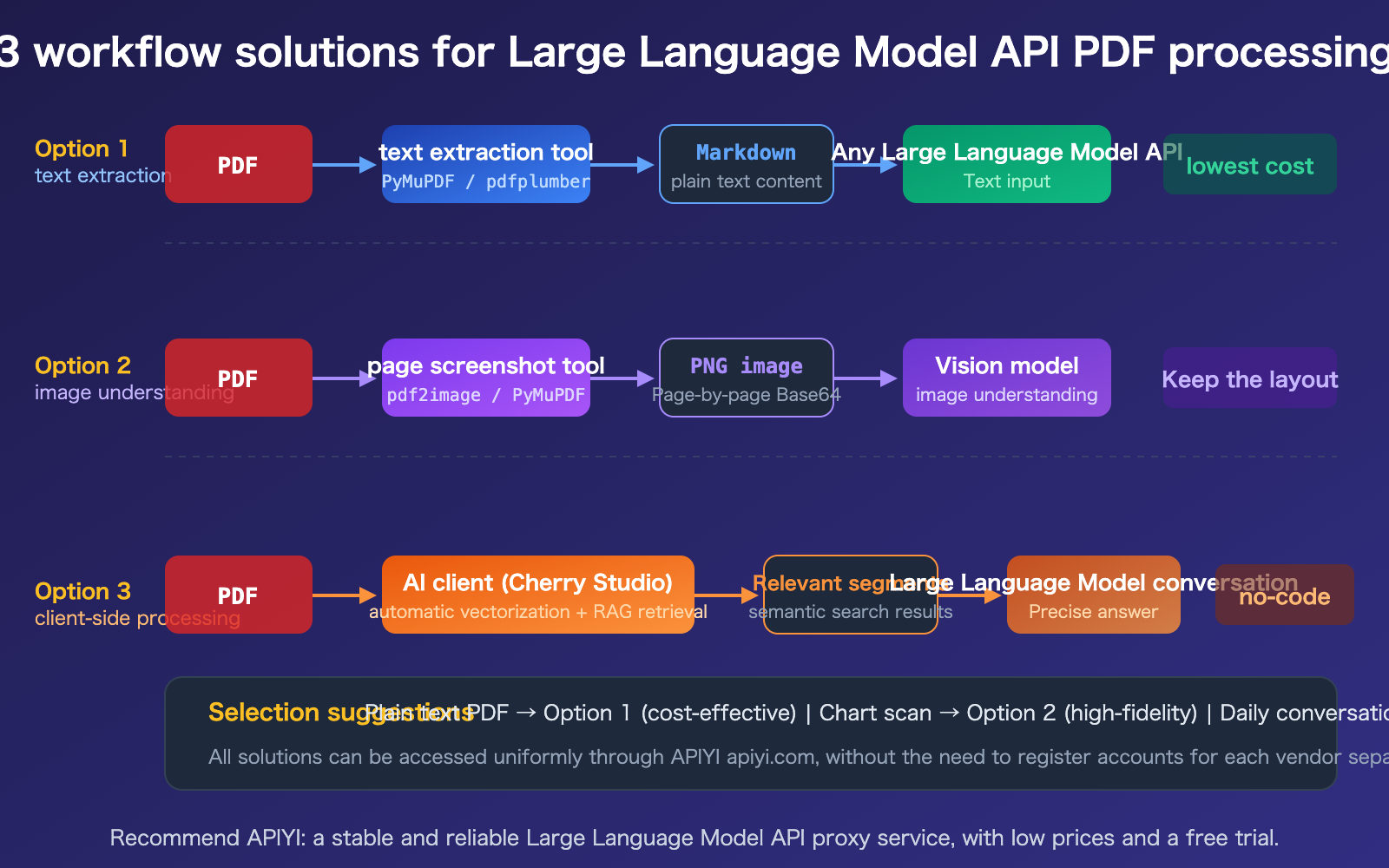
Large Language Model API PDF Processing Strategy 1: Text Extraction
This is the most common and cost-effective approach. You first use a Python library to extract the PDF into Markdown or plain text, then pass that text as a prompt to any Large Language Model API.
Comparison of PDF Text Extraction Tools
| Tool | Speed | Best Use Case | Features |
|---|---|---|---|
| PyMuPDF4LLM | ~0.14s/doc | General text + table extraction | Best balance of speed and quality, outputs Markdown |
| pdfplumber | Medium | Table data extraction | Coordinate-level table extraction, high precision |
| Marker-PDF | ~11s/doc | Complex layout fidelity | Best structure preservation, slower speed |
| PyPDF2 | Fast | Simple plain-text PDFs | Lightweight, suitable for basic text extraction |
Code Example for PDF Text Extraction
import pymupdf4llm
import openai

# Step 1: Convert PDF to Markdown
md_text = pymupdf4llm.to_markdown("report.pdf")

# Step 2: Pass to Large Language Model API
client = openai.OpenAI(
    api_key="YOUR_API_KEY",
    base_url="https://api.apiyi.com/v1"
)

response = client.chat.completions.create(
    model="gpt-4o",
    messages=[{"role": "user", "content": f"Please summarize the key points of this report:\n\n{md_text}"}]
)
print(response.choices[0].message.content)
View full code for processing PDFs with images (Multimodal approach)
import fitz  # PyMuPDF
import base64
import openai

def pdf_pages_to_images(pdf_path, dpi=200):
    """Convert each page of a PDF to a Base64 image"""
    doc = fitz.open(pdf_path)
    images = []
    for page in doc:
        pix = page.get_pixmap(dpi=dpi)
        img_bytes = pix.tobytes("png")
        b64 = base64.b64encode(img_bytes).decode()
        images.append(b64)
    return images

# Convert PDF to images
images = pdf_pages_to_images("report.pdf")

# Build multi-image message
content = [{"type": "text", "text": "Please analyze the charts and data in this PDF document:"}]
for img_b64 in images[:10]:  # Be careful with page count to avoid exceeding token limits
    content.append({
        "type": "image_url",
        "image_url": {"url": f"data:image/png;base64,{img_b64}"}
    })

client = openai.OpenAI(
    api_key="YOUR_API_KEY",
    base_url="https://api.apiyi.com/v1"
)

response = client.chat.completions.create(
    model="gpt-4o",
    messages=[{"role": "user", "content": content}]
)
print(response.choices[0].message.content)
Recommendation: The text extraction strategy is compatible with all Large Language Models (including DeepSeek, Llama, etc., that don't natively support PDFs). You can use the same API key via APIYI (apiyi.com) to test any model.
Large Language Model API PDF Processing Strategy 2: Native PDF Input
If you're using Claude, Gemini, or GPT-4o, you can pass the PDF directly via the API without any preprocessing.
Claude API Native PDF Input Example
import anthropic
import base64

client = anthropic.Anthropic(
    api_key="YOUR_API_KEY",
    base_url="https://api.apiyi.com"  # Use root domain for Claude
)

with open("report.pdf", "rb") as f:
    pdf_data = base64.standard_b64encode(f.read()).decode()

message = client.messages.create(
    model="claude-sonnet-4-20250514",
    max_tokens=4096,
    messages=[{
        "role": "user",
        "content": [
            {"type": "document", "source": {"type": "base64", "media_type": "application/pdf", "data": pdf_data}},
            {"type": "text", "text": "Please summarize the key points of this document"}
        ]
    }]
)
print(message.content[0].text)
Gemini API Native PDF Input Example
from google import genai

client = genai.Client(
    api_key="YOUR_API_KEY",
    http_options={"api_version": "v1beta", "base_url": "https://api.apiyi.com"}
)

with open("report.pdf", "rb") as f:
    pdf_bytes = f.read()

response = client.models.generate_content(
    model="gemini-2.5-flash",
    contents=[
        genai.types.Part.from_bytes(data=pdf_bytes, mime_type="application/pdf"),
        "Please summarize the key points of this document"
    ]
)
print(response.text)
🎯 Cost Reminder: While native PDF input is the most convenient, the token cost is significantly higher than the plain text approach. For a 50-page PDF: Gemini consumes about 12,900 tokens (cheapest), Claude about 75,000–150,000 tokens, and GPT-4o about 40,000+ tokens. Always evaluate costs for high-volume scenarios and monitor your usage via the dashboard on APIYI (apiyi.com).
Large Language Model API PDF Processing Solution 3: Client-Side Processing
For daily conversational tasks (rather than software development), using an AI client is the most straightforward approach. Take Cherry Studio as an example: it allows you to simply drag and drop PDF attachments, automatically handles vectorization and semantic retrieval, and sends only the relevant snippets to the Large Language Model.
Advantages of the Client-Side Approach
- No-code: Just drag and drop a PDF to start a conversation.
- Save Tokens: Uses RAG retrieval to send only relevant snippets instead of the entire document.
- Model Switching: Supports configuring multiple API platforms like APIYI.
- Local Knowledge Base: You can organize multiple PDFs into a knowledge base for repeated querying.
Things to Keep in Mind
- Control File Size: PDFs with too many pages can lead to long vectorization times.
- Watch Token Costs: Although RAG compresses content, long documents can still incur higher costs.
- Choose the Right Model: Use cost-effective models (like GPT-4o-mini) for simple Q&A, and flagship models for complex analysis.
Recommendation: Configure APIYI (apiyi.com) as your API provider in clients like Cherry Studio to access all models—including Claude, Gemini, and GPT—using a single API key.
FAQ
Q1: What’s the best way to process PDFs with DeepSeek?
The DeepSeek API doesn't currently support direct PDF uploads. I recommend using Option 1 (text extraction): first, convert your PDF to Markdown text using PyMuPDF4LLM, then use the APIYI (apiyi.com) platform to call the DeepSeek API for analysis. If your PDF contains charts or diagrams, you can convert those pages into images and use a Vision-capable model (like GPT-4o) to interpret them.
Q2: Which is better: native PDF input or text extraction?
It really depends on the content of your PDF. For text-heavy PDFs like contracts or reports, both methods perform similarly, but text extraction is much more cost-effective. However, for PDFs with complex layouts, charts, or scanned documents, native input is significantly better because the model can understand both the text and the visual elements simultaneously. I suggest starting with the text extraction method and switching to native input only if the results aren't up to par.
Q3: How can I control the token costs for PDF processing?
Here are a few handy tips:
- For large-scale tasks, prioritize Gemini (it only costs about 258 tokens per page, making it the most budget-friendly option).
- Only extract the pages you actually need; don't upload the entire document at once.
- After extracting the text, summarize or chunk it before sending it to the model to avoid passing excessively long text.
- Keep an eye on your actual usage through the dashboard on APIYI (apiyi.com).
Summary
Here are the key takeaways for handling PDF inputs with Large Language Model APIs:
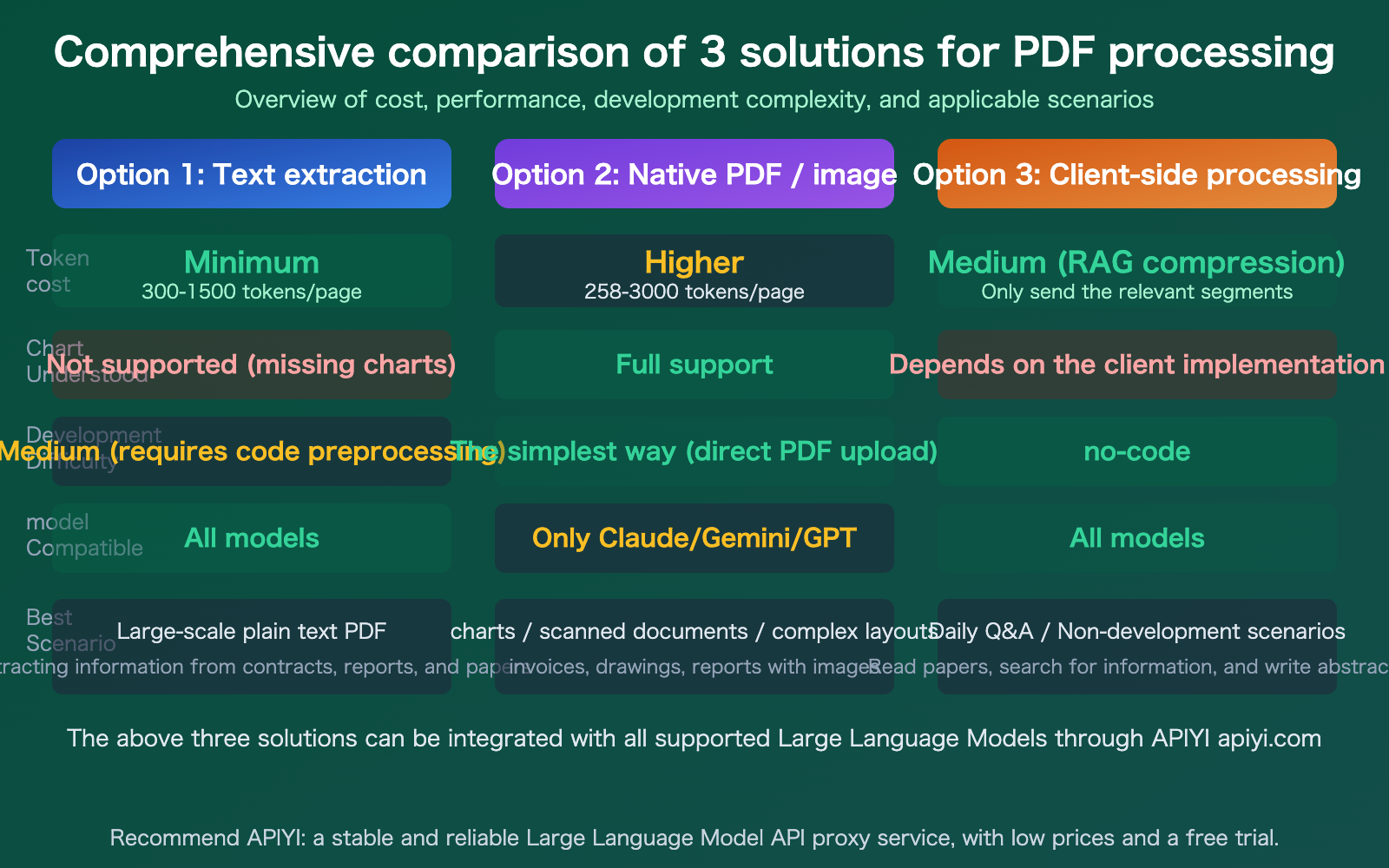
- Native support is available for some models: Claude (600 pages), Gemini (1000 pages), and GPT-4o (100 pages) support direct PDF uploads, while others like DeepSeek do not.
- Choose the right approach: Text extraction is the most cost-effective and compatible with all models; native input is the most convenient but pricier; and client-side processing is great for everyday chats.
- Significant cost differences: For the same PDF, Gemini's native input is the cheapest (~258 tokens/page), and a pure text extraction approach can cut costs by over 50% further.
By choosing the right strategy for your specific use case, you can process PDFs efficiently without getting hit by massive token bills.
I recommend using APIYI (apiyi.com) to unify your access to various models. The platform offers free credits and supports API invocations for all major models, including Claude, Gemini, GPT, and DeepSeek.
📚 References
-
OpenAI PDF Input Guide: Official documentation for direct PDF uploads via API
- Link:
platform.openai.com/docs/guides/pdf-files - Description: Detailed specifications and limitations for GPT-4o PDF input
- Link:
-
Claude PDF Support Documentation: Official Anthropic guide for PDF processing
- Link:
docs.anthropic.com/en/docs/build-with-claude/pdf-support - Description: Three methods and best practices for Claude PDF input
- Link:
-
Gemini Document Processing: Official documentation on Google's document understanding capabilities
- Link:
ai.google.dev/gemini-api/docs/document-processing - Description: Limitations and pricing for Gemini PDF processing
- Link:
-
PyMuPDF4LLM Documentation: A tool for extracting text from PDFs
- Link:
pymupdf.readthedocs.io/en/latest/pymupdf4llm - Description: The fastest tool for converting PDFs to Markdown
- Link:
-
APIYI Platform Documentation: Unified access to major model APIs
- Link:
docs.apiyi.com - Description: How to obtain your API key, view the model list, and find invocation examples
- Link:
Author: APIYI Technical Team
Technical Discussion: Feel free to join the discussion in the comments section. For more resources, visit the APIYI documentation at docs.apiyi.com.


