
Want your AI to "think before it speaks" just like a human? Gemini Thinking mode is Google's latest deep reasoning feature, allowing models to showcase their complete thought process before delivering an answer. In this post, we'll dive into how to correctly configure Gemini Thinking mode in two popular AI clients: Cherry Studio and Chatbox.
Core Value: By the end of this article, you'll know how to enable Gemini's thinking mode in Cherry Studio and Chatbox, view the model's reasoning process, and improve your results for complex tasks.
Key Highlights of Gemini Thinking Mode
Gemini Thinking mode is a deep reasoning feature introduced by Google in the Gemini 2.5 and 3 series models. Unlike standard conversations, Thinking mode allows the model to perform internal reasoning before providing a final answer, significantly improving accuracy for complex tasks.
| Key Point | Description | Value |
|---|---|---|
| Thought Visualization | Displays the model's reasoning process | Understand how the AI reaches its conclusions |
| Enhanced Reasoning | Multi-step logical reasoning | Solve complex math and programming problems |
| Controllable Thinking Depth | Adjust the thinking token budget | Balance speed and accuracy |
| Model Compatibility | Full Gemini 2.5/3 series | Flexibly choose the right model for your scenario |
Models Supporting Gemini Thinking Mode
Currently, the following Gemini models support Thinking mode:
| Model Name | Model ID | Thinking Parameter | Default Behavior |
|---|---|---|---|
| Gemini 3 Pro | gemini-3-pro-preview |
thinking_level | Dynamic Thinking (HIGH) |
| Gemini 3 Flash | gemini-3-flash-preview |
thinking_level | Dynamic Thinking (HIGH) |
| Gemini 2.5 Pro | gemini-2.5-pro |
thinking_budget | Dynamic (8192 tokens) |
| Gemini 2.5 Flash | gemini-2.5-flash |
thinking_budget | Dynamic (-1) |
| Gemini 2.5 Flash-Lite | gemini-2.5-flash-lite |
thinking_budget | Off by default (0) |
🎯 Technical Tip: For actual development or production, we recommend using the APIYI (apiyi.com) platform to call Gemini Thinking models. It provides OpenAI-compatible interfaces, so you don't have to deal with complex Google API authentication flows.
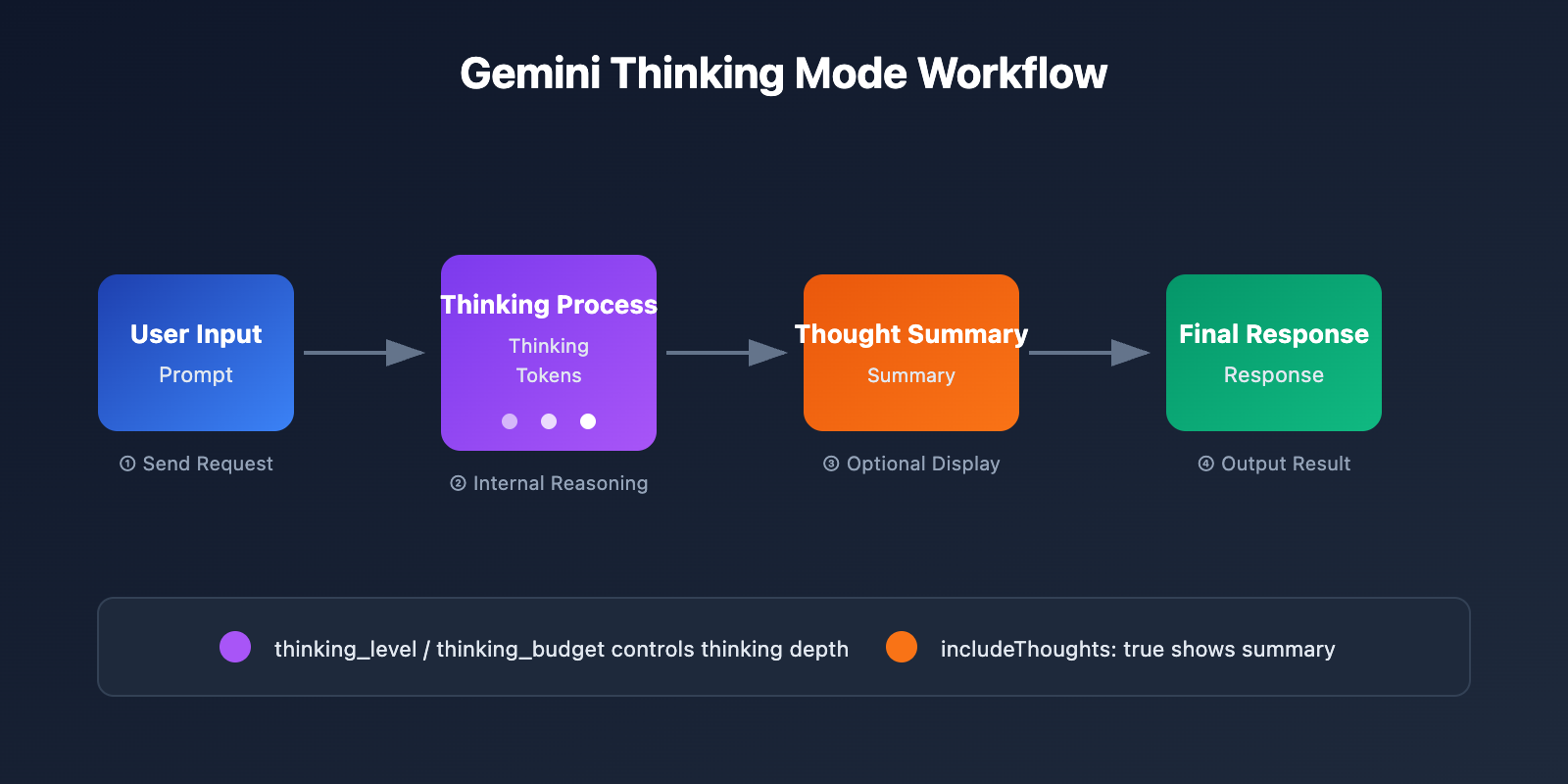
Detailed API Parameters for Gemini Thinking Mode
Different versions of Gemini models use different parameters to control the thinking process:
Gemini 3 Series – thinking_level parameter
| Level | Description | Best For |
|---|---|---|
minimal |
Minimal thinking | Simple Q&A |
low |
Low thinking | Casual conversation |
medium |
Medium thinking | General reasoning |
high |
Deep thinking (Default) | Complex tasks |
Gemini 2.5 Series – thinking_budget parameter
| Value | Description | Best For |
|---|---|---|
0 |
Disable thinking | Fast response |
-1 |
Dynamic thinking (Recommended) | Auto-adjustment |
128-32768 |
Specify token count | Fine-grained control |
Configuring Gemini Thinking Mode in Cherry Studio
Cherry Studio is a powerful AI client that supports 300+ models and various AI providers. Here's a detailed guide on how to configure Gemini Thinking mode in Cherry Studio.
Step 1: Add the Gemini API Provider
- Open Cherry Studio and go to Settings → Providers.
- Find Gemini or Custom Provider.
- Enter your API configuration:
API Address: https://api.apiyi.com/v1
API Key: Your APIYI Key
💡 Configuration Tip: Using APIYI (apiyi.com) as your API address provides more stable access and a unified interface format.
Step 2: Add Gemini Thinking Models
Click the "Manage" or "Add" button at the bottom to manually add the following models:
| Model Name to Add | Description |
|---|---|
gemini-3-pro-preview |
Gemini 3 Pro (Thinking version) |
gemini-3-flash-preview |
Gemini 3 Flash (Thinking version) |
gemini-2.5-pro |
Gemini 2.5 Pro (Thinking version) |
gemini-2.5-flash |
Gemini 2.5 Flash (Thinking version) |
Step 3: Enable the Thinking Mode Toggle
In the chat interface:
- Click the Settings icon in the top right corner.
- Find the Thinking Mode option.
- Switch the toggle to ON.

Custom Parameter Configuration in Cherry Studio
If the UI toggle doesn't seem to work, you can manually configure the custom parameters:
For Gemini 3 models:
{
  "generationConfig": {
    "thinkingConfig": {
      "thinkingLevel": "high",
      "includeThoughts": true
    }
  }
}
For Gemini 2.5 models:
{
  "generationConfig": {
    "thinkingConfig": {
      "thinkingBudget": -1,
      "includeThoughts": true
    }
  }
}
Paste the relevant JSON into the Custom Parameters section in Cherry Studio.
View full Cherry Studio configuration steps
Detailed configuration steps:
- Open Model Settings: Click the model name at the top of the chat box.
- Go to Advanced Settings: Scroll down to the "Custom Parameters" area.
- Paste JSON: Copy and paste the JSON configuration for your specific model.
- Save and Test: Send a message to verify that the thinking process is displayed.
Troubleshooting:
- Ensure the JSON format is correct (no trailing commas).
- Confirm the model name matches your configuration.
- Check if your API Key is valid.
🚀 Quick Start: We recommend using the APIYI (apiyi.com) platform to get your API Key. It supports the full range of Gemini models and is much easier to set up.
Configuring Gemini Thinking Mode in Chatbox
Chatbox is another popular AI desktop client known for its clean interface and multi-platform support. Here's how to set up Gemini Thinking mode in Chatbox.
Step 1: Configure the API Provider
- Open Chatbox and click Settings in the bottom left.
- Select Model Provider → Custom.
- Configure the API details:
Name: Gemini Thinking
API Type: OpenAI Compatible
API Host: https://api.apiyi.com
API Key: sk-your-apiyi-key
Step 2: Select a Thinking Model
Enter or select one of the following in the model selector:
gemini-3-pro-preview– Best reasoning capabilitiesgemini-2.5-pro– Balanced performance and costgemini-2.5-flash– Fast responses
Step 3: Configure Thinking Parameters
Chatbox allows you to configure thinking mode via Extra Parameters:
{
  "thinking_config": {
    "thinking_level": "high"
  }
}
Or using thinking_budget:
{
  "thinking_config": {
    "thinking_budget": 8192
  }
}
Chatbox Thinking Process Display Settings
By default, Chatbox collapses the thinking process. You can adjust how it's displayed:
| Setting | Function | Recommended Value |
|---|---|---|
| Show Thinking Process | Expand/collapse thinking content | On |
| Thinking Process Style | Separate block/Inline display | Separate block |
| Auto-collapse | Automatically collapse long thoughts | On |
View Chatbox configuration code example
# Configuring Gemini Thinking using the OpenAI SDK
import openai

client = openai.OpenAI(
    api_key="sk-your-apiyi-key",
    base_url="https://api.apiyi.com/v1"  # APIYI unified interface
)

response = client.chat.completions.create(
    model="gemini-2.5-pro",
    messages=[
        {"role": "user", "content": "Explain why 1+1=2"}
    ],
    extra_body={
        "thinking_config": {
            "thinking_budget": 8192,
            "include_thoughts": True
        }
    }
)

# Output thinking process and the answer
print(response.choices[0].message.content)
Gemini Thinking Mode Best Practices
Thinking Depth Configuration for Different Scenarios
| Scenario | Recommended Model | Thinking Configuration | Description |
|---|---|---|---|
| Mathematical Proofs | gemini-3-pro-preview | thinking_level: high | Requires rigorous reasoning |
| Code Debugging | gemini-2.5-pro | thinking_budget: 16384 | Complex logic analysis |
| General Q&A | gemini-2.5-flash | thinking_budget: -1 | Dynamic adaptation |
| Fast Response | gemini-2.5-flash-lite | thinking_budget: 0 | Disable thinking |
| Article Writing | gemini-3-flash-preview | thinking_level: medium | Balance creativity and efficiency |
Thinking Token Budget Recommendations
Simple questions: 0-1024 tokens
General reasoning: 1024-4096 tokens
Complex tasks: 4096-16384 tokens
Extreme reasoning: 16384-32768 tokens
💡 Pro Tip: Choosing the right thinking depth depends largely on the complexity of your task. We recommend running actual tests on the APIYI (apiyi.com) platform to find the configuration that works best for your specific use case. The platform supports all Gemini Thinking models, making it easy to compare results quickly.
<!-- Sample Tasks -->
<rect x="105" y="100" width="150" height="70" rx="6" fill="#1e293b" stroke="#22c55e" stroke-width="1" />
<text x="180" y="120" text-anchor="middle" fill="#22c55e" font-size="11" font-weight="bold" font-family="system-ui, sans-serif">Use Cases</text>
<text x="115" y="140" fill="#e2e8f0" font-size="9" font-family="system-ui, sans-serif">• Simple translation</text>
<text x="115" y="155" fill="#e2e8f0" font-size="9" font-family="system-ui, sans-serif">• Info lookup</text>

<!-- Connector -->
<line x1="180" y1="170" x2="180" y2="280" stroke="#22c55e" stroke-width="1" stroke-dasharray="4,4" opacity="0.5" />
<!-- Sample Tasks -->
<rect x="260" y="100" width="155" height="70" rx="6" fill="#1e293b" stroke="#3b82f6" stroke-width="1" />
<text x="337" y="120" text-anchor="middle" fill="#3b82f6" font-size="11" font-weight="bold" font-family="system-ui, sans-serif">Use Cases</text>
<text x="270" y="140" fill="#e2e8f0" font-size="9" font-family="system-ui, sans-serif">• Code explanation</text>
<text x="270" y="155" fill="#e2e8f0" font-size="9" font-family="system-ui, sans-serif">• Article summary</text>

<!-- Connector -->
<line x1="337" y1="170" x2="337" y2="230" stroke="#3b82f6" stroke-width="1" stroke-dasharray="4,4" opacity="0.5" />
<!-- Sample Tasks -->
<rect x="420" y="100" width="155" height="60" rx="6" fill="#1e293b" stroke="#f59e0b" stroke-width="1" />
<text x="497" y="118" text-anchor="middle" fill="#f59e0b" font-size="11" font-weight="bold" font-family="system-ui, sans-serif">Use Cases</text>
<text x="430" y="136" fill="#e2e8f0" font-size="9" font-family="system-ui, sans-serif">• Algorithm design • Debugging</text>
<text x="430" y="151" fill="#e2e8f0" font-size="9" font-family="system-ui, sans-serif">• Option comparison • Architecture</text>

<!-- Connector -->
<line x1="497" y1="160" x2="497" y2="170" stroke="#f59e0b" stroke-width="1" stroke-dasharray="4,4" opacity="0.5" />
<!-- Sample Tasks -->
<rect x="580" y="175" width="155" height="60" rx="6" fill="#1e293b" stroke="#ef4444" stroke-width="1" />
<text x="657" y="193" text-anchor="middle" fill="#ef4444" font-size="11" font-weight="bold" font-family="system-ui, sans-serif">Use Cases</text>
<text x="590" y="211" fill="#e2e8f0" font-size="9" font-family="system-ui, sans-serif">• Math proofs • Complex coding</text>
<text x="590" y="226" fill="#e2e8f0" font-size="9" font-family="system-ui, sans-serif">• Deep reasoning • Strategic planning</text>
Thinking Mode vs. Standard Mode Comparison
| Dimension | Standard Mode | Thinking Mode |
|---|---|---|
| Response Speed | Fast (1-3s) | Slower (3-10s) |
| Reasoning Depth | Shallow | Deep multi-step |
| Token Consumption | Low | Medium to High |
| Accuracy (Complex Tasks) | 60-70% | 85-95% |
| Explainability | Low | High (Thinking process visible) |
| Best For | Simple Q&A | Complex reasoning tasks |
FAQ
Q1: Cherry Studio isn’t showing the reasoning process even after turning on Thinking Mode?
This is a known issue. The UI switch for some providers might not work correctly, so you'll need to manually add the JSON configuration in the "Custom Parameters":
{
  "generationConfig": {
    "thinkingConfig": {
      "thinkingLevel": "high",
      "includeThoughts": true
    }
  }
}
Make sure includeThoughts is set to true—this is the key parameter for displaying the reasoning process. When calling through the APIYI apiyi.com platform, returning the reasoning summary is enabled by default.
Q2: What’s the difference between parameters for Gemini 2.5 and Gemini 3?
The two series use different parameters to control Thinking Mode:
- Gemini 3 Series: Uses the
thinkingLevelparameter, with values: minimal/low/medium/high. - Gemini 2.5 Series: Uses the
thinkingBudgetparameter, with values ranging from 0 to 32768.
Don't mix these parameters, or the API will return an error. We recommend using the unified interface via APIYI apiyi.com, as the platform automatically handles parameter compatibility for you.
Q3: How much extra token consumption does Thinking Mode add?
Thinking tokens are billed separately. Taking Gemini 2.5 Pro as an example:
- Default thinking budget: 8192 tokens
- Maximum thinking budget: 32768 tokens
Actual consumption depends on the task's complexity. For simple questions, the model might only use a few hundred thinking tokens; for complex problems, it might use up the entire budget. Setting thinkingBudget: -1 allows the model to adjust automatically, which is often the most cost-effective choice.
Q4: How can I get just the reasoning summary instead of the full process?
By setting includeThoughts: true in your API call, you'll get a reasoning summary rather than the full internal thinking tokens. Summaries are more concise and perfect for displaying in a UI. The full internal reasoning process isn't currently open to the public.
Q5: Which tasks are best suited for Thinking Mode?
Thinking Mode is particularly great for tasks requiring multi-step reasoning:
- Math proofs and calculations
- Code debugging and algorithm design
- Logical reasoning and problem analysis
- Strategic planning and decision analysis
Simple tasks like information retrieval, translation, or basic summarization don't really need Thinking Mode—it'll just increase latency and costs without much benefit.
Summary
Gemini Thinking Mode is a powerful feature for boosting Large Language Model reasoning capabilities. Through this configuration guide, you've learned how to:
- Understand Thinking Mode principles: Master the differences between the
thinking_levelandthinking_budgetparameters. - Configure Cherry Studio: Enable Thinking Mode via the UI switch or custom JSON parameters.
- Configure Chatbox: Use "Extra Parameters" to set up reasoning options.
- Follow best practices: Choose the right thinking depth based on task complexity.
We recommend using APIYI apiyi.com to quickly verify the effects of Gemini Thinking Mode. The platform provides a unified OpenAI-compatible interface, supports all Gemini 2.5 and 3 series models, and offers simpler configuration with more stable access.
References
-
Google Gemini Thinking Official Documentation: Full API parameter descriptions
- Link:
ai.google.dev/gemini-api/docs/thinking
- Link:
-
Cherry Studio Official Documentation: Client configuration guide
- Link:
docs.cherry-ai.com
- Link:
-
Gemini Model List: List of models supporting Thinking
- Link:
ai.google.dev/gemini-api/docs/models
- Link:
Author: APIYI Team
Technical Support: For Gemini API access or technical consulting, please visit APIYI at apiyi.com


