
Dealing with long response times when calling the Gemini 3 Flash Preview model is a common challenge for developers. In this post, we'll dive into configuration tips for key parameters like timeout, max_tokens, and thinking_level to help you master response time optimization for Gemini 3 Flash Preview.
Core Value: By the end of this guide, you'll know how to properly configure parameters to control Gemini 3 Flash Preview's response time, achieving a significant speed boost without sacrificing output quality.
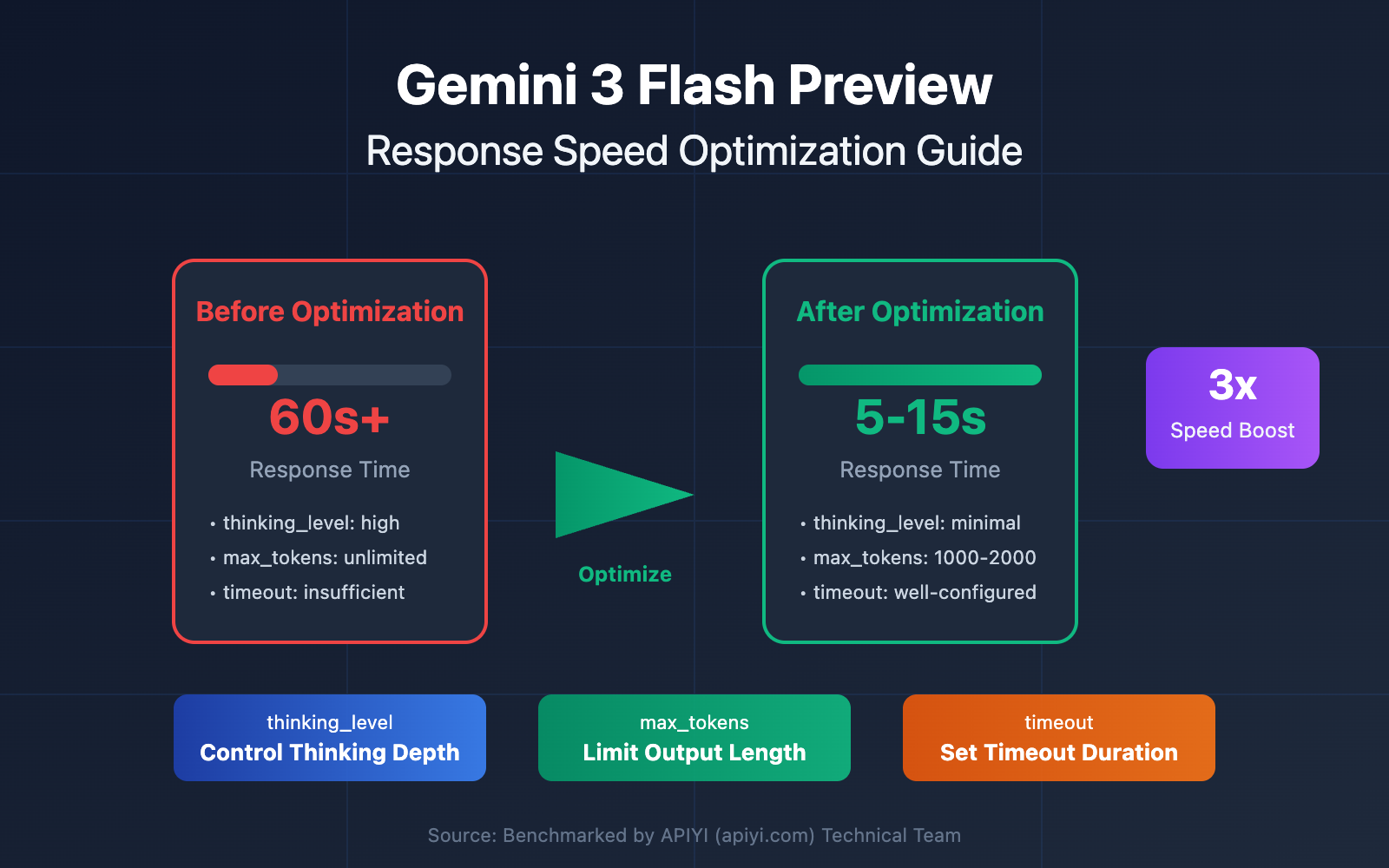
Why Is Gemini 3 Flash Preview Taking So Long?
Before we jump into the optimization tips, we need to understand why Gemini 3 Flash Preview sometimes feels a bit sluggish.
The Thinking Tokens Mechanism
Gemini 3 Flash Preview uses a dynamic thinking mechanism, which is the core reason for longer response times:
| Factor | Description | Impact on Response Time |
|---|---|---|
| Complex Reasoning | Logical problems require more Thinking Tokens | Significantly increases response time |
| Dynamic Thinking Depth | The model automatically adjusts its thinking based on complexity | Fast for simple tasks, slow for complex ones |
| Non-streaming Output | Non-stream mode requires waiting for the full generation | Longer overall wait time |
| Output Token Count | More completion content means more generation time | Linearly increases response time |
According to testing data from Artificial Analysis, Gemini 3 Flash Preview can use up to roughly 160 million tokens at its highest thinking level—over twice that of Gemini 2.5 Flash. This means the model can spend a significant amount of "thinking time" on complex tasks.
Real-world Case Study
User feedback suggests that when a task requires speed over pinpoint accuracy, the default configuration for Gemini 3 Flash Preview might not be ideal:
"The task has strict speed requirements but doesn't need high accuracy, yet Gemini 3 Flash Preview spends a long time reasoning."
The root causes here are:
- The model defaults to dynamic thinking and automatically performs deep reasoning.
- Completion tokens can reach 7000+.
- Extra time is consumed by the Thinking Tokens during the reasoning process.
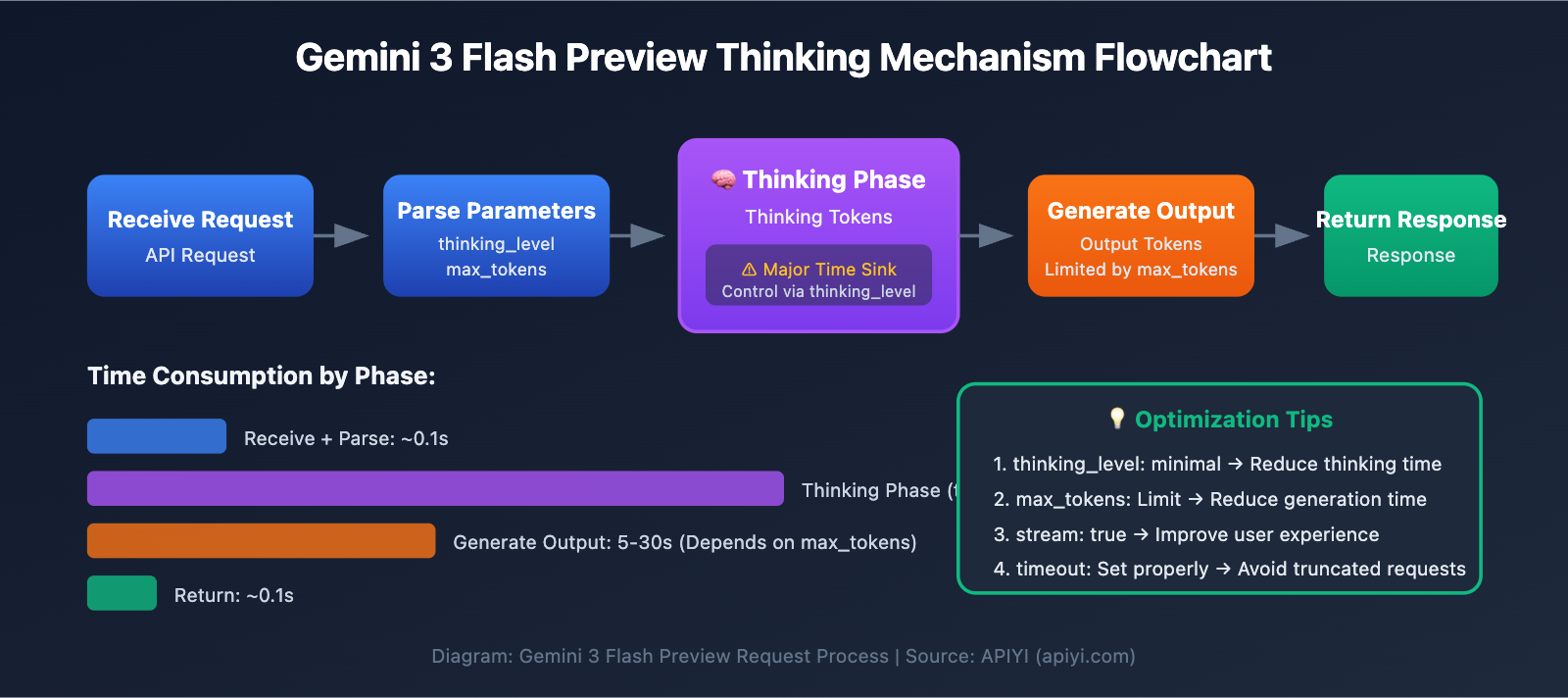
Key Points for Optimizing Gemini 3 Flash Preview Response Speed
| Optimization Point | Description | Expected Impact |
|---|---|---|
Set thinking_level |
Controls the model's depth of thought | Reduces response time by 30-70% |
Limit max_tokens |
Controls output length | Reduces generation time |
Adjust timeout |
Sets a reasonable timeout period | Prevents requests from being cut off |
| Use Streaming Output | Returns results as they are generated | Improves user experience |
| Choose Appropriate Scenarios | Use low thinking levels for simple tasks | Boosts overall efficiency |
Deep Dive into the thinking_level Parameter
Gemini 3 introduced the thinking_level parameter, which is the most critical configuration for controlling response speed:
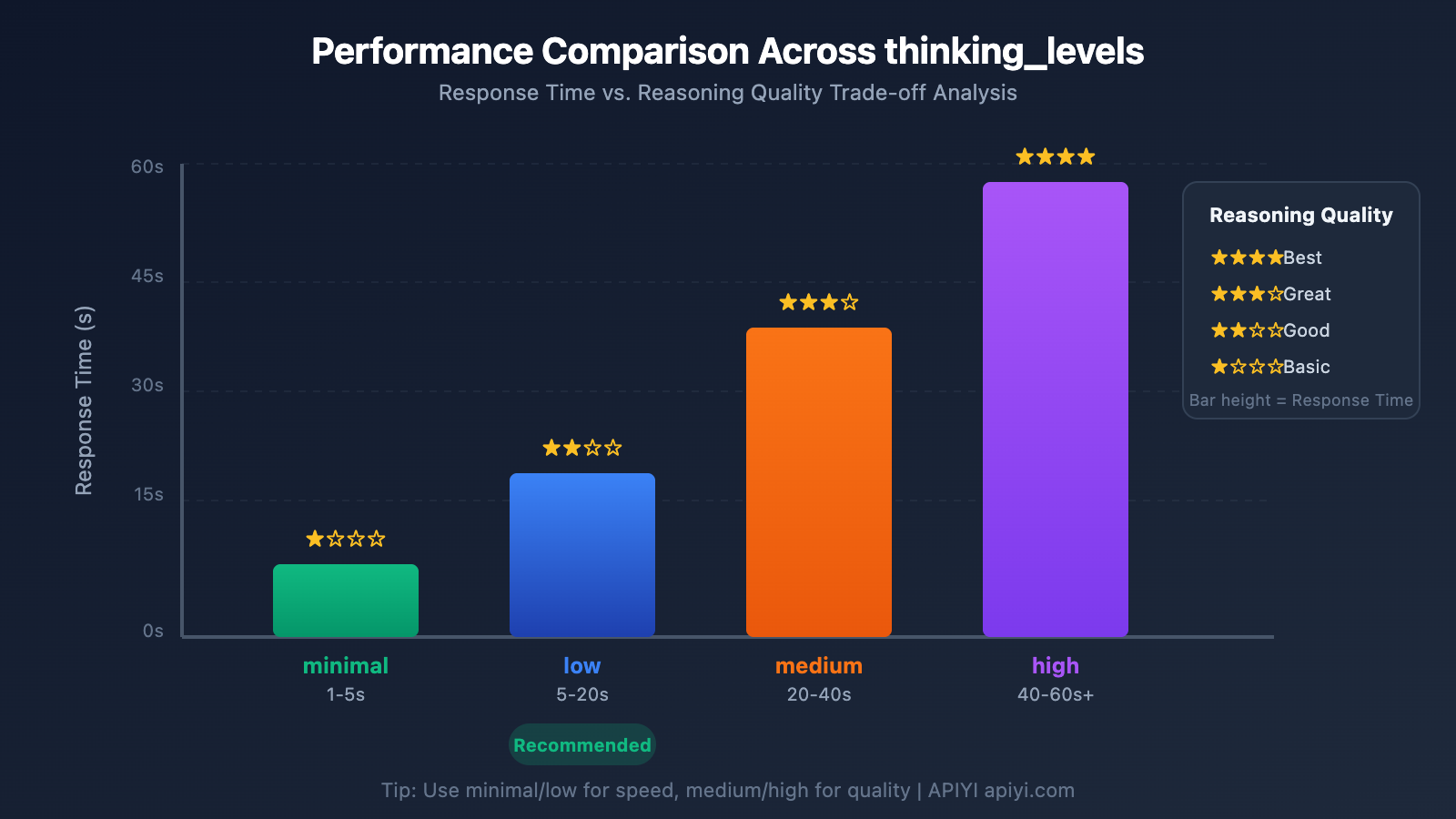
| thinking_level | Use Case | Response Speed | Reasoning Quality |
|---|---|---|---|
| minimal | Simple conversations, quick responses | Fastest ⚡ | Basic |
| low | Daily tasks, light reasoning | Fast | Good |
| medium | Medium complexity tasks | Medium | Better |
| high | Complex reasoning, deep analysis | Slow | Best |
🎯 Tech Tip: If your task doesn't require extreme precision but needs a quick response, we recommend setting
thinking_leveltominimalorlow. You can use the APIYI apiyi.com platform to run comparison tests across differentthinking_levelsettings to quickly find the configuration that best fits your business needs.
max_tokens Configuration Strategy
Limiting max_tokens effectively controls the length of the output, which in turn reduces response time:
Output Token Count → Directly affects generation time
More Tokens → Longer response time
Configuration Suggestions:
- Simple answer scenarios: Set
max_tokensto 500-1000. - Medium content generation: Set
max_tokensto 2000-4000. - Full content output: Set according to actual needs, but be mindful of timeout risks.
⚠️ Note: Setting max_tokens too short can cause the output to be truncated, affecting the completeness of the answer. You'll need to balance speed and completeness based on your specific business requirements.
Quick Start: Optimizing Gemini 3 Flash Preview Response Speed
Minimal Example
import openai

client = openai.OpenAI(
    api_key="YOUR_API_KEY",
    base_url="https://api.apiyi.com/v1"  # Use APIYI unified interface
)

# Speed-optimized configuration
response = client.chat.completions.create(
    model="gemini-3-flash-preview",
    messages=[{"role": "user", "content": "Give me a brief introduction to AI"}],
    max_tokens=1000,  # Limit output length
    extra_body={
        "thinking_level": "minimal"  # Minimal depth of thought for fastest response
    },
    timeout=30  # Set a 30-second timeout
)
print(response.choices[0].message.content)
View Full Code – Including Multiple Configuration Scenarios
import openai
from typing import Literal

def create_gemini_client(api_key: str):
    """Create a Gemini 3 Flash client"""
    return openai.OpenAI(
        api_key=api_key,
        base_url="https://api.apiyi.com/v1"  # Use APIYI unified interface
    )

def call_gemini_optimized(
    client: openai.OpenAI,
    prompt: str,
    thinking_level: Literal["minimal", "low", "medium", "high"] = "low",
    max_tokens: int = 2000,
    timeout: int = 60,
    stream: bool = False
):
    """
    Call Gemini 3 Flash with optimized configurations

    Args:
        client: OpenAI client
        prompt: User input
        thinking_level: Depth of thought (minimal/low/medium/high)
        max_tokens: Maximum output tokens
        timeout: Timeout in seconds
        stream: Whether to use streaming output
    """

    params = {
        "model": "gemini-3-flash-preview",
        "messages": [{"role": "user", "content": prompt}],
        "max_tokens": max_tokens,
        "stream": stream,
        "extra_body": {
            "thinking_level": thinking_level
        },
        "timeout": timeout
    }

    if stream:
        # Streaming output - improves user experience
        response = client.chat.completions.create(**params)
        full_content = ""
        for chunk in response:
            if chunk.choices[0].delta.content:
                content = chunk.choices[0].delta.content
                print(content, end="", flush=True)
                full_content += content
        print()  # Newline
        return full_content
    else:
        # Non-streaming - returns all at once
        response = client.chat.completions.create(**params)
        return response.choices[0].message.content

# Usage Examples
if __name__ == "__main__":
    client = create_gemini_client("YOUR_API_KEY")

    # Scenario 1: Speed First - Simple Q&A
    print("=== Speed-Optimized Configuration ===")
    result = call_gemini_optimized(
        client,
        prompt="Explain what machine learning is in one sentence",
        thinking_level="minimal",
        max_tokens=500,
        timeout=15
    )
    print(f"Answer: {result}\n")

    # Scenario 2: Balanced Configuration - Daily Tasks
    print("=== Balanced Configuration ===")
    result = call_gemini_optimized(
        client,
        prompt="List 5 best practices for Python data processing",
        thinking_level="low",
        max_tokens=1500,
        timeout=30
    )
    print(f"Answer: {result}\n")

    # Scenario 3: Quality First - Complex Analysis
    print("=== Quality-Optimized Configuration ===")
    result = call_gemini_optimized(
        client,
        prompt="Analyze the core innovations of the Transformer architecture and its impact on NLP",
        thinking_level="high",
        max_tokens=4000,
        timeout=120
    )
    print(f"Answer: {result}\n")

    # Scenario 4: Streaming Output - Improved Experience
    print("=== Streaming Output ===")
    result = call_gemini_optimized(
        client,
        prompt="Introduce the main features of Gemini 3 Flash",
        thinking_level="low",
        max_tokens=2000,
        timeout=60,
        stream=True
    )
🚀 Quick Start: We recommend using the APIYI apiyi.com platform to quickly test different parameter configurations. The platform provides out-of-the-box API interfaces and supports mainstream Large Language Models like Gemini 3 Flash Preview, making it easy to verify your optimization results.
Gemini 3 Flash Preview: A Deep Dive into Response Speed Optimization
timeout Configuration
When using Gemini 3 Flash Preview for complex reasoning, the default timeout settings might not always cut it. Here’s a recommended strategy for configuring your timeout:
| Task Type | Recommended timeout | Description |
|---|---|---|
| Simple Q&A | 15-30 seconds | Works best with minimal thinking_level |
| Daily Tasks | 30-60 seconds | Pair with low/medium thinking_level |
| Complex Analysis | 60-120 seconds | Pair with high thinking_level |
| Long Text Generation | 120-180 seconds | Use for scenarios with high token output |
Key Tips:
- In non-streaming mode, you'll need to wait for the entire content to generate before receiving a response.
- If your
timeoutis set too short, the request might be truncated. - We recommend dynamically adjusting the timeout based on your expected token count and the chosen
thinking_level.
Migrating from thinking_budget to thinking_level
Google suggests moving away from the legacy thinking_budget parameter in favor of the new thinking_level:
| Legacy thinking_budget | New thinking_level | Migration Notes |
|---|---|---|
| 0 | minimal | Minimal reasoning. Note: You still need to handle the thinking signature. |
| 1-1000 | low | Light reasoning |
| 1001-5000 | medium | Moderate reasoning |
| 5001+ | high | Deep reasoning |
⚠️ Note: Don't use thinking_budget and thinking_level in the same request, as this can lead to unpredictable behavior.
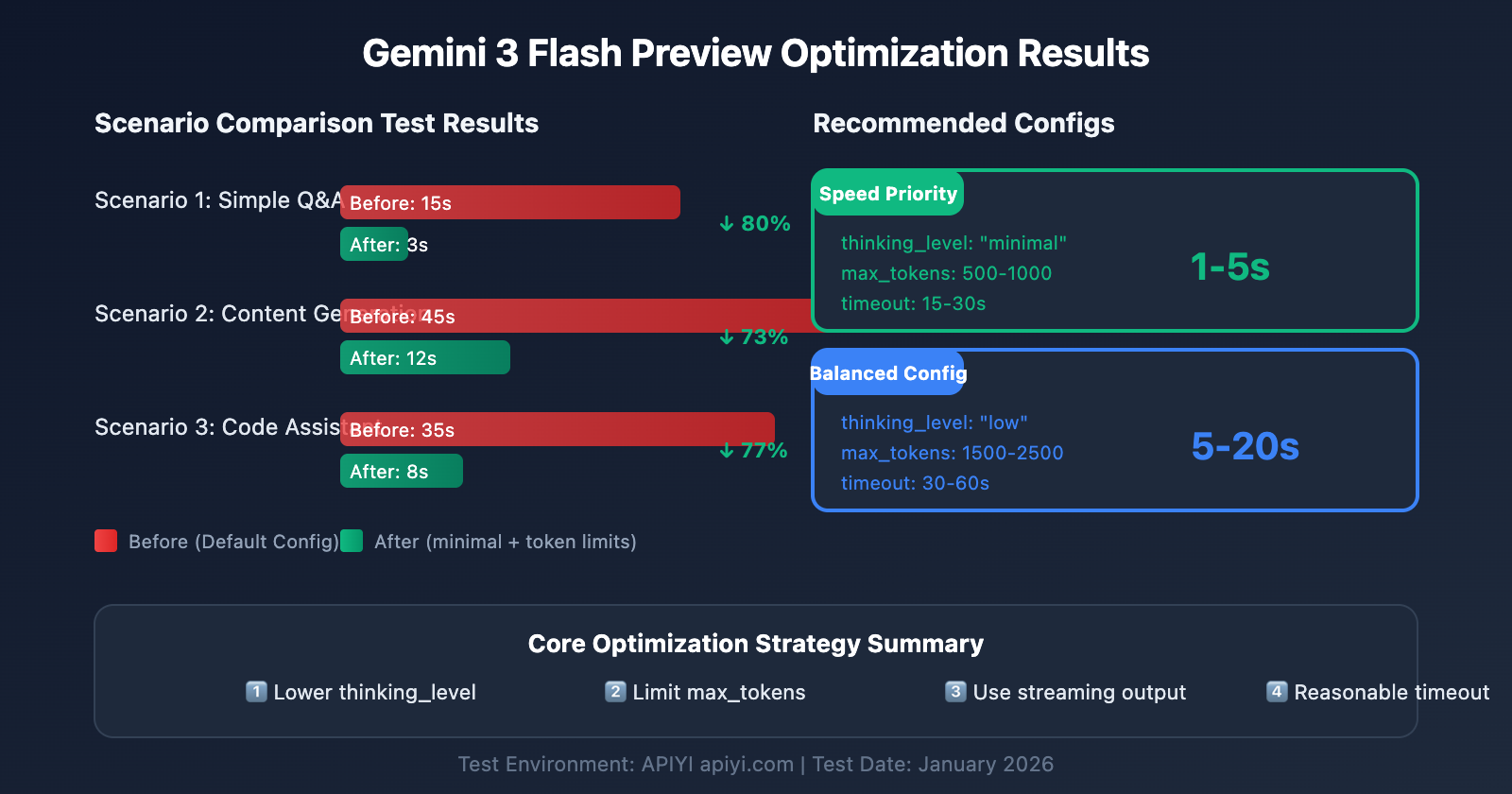
Scenario-Based Configuration for Gemini 3 Flash Preview
Scenario 1: High-Frequency Simple Tasks (Speed First)
Best for chatbots, quick Q&A, and content summarization where latency is critical.
# Speed-first configuration
config_speed_first = {
    "thinking_level": "minimal",
    "max_tokens": 500,
    "timeout": 15,
    "stream": True  # Streaming improves user experience
}
What to expect:
- Response Time: 1-5 seconds
- Perfect for simple interactions and rapid-fire replies.
Scenario 2: Daily Business Tasks (Balanced)
Great for general content generation, coding assistance, and document processing.
# Balanced configuration
config_balanced = {
    "thinking_level": "low",
    "max_tokens": 2000,
    "timeout": 45,
    "stream": True
}
What to expect:
- Response Time: 5-20 seconds
- A solid middle ground between speed and quality.
Scenario 3: Complex Analysis (Quality First)
Designed for data analysis, technical design, and deep research where thorough reasoning is a must.
# Quality-first configuration
config_quality_first = {
    "thinking_level": "high",
    "max_tokens": 8000,
    "timeout": 180,
    "stream": True  # Streaming is highly recommended for long tasks
}
What to expect:
- Response Time: 30-120 seconds
- Peak reasoning performance.
Decision Table for Configuration
| Your Needs | Recommended thinking_level | Recommended max_tokens | Recommended timeout |
|---|---|---|---|
| Fast replies, simple questions | minimal | 500-1000 | 15-30s |
| Daily tasks, standard quality | low | 1500-2500 | 30-60s |
| Better quality, can wait a bit | medium | 2500-4000 | 60-90s |
| Best quality, complex tasks | high | 4000-8000 | 120-180s |
💡 Pro Tip: The right choice depends entirely on your specific use case and quality requirements. We recommend running some tests on the APIYI (apiyi.com) platform to see what works best for you. The platform provides a unified interface for Gemini 3 Flash Preview, making it easy to compare different configurations side-by-side.
Advanced Tips for Optimizing Gemini 3 Flash Preview Response Speed
Tip 1: Use Streaming Output to Improve User Experience
Even if the total response time doesn't change, streaming output can significantly improve how fast the model feels to your users. Instead of waiting for the entire block of text to finish, they can start reading immediately.
# Streaming output example
response = client.chat.completions.create(
    model="gemini-3-flash-preview",
    messages=[{"role": "user", "content": prompt}],
    stream=True,
    extra_body={"thinking_level": "low"}
)

for chunk in response:
    if chunk.choices[0].delta.content:
        print(chunk.choices[0].delta.content, end="", flush=True)
Benefits:
- Users see partial results instantly.
- It kills that "waiting anxiety" while the Large Language Model processes.
- You can decide whether to keep generating or stop early based on the initial output.
Tip 2: Dynamically Adjust Parameters Based on Input Complexity
Not every prompt needs the same level of horsepower. You can save time by adjusting your configuration based on the task's complexity.
def estimate_complexity(prompt: str) -> str:
    """Estimating task complexity based on prompt characteristics"""
    indicators = {
        "high": ["分析", "对比", "为什么", "原理", "深入", "详细解释"],
        "medium": ["如何", "步骤", "方法", "介绍"],
        "low": ["是什么", "简单", "快速", "一句话"]
    }

    prompt_lower = prompt.lower()

    for level, keywords in indicators.items():
        if any(kw in prompt_lower for kw in keywords):
            return level

    return "low"  # Default to low complexity

def get_optimized_config(prompt: str) -> dict:
    """Get optimized config based on the prompt"""
    complexity = estimate_complexity(prompt)

    configs = {
        "low": {"thinking_level": "minimal", "max_tokens": 1000, "timeout": 20},
        "medium": {"thinking_level": "low", "max_tokens": 2500, "timeout": 45},
        "high": {"thinking_level": "medium", "max_tokens": 4000, "timeout": 90}
    }

    return configs.get(complexity, configs["low"])
Tip 3: Implement a Request Retry Mechanism
Network hiccups happen. For those occasional timeouts, a smart retry mechanism ensures your application remains robust.
import time
from typing import Optional

def call_with_retry(
    client,
    prompt: str,
    max_retries: int = 3,
    initial_timeout: int = 30
) -> Optional[str]:
    """Calling with a retry mechanism"""

    for attempt in range(max_retries):
        try:
            timeout = initial_timeout * (attempt + 1)  # Incremental timeout

            response = client.chat.completions.create(
                model="gemini-3-flash-preview",
                messages=[{"role": "user", "content": prompt}],
                max_tokens=2000,
                timeout=timeout,
                extra_body={"thinking_level": "low"}
            )
            return response.choices[0].message.content

        except Exception as e:
            print(f"Attempt {attempt + 1} failed: {e}")
            if attempt < max_retries - 1:
                time.sleep(2 ** attempt)  # Exponential backoff
            continue

    return None
Gemini 3 Flash Preview Performance Data
According to testing data from Artificial Analysis, here's how Gemini 3 Flash Preview performs:
| Performance Metric | Value | Description |
|---|---|---|
| Raw Throughput | 218 tokens/sec | Output speed |
| Vs. 2.5 Flash | 22% slower | Due to added reasoning capabilities |
| Vs. GPT-5.1 high | 74% faster | 125 tokens/sec |
| Vs. DeepSeek V3.2 | 627% faster | 30 tokens/sec |
| Input Price | $0.50/1M tokens | |
| Output Price | $3.00/1M tokens |
Balancing Performance and Cost
| Configuration | Response Speed | Token Consumption | Cost-Effectiveness |
|---|---|---|---|
| minimal thinking | Fastest | Lowest | Highest |
| low thinking | Fast | Lower | High |
| medium thinking | Medium | Medium | Medium |
| high thinking | Slow | Higher | Choose when prioritizing quality |
💰 Cost Optimization: For budget-sensitive projects, you might want to consider calling the Gemini 3 Flash Preview API via the APIYI (apiyi.com) platform. They offer flexible billing options, and when combined with the speed optimization tips in this guide, you'll get the best price-to-performance ratio while keeping costs under control.
Gemini 3 Flash Preview Speed Optimization FAQ
Q1: Why is the response still slow even though I’ve set a max_tokens limit?
max_tokens only limits the length of the output; it doesn't affect the Large Language Model's internal thinking process. If the slow response is mainly due to long reasoning times, you'll need to set the thinking_level parameter to minimal or low. Additionally, using the APIYI (apiyi.com) platform can provide a stable API service, which, paired with the parameter tuning tips mentioned here, can effectively improve response times.
Q2: Will setting thinking_level to minimal affect the answer quality?
It'll have some impact, but for simple tasks, it's usually negligible. The minimal level is perfect for quick Q&A and basic conversations. If your task involves complex logical reasoning, we recommend using low or medium. A good tip is to run some A/B tests via the APIYI (apiyi.com) platform to compare the output quality at different thinking_level settings and find the right balance for your specific use case.
Q3: Which is faster: streaming or non-streaming output?
The total generation time is the same, but streaming offers a much better user experience. In streaming mode, users can see results as they're being generated, whereas non-streaming mode makes them wait for the entire response to finish. For tasks with longer generation times, we definitely recommend using streaming.
Q4: How do I determine what the timeout should be?
Your timeout should be based on your expected output length and the thinking_level:
- minimal + 1000 tokens: 15-30 seconds
- low + 2000 tokens: 30-60 seconds
- medium + 4000 tokens: 60-90 seconds
- high + 8000 tokens: 120-180 seconds
It's best to test the actual response times with a longer timeout first, then adjust based on your findings.
Q5: Can I still use the old thinking_budget parameter?
Yes, you can still use it, but Google recommends migrating to the thinking_level parameter for more predictable performance. Just make sure you don't use both parameters in the same request. If you were previously using thinking_budget=0, you should set thinking_level="minimal" when you migrate.
Summary
The core of optimizing Gemini 3 Flash Preview's response speed lies in properly configuring three key parameters:
- thinking_level: Choose the right depth of thought based on task complexity.
- max_tokens: Limit the token count based on the expected output length.
- timeout: Set a reasonable timeout based on the
thinking_leveland output volume.
For scenarios where "speed is critical and high accuracy isn't a top priority," here's the recommended configuration:
- thinking_level:
minimalorlow - max_tokens: Set according to actual needs to avoid excessive length
- timeout: Adjust accordingly to prevent truncation
- stream:
True(to improve user experience)
We recommend using APIYI at apiyi.com to quickly test different parameter combinations and find the best configuration for your specific use case.
Keywords: Gemini 3 Flash Preview, response speed optimization, thinking_level, max_tokens, timeout configuration, API call optimization
References:
- Google AI Official Documentation: ai.google.dev/gemini-api/docs/gemini-3
- Google DeepMind: deepmind.google/models/gemini/flash/
- Artificial Analysis Performance Testing: artificialanalysis.ai/articles/gemini-3-flash-everything-you-need-to-know
Written by the APIYI technical team. For more AI model tips, visit help.apiyi.com


