
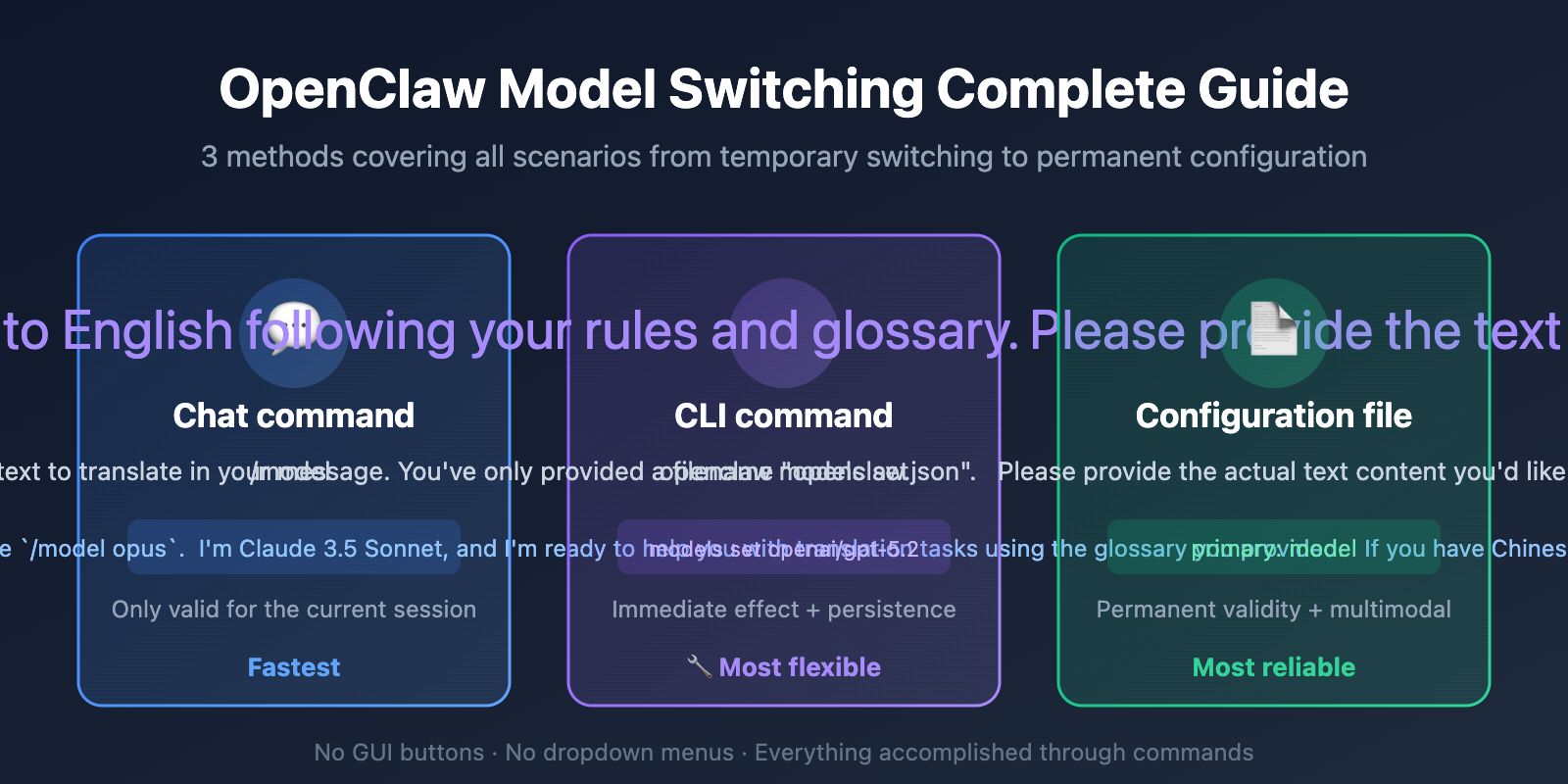
Many users who've just installed OpenClaw run into a common question: Where's the button to switch models? Which menu do I click?
Here's the thing: OpenClaw doesn't have traditional GUI buttons or dropdown menus for switching models. As a chat-based AI assistant, OpenClaw handles model switching entirely through commands—you can type them in the chat box, execute them as CLI commands in your terminal, or modify configuration files directly.
What you'll get from this guide: By the end, you'll master all 3 ways to switch models in OpenClaw and know exactly which approach works best for your situation.
OpenClaw Model Switching Methods at a Glance
| Method | Where You Use It | Persistence | Best For |
|---|---|---|---|
Chat command /model |
Chat window | Current session only | Trying different models temporarily |
CLI command openclaw models set |
Terminal | Takes effect immediately | Quickly changing your default model |
| Config file editing | openclaw.json |
Permanent | Setting up multiple models to switch between |
Understanding How OpenClaw Model Switching Works
If you're coming from ChatGPT, LobeChat, or similar tools, you're probably expecting to find a "model selector dropdown" somewhere in OpenClaw. But that's not how it's designed—OpenClaw follows a command-driven philosophy. It integrates with chat platforms like Telegram, Discord, and WhatsApp, so there's no traditional GUI to speak of.
Even if you open OpenClaw's built-in Web UI (using openclaw dashboard), you'll still switch models by typing commands in the chat box, not by clicking buttons.
OpenClaw Chat Command Model Switching (Most Common)
This is the simplest and most direct way to switch models in OpenClaw. In any chat window (Web UI, Telegram, Discord, etc.), simply enter a slash command.
Basic Commands
| Command | Function | Example |
|---|---|---|
/model |
View the current model in use | Enter directly |
/model <model ID> |
Switch to a specified model | /model claude-sonnet-4-6 |
/model <alias> |
Switch using a preset alias | /model opus |
/models |
List all available models | View complete model list |
OpenClaw Model Switching: Step-by-Step
Step One: Check Your Current Model
Type this in the chat box:
/model
The system will return your current model information, for example anthropic/claude-sonnet-4-6.
Step Two: View Available Models
/models
The system will list all configured models, including providers and model IDs.
Step Three: Switch to Your Target Model
/model openai/gpt-5.2
Once switched successfully, all subsequent conversations will use the new model until you switch again or start a new session.
Common OpenClaw Model Switching Commands
# Switch to Claude series
/model anthropic/claude-sonnet-4-6
/model anthropic/claude-opus-4-6

# Switch to GPT series
/model openai/gpt-5.2
/model openai/gpt-4o-mini

# Switch to DeepSeek
/model deepseek/deepseek-v3

# Use custom providers (such as models configured via APIYI)
/model apiyi/claude-sonnet-4-6
/model apiyi/gpt-5.2
🎯 Note: Models switched via the
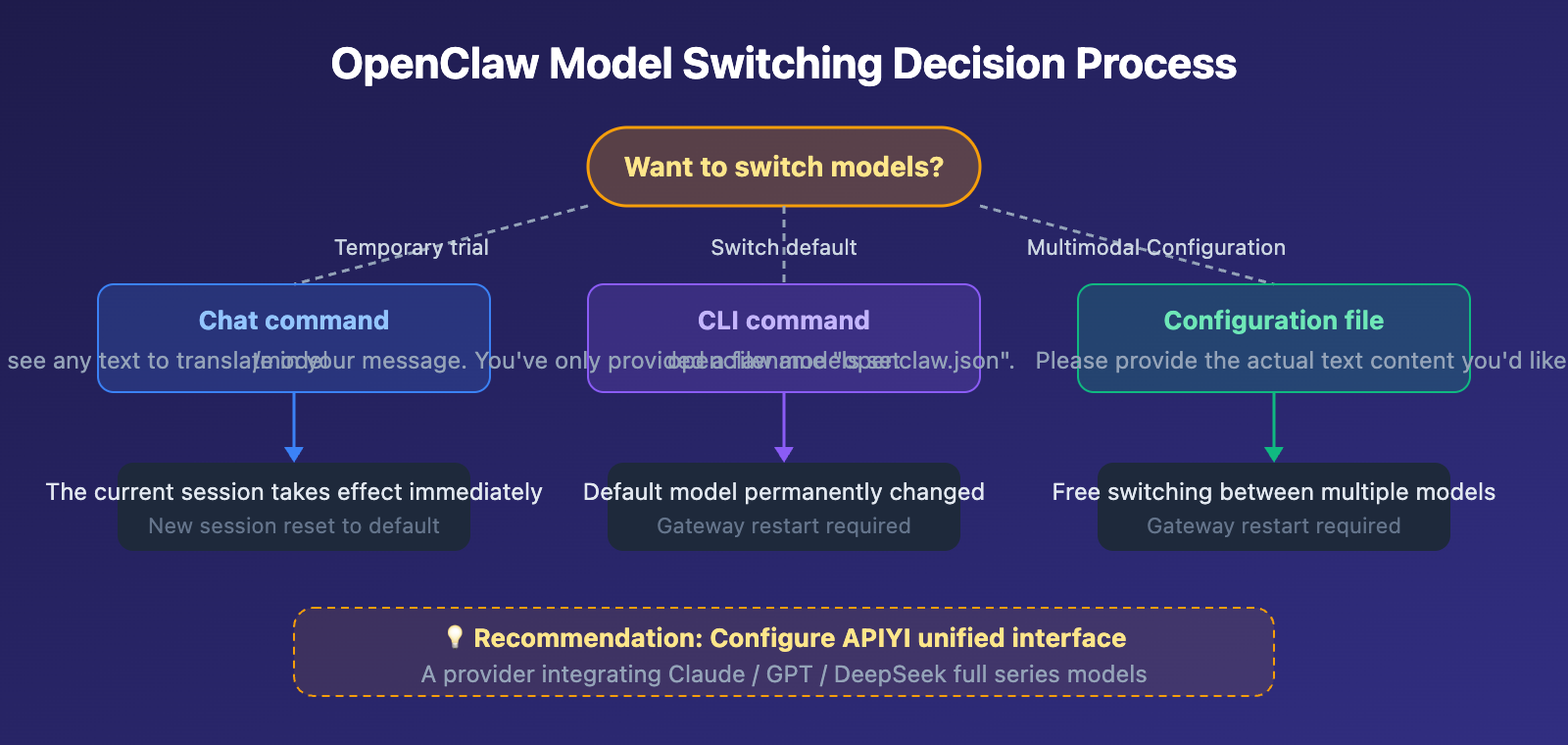
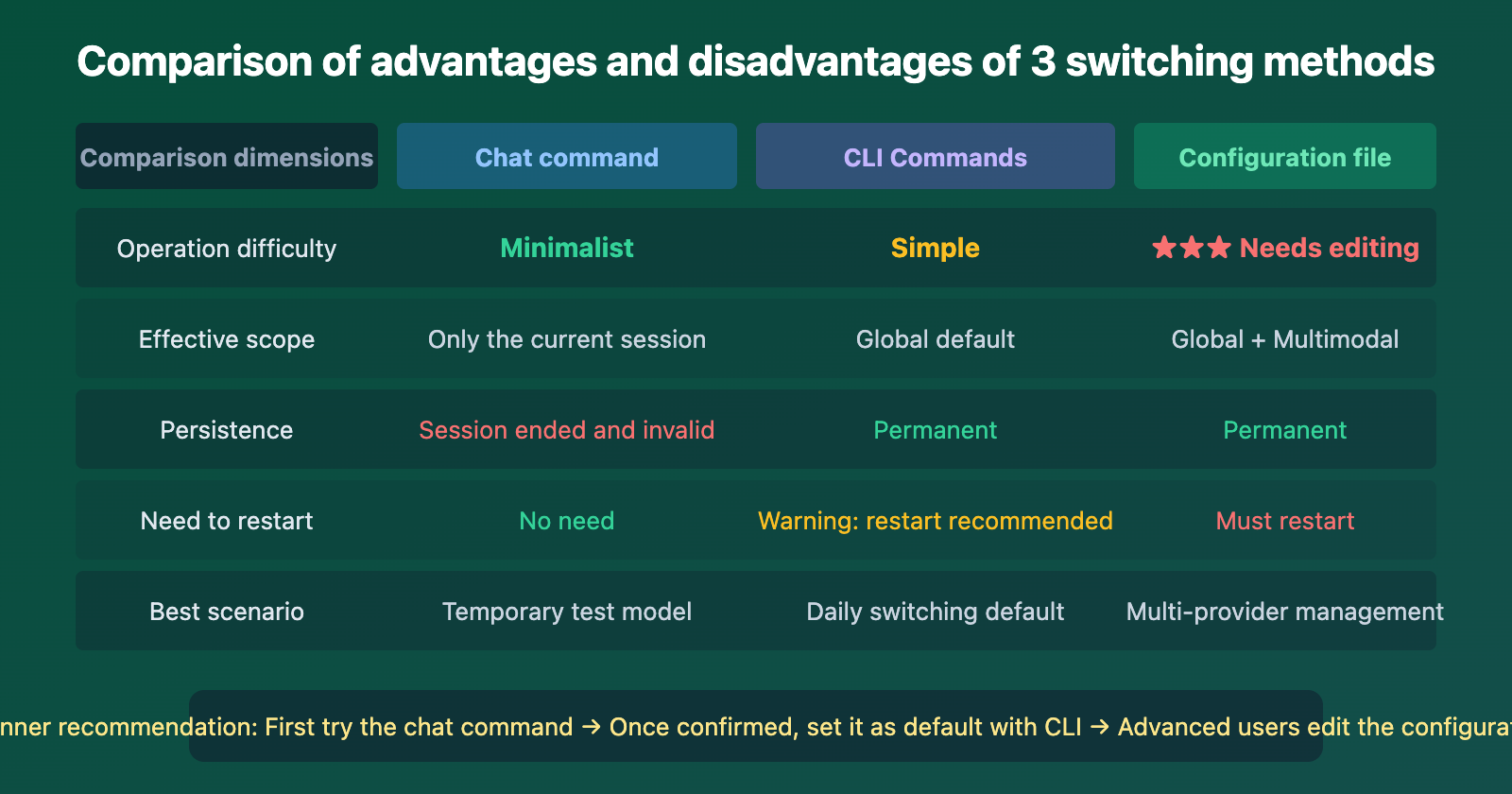
/modelcommand only take effect in the current session. Starting a new session (/new) will revert to the default model. For permanent switching, use CLI commands or modify the configuration file.
OpenClaw CLI Command Line Model Switching
If you want to switch the default model rather than just the current session, you can use OpenClaw's CLI commands.
CLI Model Management Commands
| Command | Function | Description |
|---|---|---|
openclaw models list |
List all available models | Shows provider and model information |
openclaw models status |
View current default model | Displays current active model configuration |
openclaw models set <id> |
Set default model | Switch immediately and persist |
OpenClaw CLI Model Switching Examples
Open your terminal and run these commands:
# Check current default model
openclaw models status

# List all available models
openclaw models list

# Switch default model to Claude Sonnet
openclaw models set anthropic/claude-sonnet-4-6

# Restart Gateway to ensure changes take effect
openclaw gateway restart
View Complete CLI Model Management Workflow
# 1. Check current status first
openclaw models status
# Output: Primary model: anthropic/claude-sonnet-4-6

# 2. View all available models
openclaw models list
# Output:
# anthropic/claude-sonnet-4-6
# anthropic/claude-opus-4-6
# openai/gpt-5.2
# openai/gpt-4o-mini
# deepseek/deepseek-v3

# 3. Switch to GPT-5.2
openclaw models set openai/gpt-5.2
# Output: Default model set to openai/gpt-5.2

# 4. Restart Gateway to ensure all sessions use the new model
openclaw gateway restart
# Output: Gateway restarted successfully

# 5. Verify the switch
openclaw models status
# Output: Primary model: openai/gpt-5.2
Recommendation: After switching the default model, it's a good idea to restart the Gateway (
openclaw gateway restart) to ensure all chat channels use the new model. If you've configured multiple model providers through APIYI at apiyi.com, you can quickly switch between different models to compare results.
OpenClaw Configuration File Model Switching (Persistent)
If you need to configure multiple model providers, set model aliases, or permanently change the default model, the most reliable approach is to directly edit the configuration file.
Configuration File Location
The OpenClaw configuration file path is:
~/.openclaw/openclaw.json
It also supports JSON5 format: ~/.openclaw/openclaw.json5
OpenClaw Configuration File Model Switching Example
Here's an example of configuring multiple model providers:
{
  "agents": {
    "defaults": {
      "model": { "primary": "apiyi/claude-sonnet-4-6" }
    }
  },
  "models": {
    "providers": {
      "apiyi": {
        "baseUrl": "https://api.apiyi.com/v1",
        "apiKey": "sk-your-api-key",
        "api": "openai-completions",
        "models": [
          { "id": "claude-sonnet-4-6", "name": "Claude Sonnet 4.6" },
          { "id": "claude-opus-4-6", "name": "Claude Opus 4.6" },
          { "id": "gpt-5.2", "name": "GPT-5.2" },
          { "id": "deepseek-v3", "name": "DeepSeek V3" }
        ]
      }
    }
  }
}
Configuration Parameters Reference
| Parameter | Description | Example Value |
|---|---|---|
agents.defaults.model.primary |
Default model to use | apiyi/claude-sonnet-4-6 |
models.providers.<name>.baseUrl |
API endpoint URL | https://api.apiyi.com/v1 |
models.providers.<name>.apiKey |
API key | sk-xxxxx |
models.providers.<name>.api |
API protocol type | openai-completions |
models.providers.<name>.models |
Available models list | Array format |
After modifying the configuration file, you need to restart the Gateway for the changes to take effect:
openclaw gateway restart
🎯 Recommended Approach: Use APIYI (apiyi.com) as your unified model provider. With a single API key, you can invoke Claude, GPT, DeepSeek, and many other models. You only need to configure one provider in the configuration file, then use the
/modelcommand to freely switch between all available models.
OpenClaw Model Switching FAQs
Q1: Why doesn’t OpenClaw have a graphical interface for model switching?
OpenClaw is positioned as "an AI assistant within chat platforms"—it runs on Telegram, Discord, WhatsApp, and similar platforms that don't support custom GUI components. Even with a Web UI, model switching is accomplished through chat commands. This reflects OpenClaw's design philosophy: everything can be done through conversation.
Q2: Why didn’t the model switch take effect?
There are two common reasons:
- Switching only in the current session: Using
/modelonly affects the current session; new sessions revert to the default. Use theopenclaw models setcommand to switch permanently. - Gateway restart required: After modifying the configuration file, you must run
openclaw gateway restart, otherwise the old configuration remains cached.
Q3: How do I configure multiple model providers at once?
Simply add multiple providers to your configuration file. We recommend using a multi-model API aggregation platform to simplify configuration:
- Visit APIYI (apiyi.com) and create an account
- Get a unified API key
- Add one provider to your OpenClaw configuration file to access Claude, GPT, DeepSeek, and the entire model lineup
- Switch freely between models using
/model apiyi/model-name
Summary
OpenClaw model switching key points:
- No GUI buttons: OpenClaw is a command-driven AI assistant where model switching is done through commands, not mouse clicks or menu selections
- Chat commands are fastest: Type
/model <model-id>in the chat box for quick temporary switching, perfect for testing - CLI + config file is most reliable: Use
openclaw models setor modifyopenclaw.jsonfor permanent switching
If you need to frequently switch between multiple models for comparison, we recommend configuring a unified interface through APIYI at apiyi.com. One provider lets you call all major models, saving you the hassle of managing multiple API keys.
📚 Reference Materials
-
OpenClaw Official Documentation – Model Configuration: Detailed explanation of model switching and provider configuration
- Link:
docs.openclaw.ai/concepts/models - Description: Official model management documentation with all supported commands and parameters
- Link:
-
OpenClaw Official Documentation – Model Providers: Guide to configuring custom API providers
- Link:
docs.openclaw.ai/concepts/model-providers - Description: Detailed instructions on how to add and configure third-party model providers
- Link:
-
OpenClaw GitHub Repository: Open source code and community discussions
- Link:
github.com/openclaw/openclaw - Description: Check the latest version, submit issues, and participate in community discussions
- Link:
Author: APIYI Technical Team
Technical Discussion: Feel free to discuss in the comments section. For more resources, visit the APIYI documentation center at docs.apiyi.com


