

Author’s note: This is a setup guide for Windows users. Xiaoke AI is an open-source desktop companion, and below we’ll cover how to connect it to your own Large Language Model, where long-term memory gets stored, and how many tokens it consumes in a day.
You’ve probably already seen Xiaoke AI on GitHub (repo liupig/xiaokeai). It’s an open-source 3D AI companion that also works as a transparent-background desktop pet, and it supports Windows 10 and up. According to the repo’s own claims, it ships with 38 chat service presets and lets you manually enter any OpenAI-compatible endpoint, and it uses mem0 plus a local Qdrant for long-term memory.
After installing it, most people get stuck on a few questions: which of those 38 presets should I pick, and which provider handles Chinese chat more smoothly; it says it’ll remember me — so where is that memory stored, and will it be uploaded behind my back; can the voice features cost absolutely nothing. This isn’t a retelling of the project intro — it’s all about configuration paths and the reasoning behind each choice. Character model creation and GPU shopping are outside the scope of this article.
The core value: by the end of this, you’ll have installation and model hookup done. You’ll get three selection tables — chat model, memory embedding, and voice — plus a daily token estimate calculated from 2026-11-27 pricing, and the steps for turning off memory uploads and switching to local embeddings.
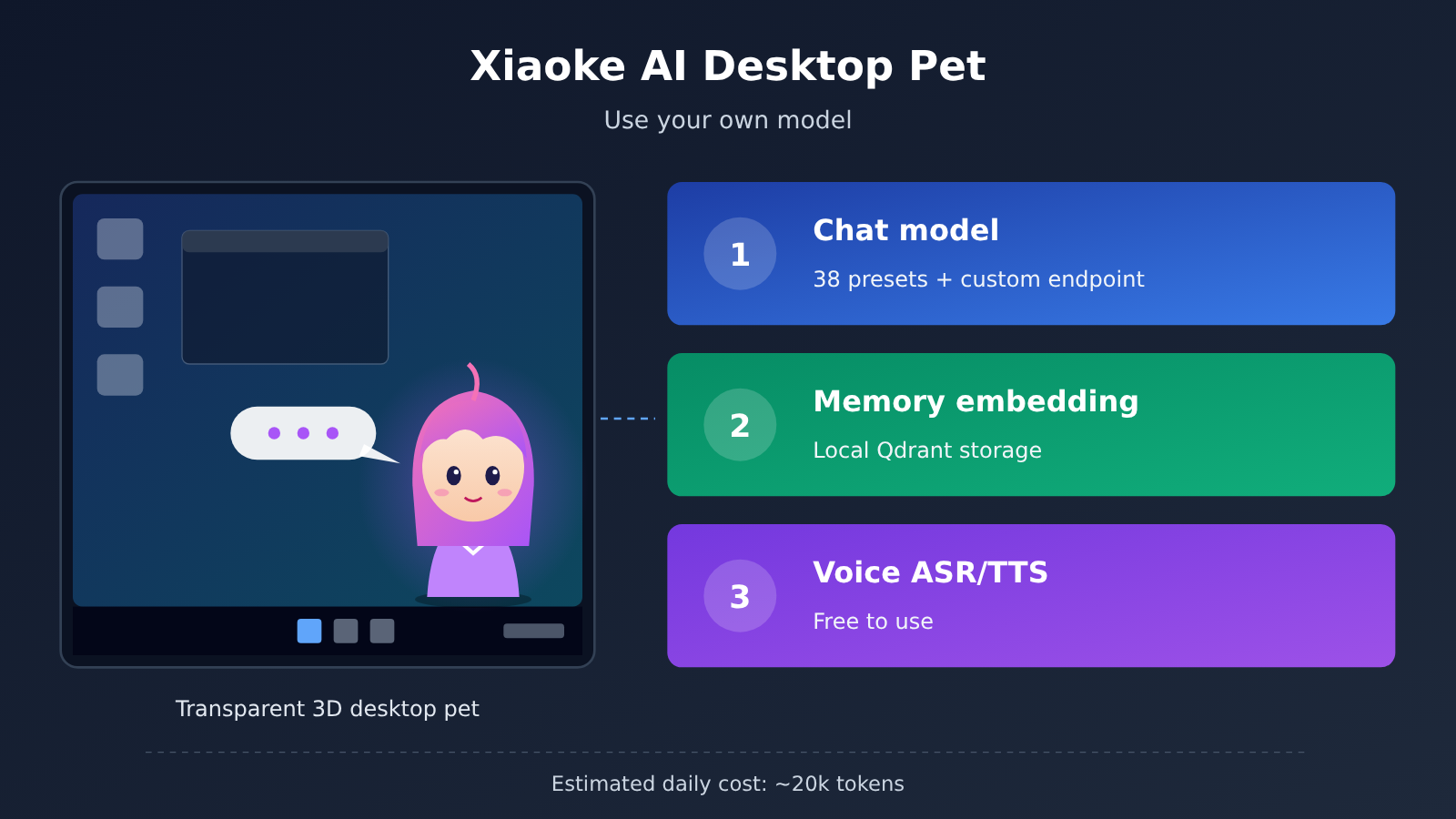
Xiaoke AI Desktop Pet Model Integration: The Short Answer
Let’s start with the conclusion. If you’re in a hurry, this section is enough to get you going.
| Key point | Takeaway | What it means for you |
|---|---|---|
| Which preset to choose for Chinese chat | Prefer presets from Chinese vendors such as Qwen, Doubao, DeepSeek, Kimi, GLM, and MiniMax, or use a custom endpoint to connect an aggregator platform | More natural Chinese tone; with a preset, you just fill in the API key |
| Want to use multiple model providers | Use “Custom endpoint” and fill in the three fields: base_url, api_key, and model |
One entry point lets you switch between vendors’ models |
| Where is memory stored | Memories extracted by mem0 are stored as embeddings in Qdrant on your local machine; you can view and delete them | The memory store is local, not in the cloud |
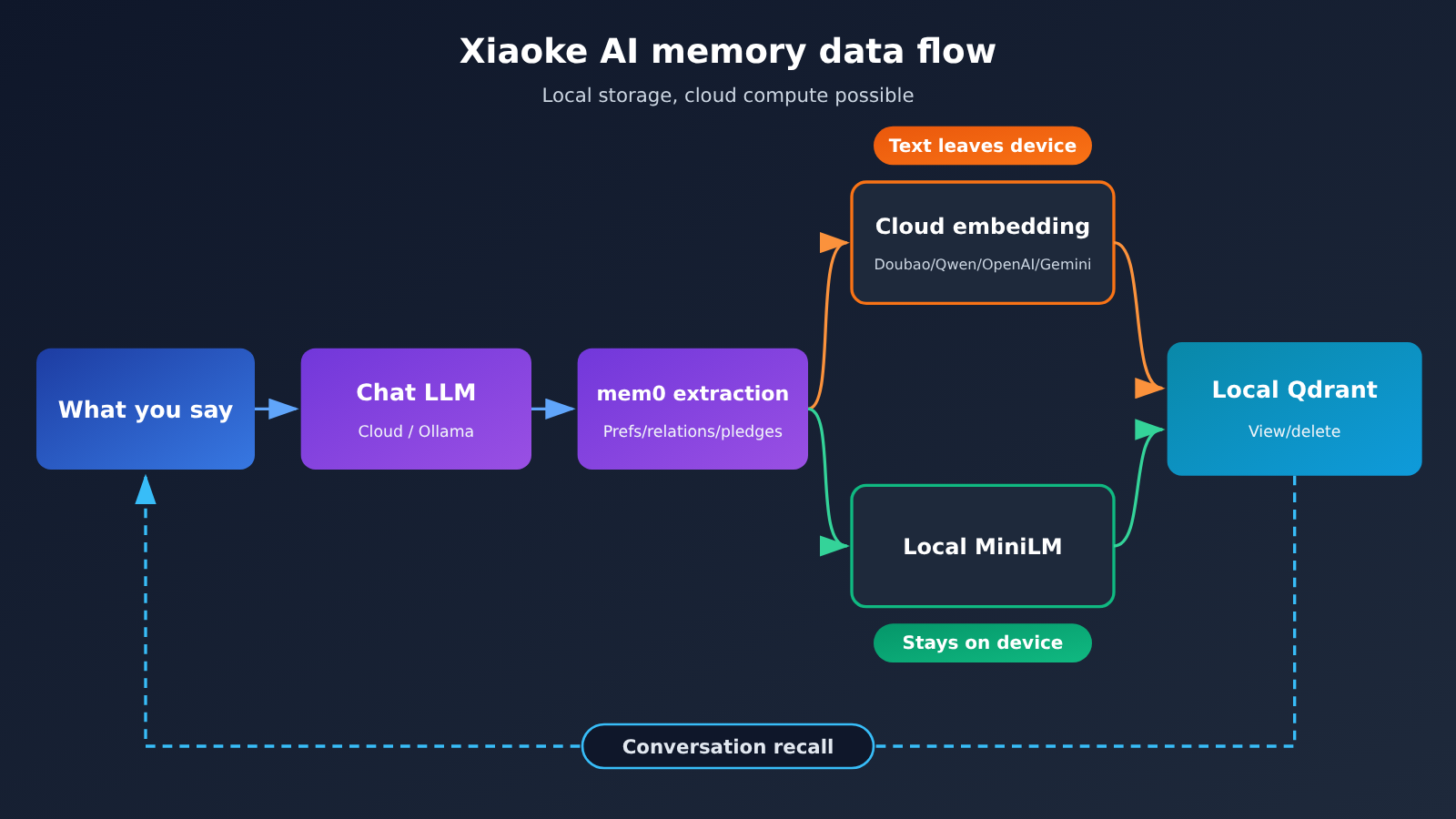
| Does it upload anything | If you choose a cloud embedding backend, the extracted text is sent to the corresponding vendor for vectorization; choose local MiniLM and it never leaves your machine | If privacy matters to you, switch to local embeddings |
| Is voice free | Browser Web Speech handles recognition and edge-tts handles synthesis; neither needs a key | You can have voice chat even without an NVIDIA GPU |
| How much does it cost per day | Based on 20k tokens of chat per day, a lightweight model costs no more than a few cents USD per day | The main cost is chat and paid voice; memory costs almost nothing |
Where Xiaoke AI stores memory, and whether it uploads anything
This is the question we get asked most, so it’s up first. Xiaoke AI’s long-term memory works in two steps. Step one: mem0 extracts information such as preferences, relationships, and commitments from the conversation; this step calls the chat Large Language Model you configured. Step two: the extracted text is converted into embedding vectors and written to a local Qdrant store. Later, during chat, memories are recalled by similarity.
So the answer to “where is memory stored” is: storage is local, computation may be in the cloud. If you use the hosted version’s default setup, chat and memory embeddings both go through the same Volcengine Ark API key, and the extracted text passes through the cloud. If you switch to local MiniLM embeddings, the vectorization step stays on your machine. But as long as the chat model is cloud-based, the conversation itself is still sent to the model vendor; there’s no way around that.
XiaoKe AI Desktop Pet Quick Start: Installation and Setup Path
The whole process has four steps, and each step comes with acceptance criteria. Finish one step, check that it passes, then move on to the next.
Step 1: Download the online version and launch it
- Download the online-version archive from the repo’s Releases; the file name listed there is
xiaoke-ai-online-20261109154149.7z. - Extract it with something like 7-Zip into a directory whose path contains no Chinese characters and no spaces, for example
D:\xiaoke-ai\. - Double-click
xiaoke-ai.exeto run it.
Acceptance criteria: A character with a transparent background shows up on your desktop, and you can see the settings entry. The online version doesn’t bundle local ASR, TTS, embedding, or visual inference, so it’s fairly small. If you want local capabilities later, you’ll need to grab the A/B packages the repo provides separately.
Step 2: First get it running with the default Volcano Ark
Open Settings → AI Chat and enter a Volcano Ark LLM API key. In the online version, chat and online-memory embedding share this single key, and voice defaults to the browser’s Web Speech plus edge-tts, so there’s nothing else to fill in.
Acceptance criteria: Say “Hi, remember that I like drinking unsweetened oolong tea” and the character replies normally. After a few rounds, ask “What do I like to drink?” — if it can answer, that means the memory chain is working too.
Step 3: Switch to your own chat model
In the chat service, choose “Custom Endpoint” and fill in these three fields:
base_url: your OpenAI-compatible address, for examplehttps://api.apiyi.com/v1api_key: the key for the corresponding platformmodel: the model ID, for examplegpt-6-luna,qwen3.8-flash, ordeepseek-v4.1-flash
The reason we’re using APIYI as the example is that hooking up your own model basically boils down to “this costs tokens.” When you’re looking up model variants and comparing prices, a single OpenAI-compatible endpoint covers OpenAI, Claude, Gemini, DeepSeek, Qwen, and plenty of others. Switching models means changing just the one model field — no need to apply for a separate key for every vendor.
Acceptance criteria: After switching, send a message and the reply style changes noticeably; if the platform keeps usage records, you can see this call there.
Step 4: Confirm your memory and voice settings
In the memory settings, confirm which embedding backend is currently in use; in the voice settings, confirm where ASR and TTS are coming from. The UI language and the voice language can be set independently, with Simplified Chinese, English, Japanese, Korean, and Russian available. For instance, a Chinese UI with a character that speaks Japanese is a perfectly valid setup.
Acceptance criteria: Open the memory list and you can see the entries that have already been extracted, and you can delete one of them.
🚀 Quick start: If you don’t have a key handy, sign up at APIYI apiyi.com first, use the free trial quota for new users to get through Step 3, and once you’ve confirmed the character replies properly, decide which model you want to use long term.
How to Choose from Xiaoke AI’s 38 Presets: Chat Models
According to the repository itself, the 38 presets cover cloud services including OpenAI, Anthropic, Google Gemini, DeepSeek, Qwen, Doubao, Kimi, GLM, MiniMax, and OpenRouter, plus local options like Ollama, vLLM, SGLang, and Player2. You don’t need to compare all 38 one by one — just pick from the four categories below.
| Category | Representative presets | Best for | Things to watch out for |
|---|---|---|---|
| Chinese providers | Qwen, Doubao, DeepSeek, Kimi, GLM, MiniMax | People who mainly chat in Chinese and want a natural tone | Each provider needs its own API key |
| Overseas providers | OpenAI, Anthropic, Google Gemini | Multilingual characters, or conversations in English and Japanese | You’ll need accounts with the respective providers |
| Aggregators and custom endpoints | OpenRouter, custom endpoints | People who want to switch between multiple models with one API key | Model IDs must be entered correctly |
| Local inference | Ollama, vLLM, SGLang, Player2 | People who don’t want their conversations leaving their own machine | Heavy on GPU and memory; response quality depends on the local model |
How Xiaoke AI’s chat model selection works
Desktop pet chat is different from writing code or doing analysis. A desktop pet has many conversation turns, each one very short, and it’s running all day long — so price per token matters more than top-tier capability. Lightweight models like flash, mini, and luna are usually enough. You only need to consider a larger model when you want the character to do long-form roleplay or complex reasoning.
Privacy is another dimension. As long as chat goes through the cloud, the conversation content reaches the model provider. If you want to be fully offline, use a local preset like Ollama, paired with local embedding and local speech; this requires downloading the A/B packages and has hardware requirements.
💡 Selection tip: Take the same character with the same persona and chat a few rounds with different models — the difference is obvious. On APIYI apiyi.com, you can use the same API key to switch between
gpt-6-luna,qwen3.8-flash, anddeepseek-v4.1-flashfor a side-by-side comparison, which is a lot less hassle than signing up for each provider separately.
Xiaoke AI Long-Term Memory and Voice: How to Configure Embedding and TTS
Memory embedding has five backends: local MiniLM, Doubao, Qwen, OpenAI, and Gemini, plus an auto-routing option. On the voice side, the repository claims support for 7 ASR and 9 TTS options. The table below compares these two areas side by side.
| Module | Option | Leaves local device? | Cost | Best for |
|---|---|---|---|---|
| Memory embedding | Local MiniLM | No | Free; requires A/B package | Privacy-focused |
| Memory embedding | Doubao (default for online version) | Yes | Shares a Volcano Ark key with chat | Want out-of-box setup |
| Memory embedding | OpenAI / Qwen / Gemini | Yes | Billed by vector token or per call | Already have the corresponding key |
| ASR | Browser Web Speech | Depends on browser implementation | Free | Default for online version |
| ASR | Local SenseVoice | No | Free; requires local package | Offline recognition |
| ASR | Doubao ASR 2.0 / OpenAI | Yes | Paid | Focus on recognition accuracy |
| TTS | edge-tts | Yes | Free | Best choice without an NVIDIA GPU |
| TTS | Qwen3-TTS 0.6B / 1.7B | No | Free; GPU-heavy | Have an NVIDIA GPU and want streaming local synthesis |
| TTS | Doubao TTS 2.0, OpenAI gpt-4o-mini-tts, Gemini TTS |
Yes | Paid | Want better voice quality |
How to disable memory uploads and switch to local embedding
If you don’t want memory text to leave your machine, follow these steps:
- Download the A/B package provided by the repository to add local embedding capability. The online version doesn’t ship with local embedding by default.
- In memory settings, change the embedding backend from Doubao or another cloud provider to local MiniLM, and turn off auto-routing. Otherwise, it may still pick a cloud backend.
- Open the memory list and delete entries written before the switch. Vectors from different backends can’t be mixed; old memories may be retrieved inaccurately. Clearing them and rebuilding is the cleanest approach.
- If you don’t even want to be remembered at all, clear the memory list regularly. The reference material confirms that memories can be viewed and deleted; whether there’s a one-click master switch depends on the settings UI of the version you installed.
Acceptance criteria: After switching, chat for a few rounds and see new entries appear in the memory list; at the same time, usage on the cloud embedding platform should stop increasing.
When memory uses cloud embedding
If you choose the OpenAI backend and your version lets you enter a separate address for it, then vector requests go through /v1/embeddings. In APIYI’s pricing, text-embedding-3-small is $0.02 per 1M tokens, and text-embedding-3-large is $0.13 per 1M tokens (data date 2026-11-27). mem0 extracts very short text each time, so small is enough.
Xiao Ke AI Desktop Pet: One Day’s Token Bill
The prices below come from docs.apiyi.com/models, dated 2026-11-27, in USD per 1M tokens. Daily costs are estimates, assuming 20,000 tokens of chat per day with input and output split roughly in half.
| Model | Input | Output | Cache read | Estimated cost for 20,000 tokens/day | Estimated 30-day cost |
|---|---|---|---|---|---|
gpt-6-luna |
$0.1 | $0.5 | $0.01 | about $0.006 | about $0.18 |
qwen3.8-flash |
$0.114 | $0.3876 | not listed | about $0.005 | about $0.15 |
deepseek-v4.1-flash |
$0.3 | $1.2 | not listed | about $0.015–0.02 | about $0.45–0.6 |
text-embedding-3-small (memory) |
$0.02 | — | — | a few hundred small calls, basically negligible | basically negligible |
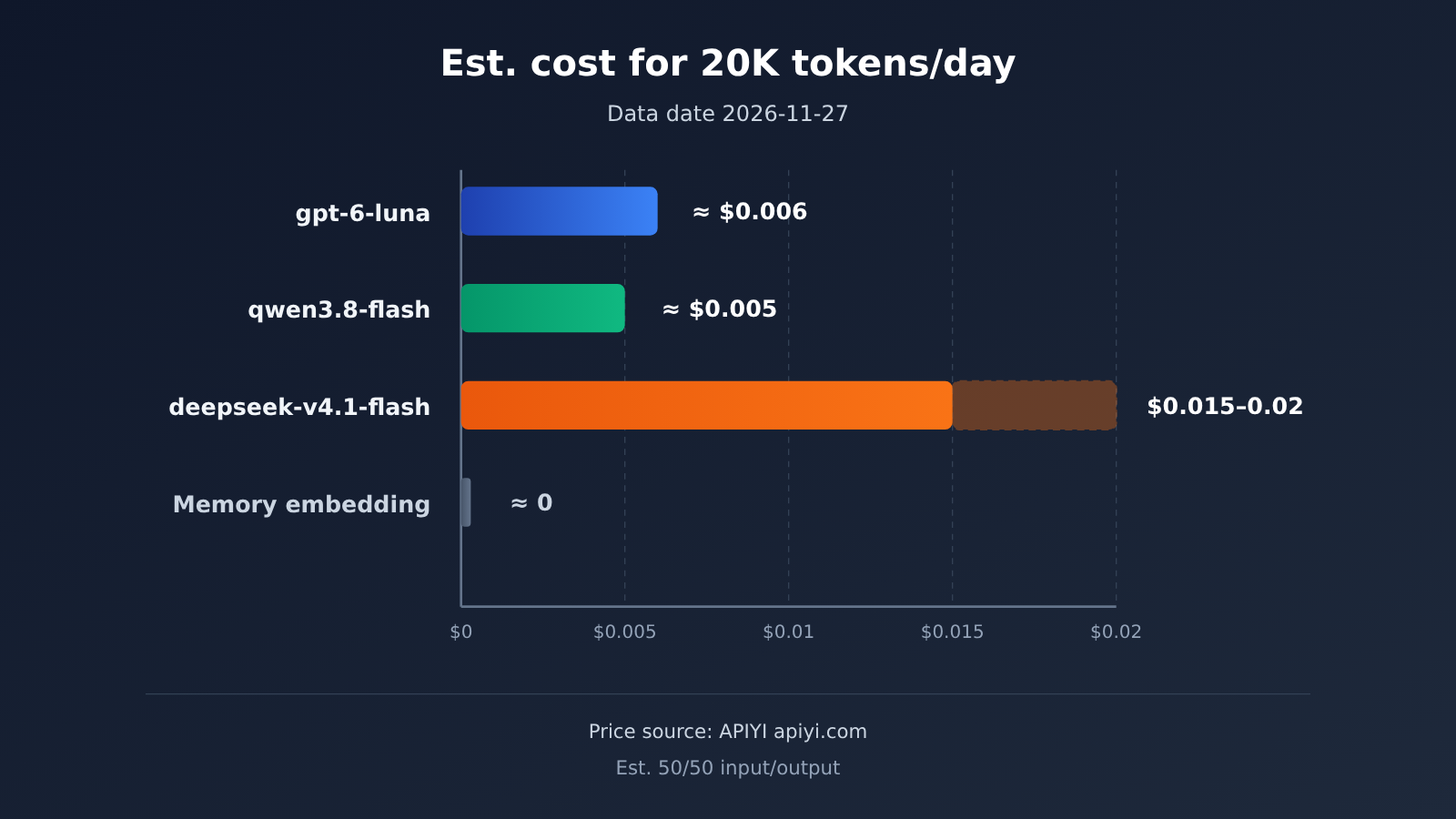
Where Xiao Ke AI’s Costs Really Land
As the table shows, the real spending is chat and paid voice — memory costs almost nothing. The character persona and recalled memories get stitched into the context every turn, so input tokens add up faster than you’d think. If the model supports cache reads — gpt-6-luna, for instance, charges $0.01 for cache reads — a fixed persona prefix gets noticeably cheaper.
Paid TTS is on the APIYI price list too: OpenAI TTS runs through gpt-4o-mini-tts, and Gemini TTS is listed as well. Each bills under its own terms, and since a desktop pet talks all day long, voice costs can easily overtake chat. If your budget is tight, pair edge-tts with a lightweight chat model and you’ll usually stay under a dollar a month.
💰 Cost tip: Estimate a month’s budget from the table above first, then check a week of real usage in the APIYI apiyi.com dashboard and adjust your model tier accordingly. Actual usage depends heavily on how often you chat with it and how many memories get recalled — the estimate is only a starting point.
Xiaoke AI Model Connection Troubleshooting Table
| Symptom | Possible Cause | What to Do |
|---|---|---|
Reply returns 401 |
Key entered incorrectly, or the Key and base_url come from different platforms |
Copy the Key again, and confirm the address is written out in full like https://api.apiyi.com/v1 |
Reply returns 404 or says the model doesn’t exist |
The model field is misspelled, or the platform doesn’t have that ID |
Check it character by character against the platform’s model list |
Returns 429 |
Requests are too frequent, or the balance is insufficient | Reduce how often it speaks up, and check your balance |
Address has an extra or missing /v1 |
Path concatenation for the custom endpoint is wrong | Following the OpenAI-compatible spec, fill it in up to /v1 and stop there |
| It remembers things, but answers off-topic | You switched embedding backends, so old and new vectors are mixed together | Clear the memory list and rebuild it from scratch |
| Local TTS stutters or throws errors | No NVIDIA GPU, or the A/B packages aren’t installed | Switch to edge-tts |
| Selected local embedding but can’t select it | The online version doesn’t include local embedding | Download the A/B packages |
FAQ
Q1: What is Xiaoke AI?
Xiaoke AI is an open-source 3D AI companion and transparent desktop pet that runs on Windows 10 and above. Its tech stack includes Python 3.11, FastAPI, Electron, and Three.js; it supports VRM and MMD models, and uses mem0 plus Qdrant for long-term memory. According to the repo’s own report, as of 2026-11-23 there’s a most recent commit, and the repo has about 496 stars.
Q2: What’s the difference between the 38 presets and custom endpoints?
Presets are templates prepared for specific vendors — fill in the Key and you’re good to go. Custom endpoints can connect to any OpenAI-compatible service, but you have to fill in `base_url`, `api_key`, and `model` manually. If you only use one provider, presets are less hassle; if you want to switch back and forth between several, custom endpoints are more flexible.
Q3: Does the memory get uploaded secretly?
The memory store lives in Qdrant on your local machine. But if the embedding backend is cloud-based, the extracted text gets sent to the corresponding vendor for vectorization, and the extraction step also calls a chat model. Switch to local MiniLM and use a local model for chat too, and memory-related data never leaves your machine.
Q4: Can voice be completely free?
Yes. The online version uses browser Web Speech for recognition and edge-tts for synthesis by default — neither needs a Key. If you have an NVIDIA GPU, you can also install the local packages and use SenseVoice plus Qwen3-TTS, which are likewise free and offline.
Q5: How do I connect Xiaoke AI to multiple models with one Key?
Use a custom endpoint, set `base_url` to `https://api.apiyi.com/v1`, create the Key in the APIYI apiyi.com dashboard, and put the model ID you want in `model`. After that, switching models only means changing this one field. New users get free trial credits, so you can compare the tone of a few models before deciding.
Q6: What limitations does Xiaoke AI have?
It only supports Windows 10 and above. The online version doesn’t include local ASR, TTS, embedding, or visual reasoning, so you’ll need to download the A/B packages separately; local TTS requires an NVIDIA GPU. Also, cloud chat models will see your conversation content. If your privacy requirements are strict, you’ll need to swap everything over to local components, which puts demands on your hardware.
Key Takeaways for Connecting Models to Xiaoke AI
- How to choose a Chinese chat model: Favor presets from Chinese vendors like Qwen, Doubao, and DeepSeek. For a desktop pet, a lightweight model is plenty.
- How to connect multiple models: Use a custom endpoint and fill in
base_url,api_key, andmodel. When you switch models, you only change the model ID. - Where memories live: mem0 extracts them and stores them in a local Qdrant instance, where you can view and delete them.
- How to keep memories off the cloud: Install the A/B build, switch to local MiniLM, turn off auto-routing, and clear old memories.
- Zero-cost voice setup: Web Speech plus edge-tts works even without a GPU.
- What a day costs: Chat about 20,000 tokens and, with a lightweight model, you’re looking at roughly $0.005–0.02.
- Where to start: Get a custom endpoint working on APIYI (apiyi.com) with the free quota, then check your actual usage.
Summary
Connecting your own models to the Xiaoke AI desktop pet comes down to three pieces of configuration:
- Chat model: Choose from 38 presets, grouped into Chinese vendors, overseas vendors, aggregators, and local options. If you want to switch flexibly, use a custom endpoint.
- Memory embedding: Storage always stays in local Qdrant. If privacy matters to you, move the compute to local MiniLM as well.
- Voice: edge-tts plus Web Speech is free. Only consider local Qwen3-TTS if you have an NVIDIA GPU.
When this setup isn’t for you: You’re on macOS or Linux; you need conversations to never leave your machine but don’t have a GPU that can run local models and local TTS; or you just want to ask a few questions now and then and don’t need an always-on desktop companion. In any of those cases, an ordinary chat client is a better fit.
If none of that applies, go in this order: get it running first, then swap models, then check the bill. Use APIYI as your chat endpoint, validate the character’s behavior with the free quota first, then decide which model to use long-term based on a week of real usage.
📚 References
-
Xiaoke AI GitHub repository: project source code, Release downloads, and configuration instructions
- Link:
github.com/liupig/xiaokeai - Details: This is where you’ll find the original descriptions of the 38 presets, memory backends, and voice options.
- Link:
-
APIYI model pricing: source for the prices in this article, with data as of 2026-11-27
- Link:
docs.apiyi.com/models - Details: You can check the billing methods for chat, vector, and speech models.
- Link:
-
mem0 project: the extraction framework behind Xiaoke AI’s long-term memory
- Link:
github.com/mem0ai/mem0 - Details: Great for readers who want to understand how memory extraction works.
- Link:
Author: APIYI technical team
Technical discussion: Feel free to contact us through the APIYI homepage. For more integration materials, visit the docs.apiyi.com documentation center.


