

Author’s note: This is a hands-on tutorial for the Read Frog browser extension. It’s aimed at readers who read English webpages every day and want to keep the words they’ve looked up for review. The article explains how to connect your own Large Language Model API key, roughly how many tokens you’ll use each day, and who Read Frog and Immersive Translate are each best for.
Many people read English webpages every day, but the words they look up don’t stick. A common approach is to keep Immersive Translate open for side-by-side bilingual reading, look up unfamiliar words in a dictionary when you hit one, and forget them right after. Read Frog is an open-source AI translation extension that puts webpage translation and vocabulary review in the same extension. When you select text and have a Large Language Model explain it, that word can be saved as a card and reviewed later on a spaced-repetition schedule.
Bottom line: If you just want to understand webpages, existing translation tools are already enough—there’s no need to switch. If you want to build vocabulary as you go and are willing to enter your own API key and pay per token, Read Frog is worth trying. Its translation cost depends mostly on the model you choose. Based on the estimates in this article, translating 100 English webpages with a lightweight model costs on the order of a few cents.
What you’ll get: By the end of this article, you’ll have four things: a comparison of where Read Frog and Immersive Translate each fit, a three-step setup flow (with acceptance criteria for every step), a cost breakdown calculated per million tokens, and instructions for using batch requests.
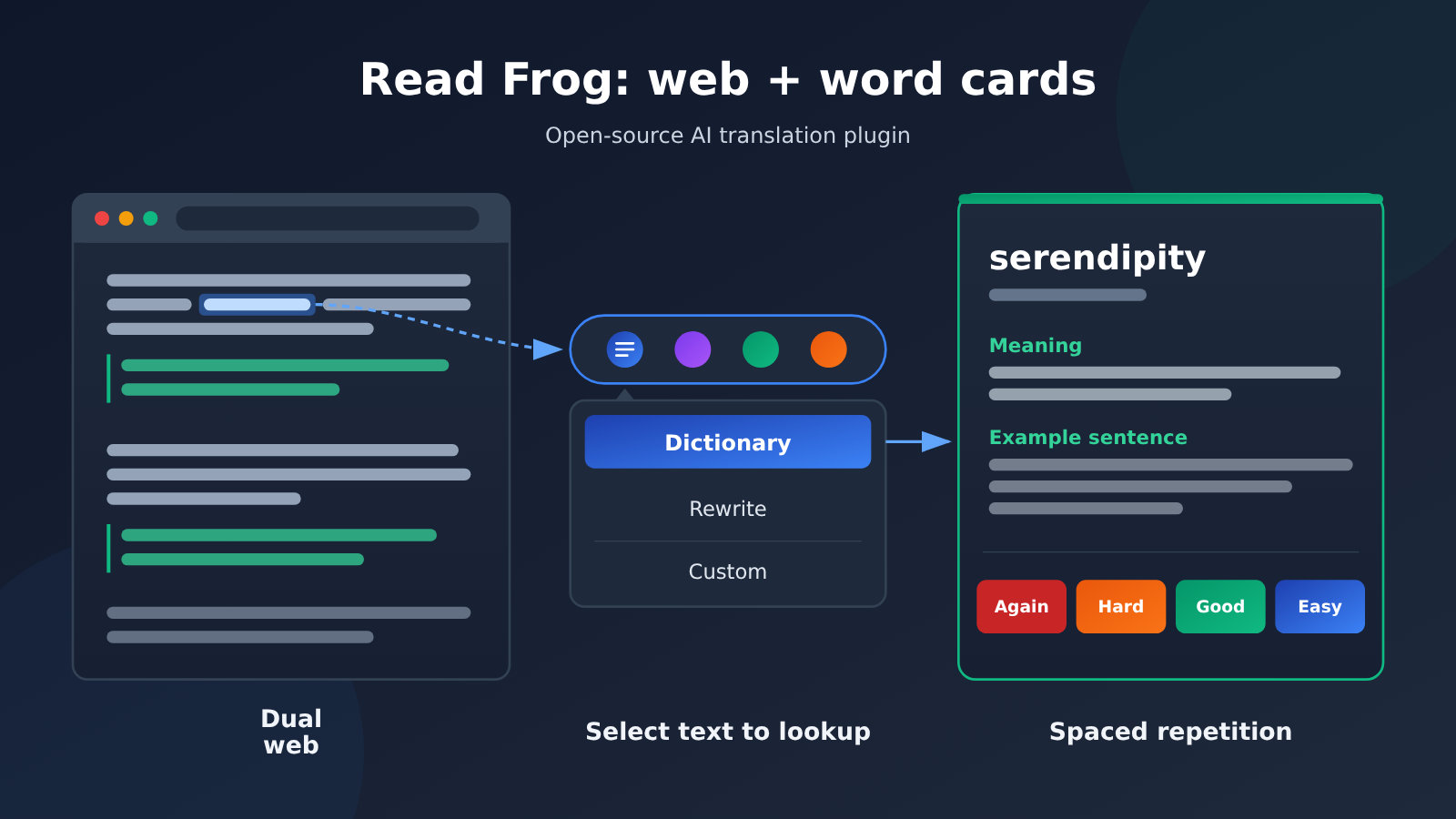
Read Frog AI Translation Extension: Key Takeaways
The Read Frog GitHub repository is mengxi-ream/read-frog. As of 2026-11-27, it has about 10,557 stars, and the latest commit was made that same day. You can find it in the Chrome, Edge, and Firefox extension stores. The project describes itself as a “language-learning translation extension”—essentially an open-source alternative to Immersive Translate.
| Key point | What it does | Why it matters to you |
|---|---|---|
| Translation coverage | Supports full-page translation, selected-sentence translation, and subtitle translation for YouTube / X / Netflix | One extension covers both everyday reading and video watching |
| Vocabulary and review | Content is saved to Notebase, card templates are customizable, and FSRS schedules review times | Words you’ve looked up won’t get lost—and they’ll come back right on schedule |
| Custom AI actions | You can write your own prompts and structured output fields, then run them directly from the text-selection toolbar | Dictionary lookups, rewrites, and example sentences can all be tailored to your preferences |
| Providers | Connects to 20+ providers through the Vercel AI SDK and supports custom endpoints | You can use your own API key and the model of your choice |
| Free channels | Built-in Google Translate, Microsoft Translate, and DeepLX | For passages where you only need the gist, translation costs nothing |
| Batched requests | Combines multiple translation requests into a single call; the repo claims up to 70% savings on API costs | Token overhead drops significantly during full-page translation |
How Read Frog Vocabulary Cards Work
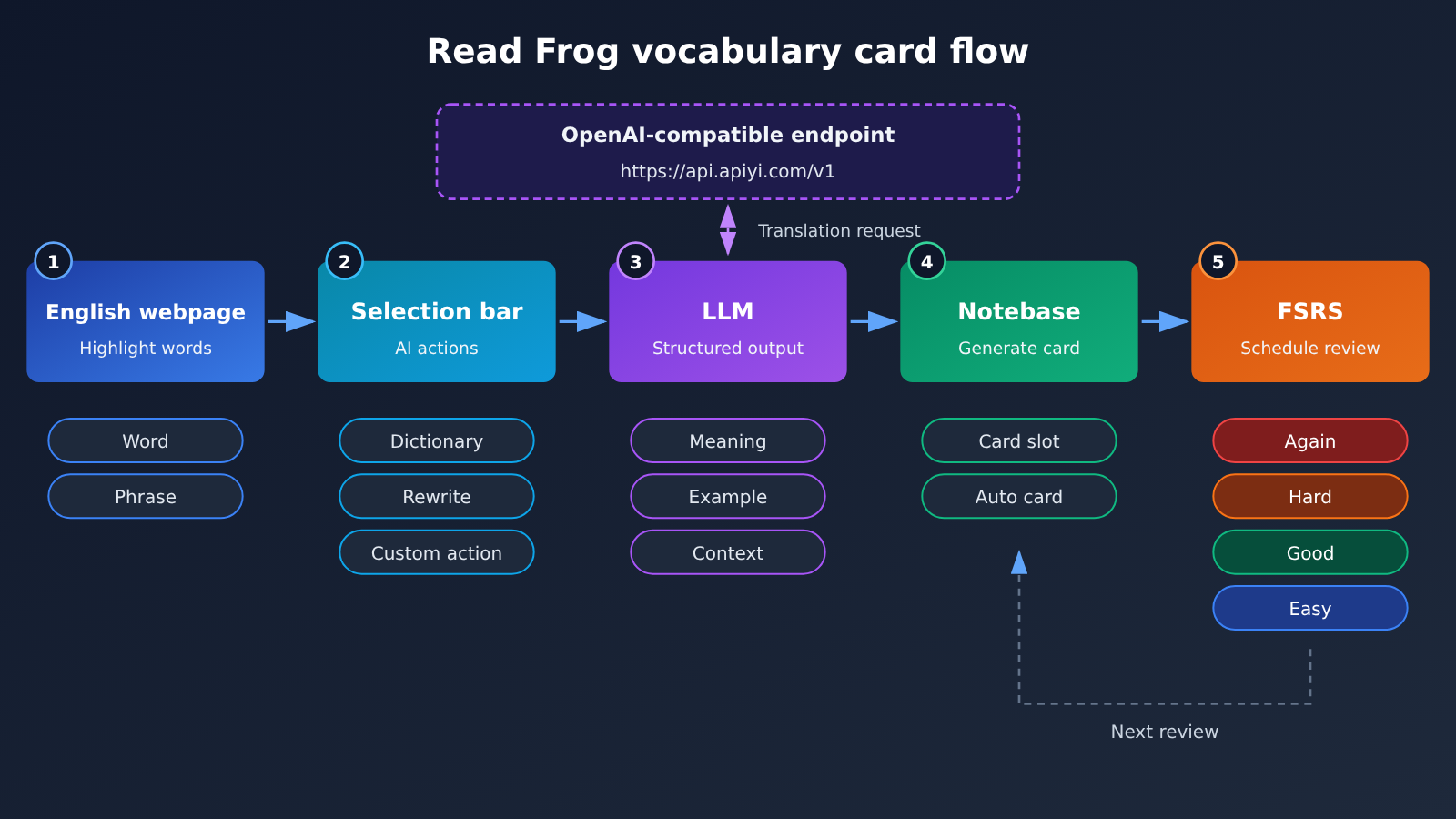
The vocabulary card workflow breaks down into three stages. The first is text selection: after you select a word or phrase, AI actions appear in the toolbar, with built-in “Dictionary” and “Rewrite” templates. The second is structured output: AI actions can define fields such as word meaning, phonetic transcription, example sentence, and contextual definition, and the model returns content according to those fields—matching the slots in the card template.
The third stage is review scheduling. Once a card is saved to Notebase, you pick a rating—Again / Hard / Good / Easy—each time you review it, and the FSRS algorithm uses that rating to calculate when the card should appear next. The biggest difference from a traditional “vocabulary list” is that you don’t have to decide which words to review today; the scheduler handles that for you.
How to Use Read Frog Custom AI Actions
Custom AI actions are the most flexible part of the whole setup. You can assign a provider, model, and icon to each action individually. For example, use a cheap lightweight model for the “Dictionary” action, and switch the “Rewrite” or “Grammar explanation” actions to a more capable model. That keeps high-frequency operations like selection-based explanations very cheap, while still letting you call a pricier model when you occasionally need a deeper explanation.
How to Choose a Provider and Model for Read Frog
Read Frog supports more than 20 providers, including OpenAI, DeepSeek, Anthropic, Google Gemini, xAI Grok, Groq, Mistral, Ollama, and more. You can configure a custom endpoint, API key, and model separately for each provider. Too many choices can make it hard to decide, so use the following approach to narrow things down:
- Just want a free rough idea: Use Google Translate, Microsoft Translate, or the free DeepLX channel—no API key required.
- Want context-aware translation and vocabulary explanations from a Large Language Model: Connect an OpenAI-compatible endpoint and choose a lightweight flash-class model.
- High privacy requirements and a local GPU: Run a local model with Ollama. Network costs are zero, but translation quality and speed depend on your hardware.
If you don’t want to open separate accounts for each model provider, you can take advantage of the OpenAI-compatible protocol: in Read Frog’s OpenAI provider, change the Base URL to APIYI’s https://api.apiyi.com/v1, and one API key lets you switch between models from multiple providers. To look up model IDs and verify pricing, check the model list in the APIYI docs at docs.apiyi.com/models. The table below shows prices as of 2026-11-27, in USD per 1M tokens:
| Model ID | Input | Output | Cache read | Ideal Read Frog use case | Available platform |
|---|---|---|---|---|---|
qwen3.8-flash |
$0.114 | $0.3876 | $0.01425 | Main workhorse for full-page translation, 1M context, 131K max output | APIYI apiyi.com |
gpt-6-luna |
$0.1 | $0.5 | $0.01 | Word-selection dictionary and short-phrase translation | APIYI apiyi.com |
deepseek-v4.1-flash |
$0.3 | $1.2 | $0.006 | When you need more nuanced Chinese wording | APIYI apiyi.com |
gemini-3.8-flash |
$0.75 | $3.75 | $0.075 | Quality-first with a relatively flexible budget | APIYI apiyi.com |
🎯 Selection advice: Prices change, and the table above reflects pricing only as of 2026-11-27. Before settling on your main model, it’s worth running the same English passage through two or three models at APIYI apiyi.com, comparing the translations and vocabulary explanations, and then deciding which model to use for translation and which to use for selection lookup.
Read Frog Quick Start: Three-Step Setup
The whole setup takes about ten minutes. Each step comes with an acceptance check — don’t move on to the next step until the previous one passes, so you can pinpoint problems faster when something goes wrong.
Step 1: Install the Read Frog Extension
- Open the extension store for your browser (Chrome Web Store, Edge Add-ons, or Firefox Add-ons) and search for Read Frog.
- Check the developer and repository info to confirm it matches
mengxi-ream/read-frogon GitHub, then click Install. - Once it’s installed, pin the extension icon to the toolbar so it’s easy to open the settings page.
Acceptance check: Open any English webpage and translate a passage using the free channel first (Google Translate, for example). If you can see the translated text, the extension itself is working. This step doesn’t need an API key at all.
Step 2: Fill In the Provider, Base URL, and API Key
- Go to the provider configuration on the Read Frog settings page and select the OpenAI provider.
- Set the custom endpoint (Base URL) to
https://api.apiyi.com/v1. Don’t leave off the trailing/v1. - Enter the API key you created in the APIYI console. New users get free trial credits, so you can use those to get the flow working first.
- For the model, enter
qwen3.8-flashorgpt-6-luna. The name has to match the ID listed at docs.apiyi.com/models exactly. - Switch the default provider for webpage translation to the one you just configured.
Acceptance check: Translate an English webpage. The translation comes back normally, and you can tell it’s the work of a Large Language Model — for example, it adjusts wording based on context instead of translating word for word. At the same time, check the request log in the console to confirm that requests for the corresponding model are showing up.
Step 3: Turn On Word-Selection Card Creation
- In settings, find AI Actions and enable the built-in “Dictionary” template first, choosing the provider you configured in step 2.
- If you want to customize the card content, make a copy of the dictionary template and add fields like
word,meaning,example, andcontextto the structured output, so they correspond to the fields in the Notebase card template. - Highlight an unfamiliar word on a webpage, click the dictionary action in the toolbar, confirm the result, and save it to Notebase. The exact button names and toggle locations depend on the extension version you installed.
Acceptance check: You can see the card you just created in Notebase, with every field filled in. During review, the four rating buttons Again / Hard / Good / Easy should appear, and after you rate, the card’s next appearance time changes.
🚀 Quick tip: Step 2 is the only part that costs money. We recommend running through all three steps with the free trial credits from APIYI apiyi.com first, watching a week of real usage, and only then deciding how much to top up and which model to use as your main one.
How Much Does Read Frog Translation Cost?
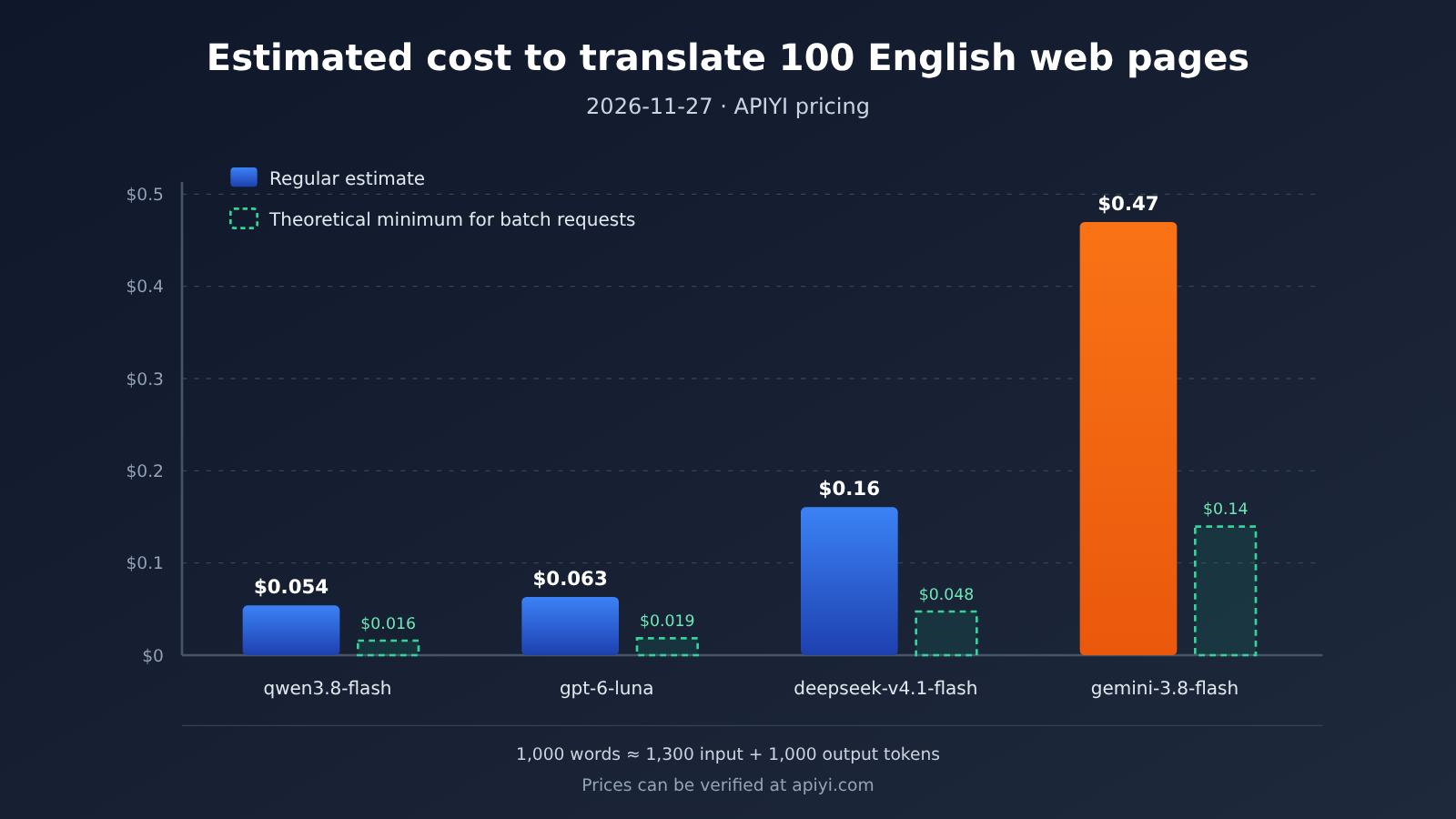
It all comes down to tokens. Here’s a rough estimate based on the figures in the reference material: 1,000 English words is about 1,300 input tokens, and translating that into Chinese produces roughly 1,000 output tokens. If one web page is around 1,000 words, then 100 pages works out to roughly 130K input tokens plus 100K output tokens.
| Model ID (APIYI price, 2026-11-27) | Estimated cost for 100 pages | Estimated cost for 20 pages/day | Theoretical floor with batching on (up to 70% savings per the repo’s own claim) |
|---|---|---|---|
qwen3.8-flash |
about $0.054 | about $0.011 | about $0.016 / 100 pages |
gpt-6-luna |
about $0.063 | about $0.013 | about $0.019 / 100 pages |
deepseek-v4.1-flash |
about $0.16 | about $0.032 | about $0.048 / 100 pages |
gemini-3.8-flash |
about $0.47 | about $0.094 | about $0.14 / 100 pages |
Here’s how the math works, using qwen3.8-flash as an example: input costs 0.13M × $0.114 ≈ $0.015, output costs 0.1M × $0.3876 ≈ $0.039, for a total of about $0.054. The extra cost of vocabulary cards is negligible — a single word lookup explanation runs maybe a few hundred tokens. Even at 50 cards a day, that’s pocket change on a lightweight model.
Two things really move the bill. The first is how often you translate the whole page: translating the navigation bar and comment section along with the main content burns a lot of tokens. The second is the output price. Chinese translations usually account for the bulk of the total cost, so when you’re picking a model, output price is more worth watching than input price.
How Much Do Read Frog’s Batched Requests Save?
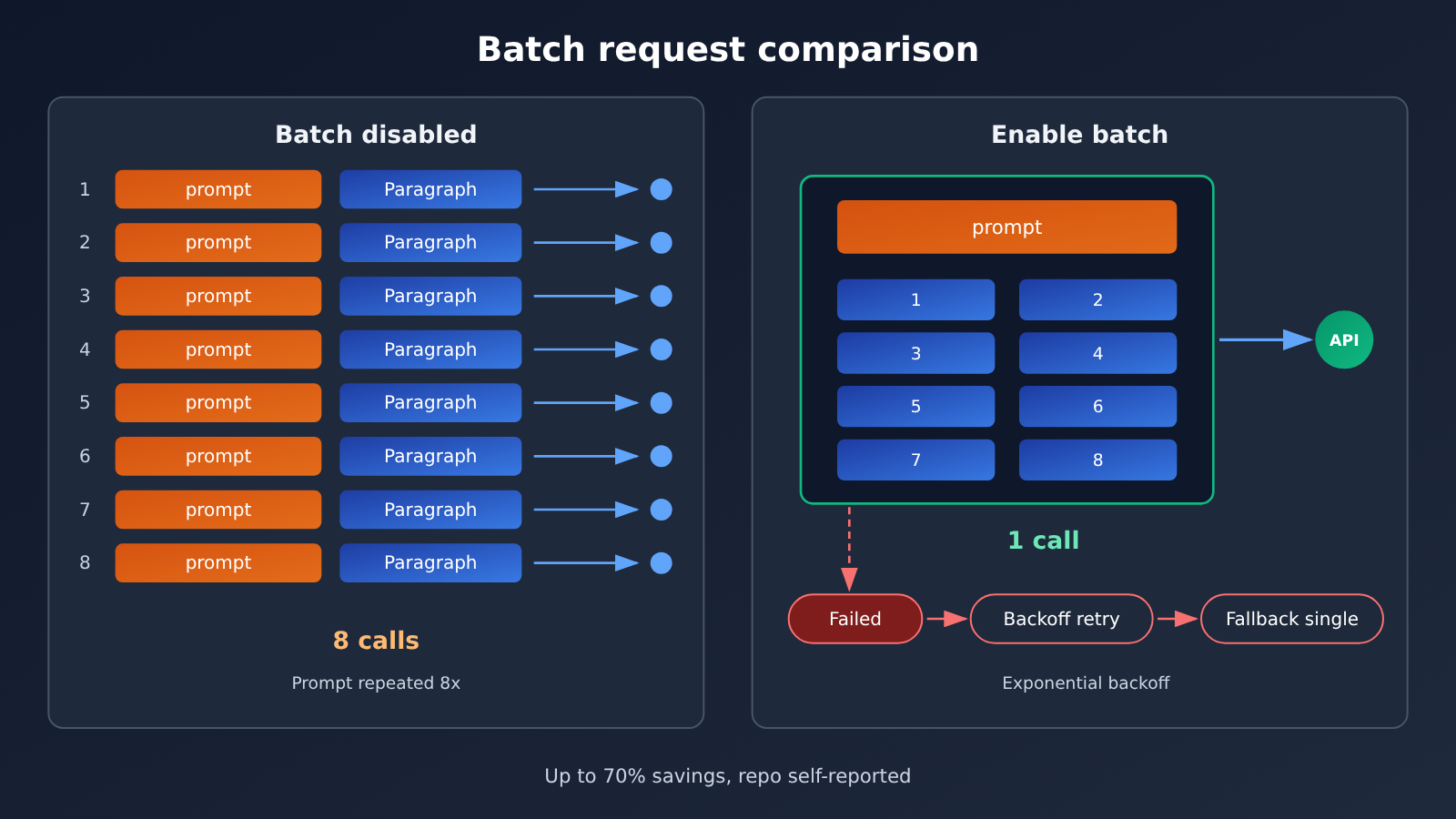
Read Frog’s smart request batching merges multiple translation requests on the same page into a single call. The repo claims savings of up to 70% on API costs. The savings mostly come from consolidating shared overhead: repeated content like the system prompt and instructions only gets sent once, and the number of requests drops accordingly. The output tokens for the translation itself don’t disappear when you batch, so treat 70% as an upper bound, not a promise. How much you actually save depends on page structure and concurrency — the more fragmented and numerous the paragraphs, the more visible the savings.
On reliability, batching ships with exponential backoff retries. If a merged request fails, it automatically falls back to individual requests. So if you occasionally see the request count jump after turning batching on, that’s usually the fallback kicking in, not a misconfiguration.
How Read Frog and Immersive Translate Split the Work
These two tools aren’t an either/or choice — what matters is your main need. The table below only compares the capabilities for which Read Frog has clear documentation. Immersive Translate’s specific features change over time, so refer to its official docs for the details.
| Your situation | Recommendation | Why |
|---|---|---|
| You mostly just want to understand web pages and read docs, and rarely review new words | Stay with Immersive Translate | Your current workflow already works smoothly; switching tools offers limited benefit |
| You want words you look up to automatically pile up as cards and get reviewed regularly | Switch to Read Frog | Word selection, card creation, and FSRS review all happen inside the same extension |
| You want to control the model, prompt, and output fields yourself | Switch to Read Frog | Open source, supports custom AI actions and 20+ providers |
| You want to use a local model so translated content never leaves your machine | Try Read Frog + Ollama | Supports the Ollama provider |
| You need both | Install both and use them separately | One handles everyday side-by-side translation, the other handles intensive reading and card creation — just don’t enable both on the same page at the same time |
Put simply, Immersive Translate is better for “reading fast,” while Read Frog is better for “remembering what you read.” If you already pay for Immersive Translate and are happy with it, you can start by using Read Frog just as a card-creation tool for intensive reading — there’s no need to migrate right away.
Read Frog Common Error Troubleshooting
| Symptom / Error Code | Common Cause | What to Do |
|---|---|---|
401 authentication failed |
The API key had extra spaces when copied, or the key was deleted | Copy the key again and make sure it’s the one created in the APIYI console |
404 or “model not found” |
The Base URL is missing /v1, or the model ID is misspelled |
Check whether the endpoint is https://api.apiyi.com/v1, and enter the model ID exactly as shown in the docs |
429 too many requests |
Full-page translation concurrency is too high | Wait for the extension to back off and retry automatically, or lower concurrency and enable batch requests |
| Balance-related error | The trial quota has been used up | Check usage in the console, then top up |
| The translation has content, but selecting text doesn’t generate a card | The AI action provider wasn’t switched, or the output fields don’t match the card template | Check the action configuration and make the structured field names match the template fields one-to-one |
| The number of requests suddenly increases | Batch requests failed and fell back to single requests | This is normal fallback behavior; if it happens often, check the network and model status |
Read Frog FAQ
Q1: What is Read Frog?
Read Frog is an open-source browser extension for language learning. It can translate webpages, selected sentences, and video subtitles, and it can also save unfamiliar words as cards for review using FSRS spaced repetition. The repository is at `mengxi-ream/read-frog`.
Q2: How is Read Frog different from Immersive Translate?
Both can translate webpages. Read Frog focuses on what you’re left with after translation: creating cards from selected text, review scheduling, and custom AI actions. If you don’t need to review vocabulary, there’s no need to switch.
Q3: Can I use Read Frog without paying?
Yes. Google Translate, Microsoft Translate, and DeepLX are free channels that don’t require an API key. The catch is that LLM-powered contextual translation and selected-text explanations require a paid provider or a local Ollama setup.
Q4: How do I switch between multiple models in Read Frog with one API key?
In the OpenAI provider, change the Base URL to `https://api.apiyi.com/v1` and enter your APIYI API key. You can then switch the model name among `qwen3.8-flash`, `deepseek-v4.1-flash`, `gemini-3.8-flash`, and others. New users can claim free credits at apiyi.com to try it out.
Q5: How much does it cost to use Read Frog every day?
Based on the estimates in this article, translating 20 pages of English webpages per day costs about $0.011 with `qwen3.8-flash` and about $0.094 with `gemini-3.8-flash`. Actual costs are subject to your console bill; you can check prices at docs.apiyi.com/models.
Q6: Do batch requests really save 70%?
70% is the upper limit reported by the repository. The savings mainly come from repeated prompts and request overhead; the output tokens for translations do not decrease. Pages with many fragmented paragraphs save more, while pages with long paragraphs save less.
Q7: What are the limitations of Read Frog?
Using a Large Language Model means you have to manage your own API key and billing, so setup is more involved than with out-of-the-box tools. Card quality depends on the prompt and model, and you’ll need to spend some time adjusting the template the first time you use it. Also, the extension’s UI and options change with version updates.
Read Frog Key Takeaways
- What it is: An open-source, language-learning-focused translation extension that turns unfamiliar words into flashcards while you translate web pages.
- Review mechanics: Cards are stored in Notebase, and FSRS schedules the next review based on a four-tier rating.
- Custom actions: You can write your own prompt and output fields, and choose a model separately for each action.
- How to connect: Change the Base URL under the OpenAI provider to plug in any compatible endpoint.
- Cost scale: With a lightweight model, translating 100 pages of English web content costs an estimated few cents.
- Ways to save: Turn on batch requests — the repo claims up to 70% savings, and it automatically falls back to single requests if a batch fails.
- Getting-started tip: First use the test credits from APIYI apiyi.com to get through the three setup steps, then decide on your main model.
Summary
The problem Read Frog solves is quite specific: when reading English web pages, it merges translation and vocabulary building into a single action. The whole approach comes down to three key points:
- Three-step setup: Install the extension, fill in the provider and key, and enable word-selection card creation. Validate each step before moving to the next.
- Controllable cost: Translation cost mainly depends on the output token price. Pick a lightweight model and turn on batch requests, and everyday usage stays very cheap.
- Clear division of labor: If all you want is to understand the page, keep using Immersive Translate; if you want to retain new words, use Read Frog.
This setup isn’t recommended if: You only need to understand a sentence or two now and then and don’t plan to review vocabulary; you’re not willing to manage API keys and billing; you need to batch-translate whole sites for archiving; or your environment doesn’t allow sending page content to third-party models and you can’t run Ollama locally.
If none of these apply to you, spend ten minutes going through the three-step setup. Use the free credits from APIYI apiyi.com to observe a week of real usage, then decide whether to stick with it long term.
📚 References
-
GitHub – Read Frog: the official open-source repository, with feature descriptions, a provider list, and notes on batch requests
- Link:
github.com/mengxi-ream/read-frog - Note: the star count, latest commit time, and the “save up to 70%” figure all come from the repository; data as of 2026-11-27
- Link:
-
APIYI model and pricing docs: the data source for the price table in this article
- Link:
docs.apiyi.com/models - Note: prices are in USD per 1M tokens, with a data date of 2026-11-27—please double-check them before use
- Link:
Author: APIYI technical team
Technical discussion: If you run into problems during configuration, feel free to reach out to us via the APIYI website homepage. More integration docs are available in the docs.apiyi.com documentation center.


