

Author’s note: This Nano Banana 2.1 migration guide covers model IDs, 1K/2K/4K resolutions, 14 reference images, thinking levels, and billing, with a complete checklist for migrating from gemini-3.1-flash-image.
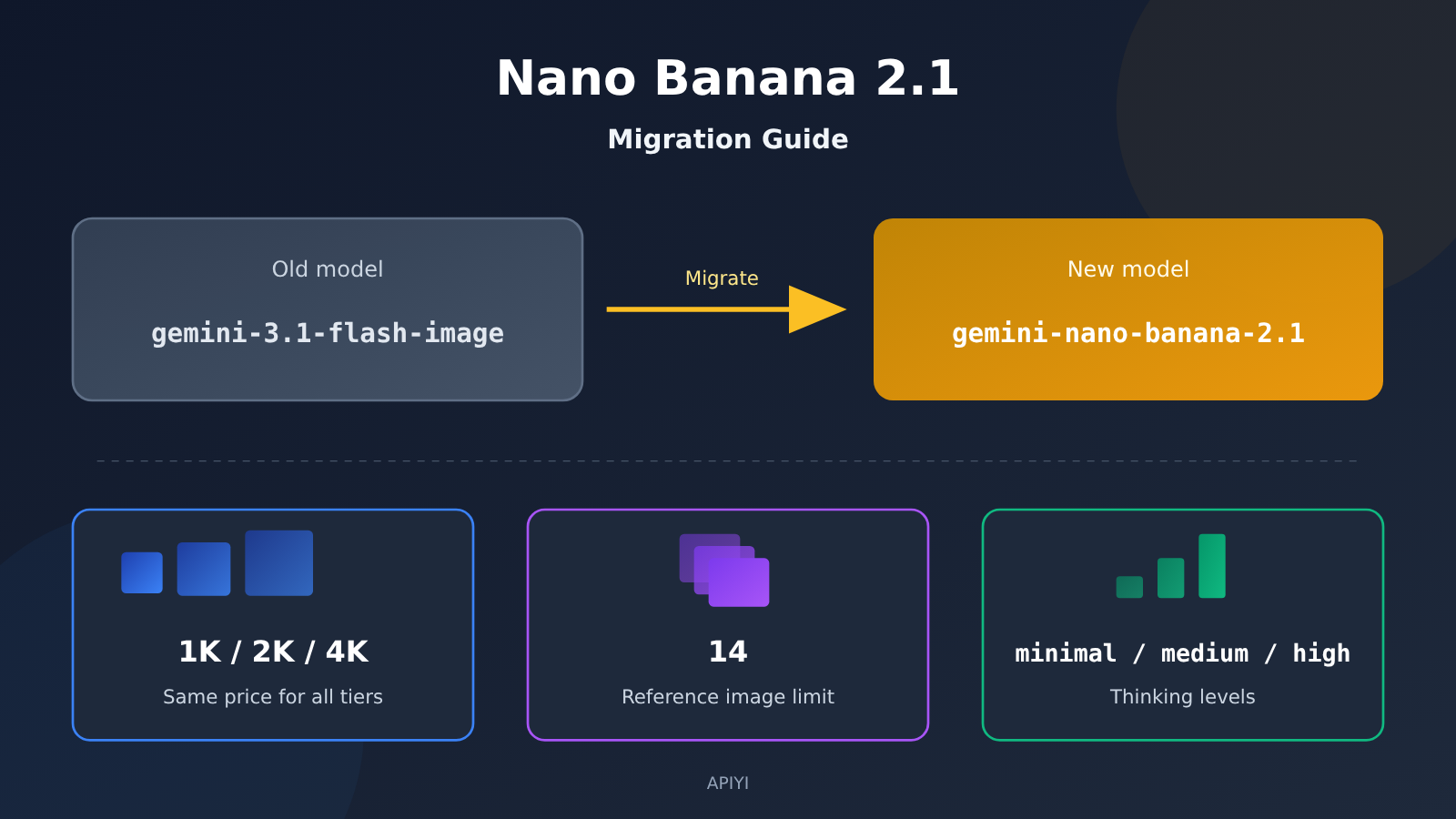
Here’s the short version: Nano Banana 2.1 is an upgrade to Nano Banana 2 (gemini-3.1-flash-image), with the same Flash-level speed and cost positioning. When migrating from the old model, you’ll mainly need to change the model ID and a few parameters, including resolution, the number of reference images, and thinking levels. You don’t need to rebuild your entire image generation pipeline.
This article won’t hype up the model or claim how much better its image quality is than the second generation—there’s no reliable comparative test data available yet. Instead, we’ll walk through what you need to change, in order: model ID, resolution, reference images, thinking levels, billing, and validation. By the end, you’ll have a ready-to-use Nano Banana 2.1 migration checklist for developers and design teams working on e-commerce images, posters, character consistency, and multi-image blending.
Nano Banana 2.1: Key Details and Model ID
Here’s a quick overview of the Nano Banana 2.1 details most relevant to migration. Everything in the table comes from public descriptions in the official model card, API documentation, and APIYI documentation—there are no speculative figures.
| Key point | Nano Banana 2.1 | Impact on migration |
|---|---|---|
| Model ID | gemini-nano-banana-2.1 |
Replaces the old gemini-3.1-flash-image |
| Release date | October 6, 2026 | A recent release; check the latest documentation for parameter details |
| Resolution | 1K / 2K / 4K, defaults to 1K | Output is 1K unless explicitly specified; check your old configuration |
| Reference images | Up to 14 images, with up to 4 characters and 10 objects | Revisit limits for multi-image blending and image series |
| Thinking levels | minimal / medium (default) / high |
Affects latency and cost; choose a level based on the task |
| Context and output | Context window of 131,072, maximum output of 32,768 | More room for long prompts and multiple reference images |
Nano Banana 2.1 Model ID and Replacement
The model ID for Nano Banana 2.1 is gemini-nano-banana-2.1. According to the reference materials, it’s the recommended replacement for gemini-3.1-flash-image, whose preview version was shut down on June 25, 2026. If your project still hardcodes the old ID, now is a good time to switch.
The new ID follows a very different naming pattern. The old gemini-3.1-flash-image includes version and series information, while the new ID uses the Nano Banana brand name directly. Many teams match model names by string prefix in configuration systems, environment variables, and log search rules. Update those as part of the migration, or your monitoring dashboards could start “losing data.”
Two Descriptions of the Underlying Model
There are currently two descriptions of the model underlying Nano Banana 2.1. It’s worth noting both in your technical documentation:
- Official model card: Says it’s based on Gemini 3.6 Flash.
- API documentation: Describes it as an upgrade to Nano Banana 2 that retains Flash-level speed and cost.
These descriptions aren’t necessarily contradictory: one refers to the underlying model, while the other describes the product line. Still, it’s best not to rely on just one when communicating externally. In customer proposals or internal reviews, a safer description is: “The model card says it’s based on Gemini 3.6 Flash; the API documentation describes it as an upgrade to Nano Banana 2.”
Beyond image generation, Nano Banana 2.1 also improves text rendering and infographic layout, and supports Google Web/Image Search grounding. It accepts text, images, video, and PDF as input, and produces images and text. These capabilities make it more useful for posters, product images with copy, infographics, and similar use cases.
How to Choose a Nano Banana 2.1 Resolution: 1K, 2K, or 4K
Nano Banana 2.1 supports three resolutions: 1K, 2K, and 4K. The default is 1K. It also supports common aspect ratios including 1:1, 3:2, 2:3, 3:4, 4:3, 4:5, 5:4, 9:16, 16:9, and 21:9. These cover most product listing images, vertical social media graphics, banner posters, and widescreen covers.
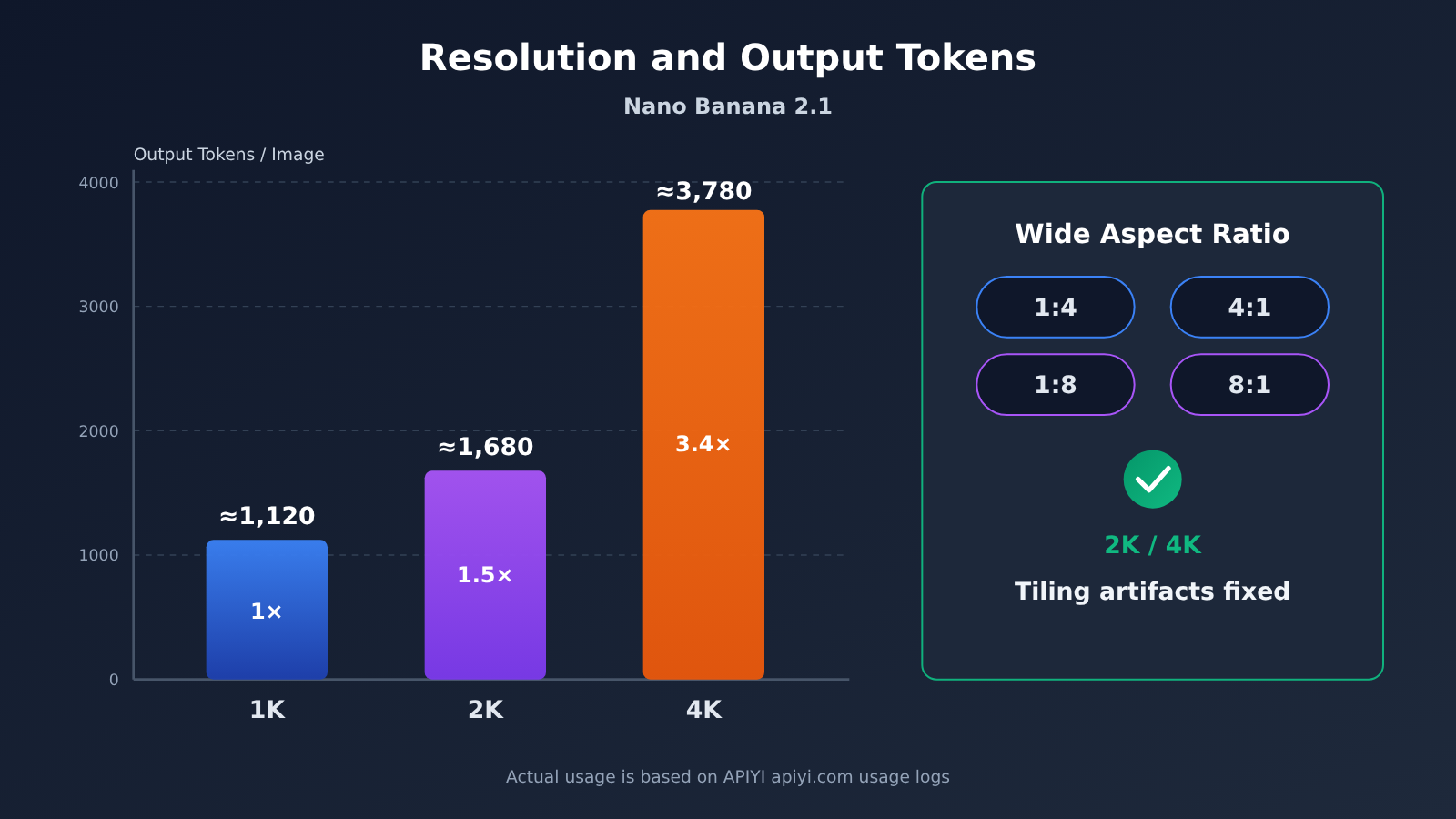
This version also includes a fix that’s relevant to migration: tiling artifacts at wide and panoramic aspect ratios (1:4, 4:1, 1:8, and 8:1) have been fixed at 2K and 4K. If you previously avoided higher resolutions for long-form images, banners, or panoramas because of these artifacts, it’s worth revisiting those settings after migration.
| Resolution | Output tokens (approx.) | Token usage relative to 1K | Best for |
|---|---|---|---|
| 1K (default) | ~1,120 | 1× | Sketches, bulk previews, social media graphics, A/B testing |
| 2K | ~1,680 | ~1.5× | E-commerce product detail images, standard posters, landing page hero images |
| 4K | ~3,780 | ~3.4× | Print materials, large-format ads, master images that need cropping |
Tips for Choosing a Nano Banana 2.1 Resolution
The output token counts in the table are a key variable under official token-based pricing: the higher the resolution, the more output tokens each image consumes. A 4K image uses roughly 3.4 times as many as a 1K image. So, under token-based billing, defaulting to 4K “just in case” can significantly increase costs.
A practical approach is to work in two stages: use 1K to generate and screen images quickly during creative exploration and bulk selection, then produce the final images at 2K or 4K once you’ve settled on a direction. If your platform charges per image and prices 1K through 4K the same, the calculation changes. We’ll cover that separately in the billing section below.
There’s one more thing to check when migrating: does your old code explicitly specify a resolution? If your previous calls relied on the default but your application needs output at 2K or higher, you’ll need to specify it when switching to Nano Banana 2.1. Otherwise, you’ll get the default 1K output. Check your API documentation for the exact resolution and aspect ratio field names.
Nano Banana 2.1 Reference Images: How to Allocate the 14-Image Limit
Nano Banana 2.1 supports up to 14 reference images, a major change for multi-image fusion and visual series. Within that limit, there are two more constraints: consistency can be maintained for up to 4 characters and up to 10 objects.
These numbers shape how you organize your reference images. For example, when creating a set of brand illustrations with multiple characters, you can lock in up to 4 characters and use the remaining reference image slots for scenes, props, or style samples. For product series images, the 10-object limit is enough to cover a medium-sized SKU line.
Typical Uses for Nano Banana 2.1 Reference Images
The reference materials identify four main use cases. Here’s how you can plan for each:
- Character design: Use reference images from multiple angles for 1–4 characters to keep each character’s appearance consistent across different images.
- Product series: Use products from the same series as object references to generate main images, lifestyle images, and group shots in a consistent style.
- Multi-image fusion: Combine references for scenes, subjects, materials, and lighting into a single output. This works well for posters and concept art.
- Brand visuals: Use brand colors, logo assets, and existing visuals as references to keep the style consistent across batches of assets.
When migrating, consider adding a reference image count check at the invocation layer: block requests with more than 14 images on the client side and show a message, rather than waiting for an API error. Also, the character and object limits are semantic constraints that the API may not be able to validate directly. It’s best to tell designers in the product interface that they can “lock in up to 4 characters and 10 objects at a time” to reduce character confusion in the generated results.
More reference images generally mean more input processing, which can increase latency. For time-sensitive tasks, you don’t need to use all 14 slots every time. Selecting a few images that best represent the desired features is often more efficient.
Nano Banana 2.1 Thinking Levels: How to Choose minimal, medium, or high
Nano Banana 2.1 supports three thinking levels: minimal, medium (the default), and high. Higher levels mean the model does more reasoning before generating an image, which generally leads to longer wait times and greater resource consumption.
The guidance is straightforward: use a higher level for complex compositions, text layouts, and multi-image blending; use a lower level for simple edits to reduce wait times and costs. The table below maps those choices to specific tasks.
| Thinking level | Recommended tasks | Latency and cost | Migration guidance |
|---|---|---|---|
minimal |
Background replacement, color adjustments, local edits, simple image edits | Lowest | Good for high-concurrency batch jobs |
medium (default) |
Standard product images, social media visuals, single-subject posters | Moderate | When in doubt, start with the default as a baseline |
high |
Complex compositions, dense text layouts, infographics, multi-image blending | Highest | Reserve it for tasks that truly need it |
A Tiered Strategy for Nano Banana 2.1 Thinking Levels
A common mistake is to use high for everything that needs to look good. In practice, higher thinking levels offer limited benefits for simple image edits while noticeably increasing response times. That trade-off is especially costly when users are waiting in real time.
A better approach is to route requests by task type in your application. For example, send posters with large blocks of text, blends using 14 reference images, and infographics to high; send batch background replacements to minimal; and use the default medium for everything else. This helps maintain quality for critical tasks while keeping overall latency under control.
If your old model didn’t have a corresponding thinking-level setting, the default after migration is medium. Start with that default and collect baseline data, then gradually adjust the level up or down by task type. This avoids changing too many variables at once and makes it easier to understand what caused any differences in results.
Nano Banana 2.1 Pricing: Per-Image vs. Per-Token
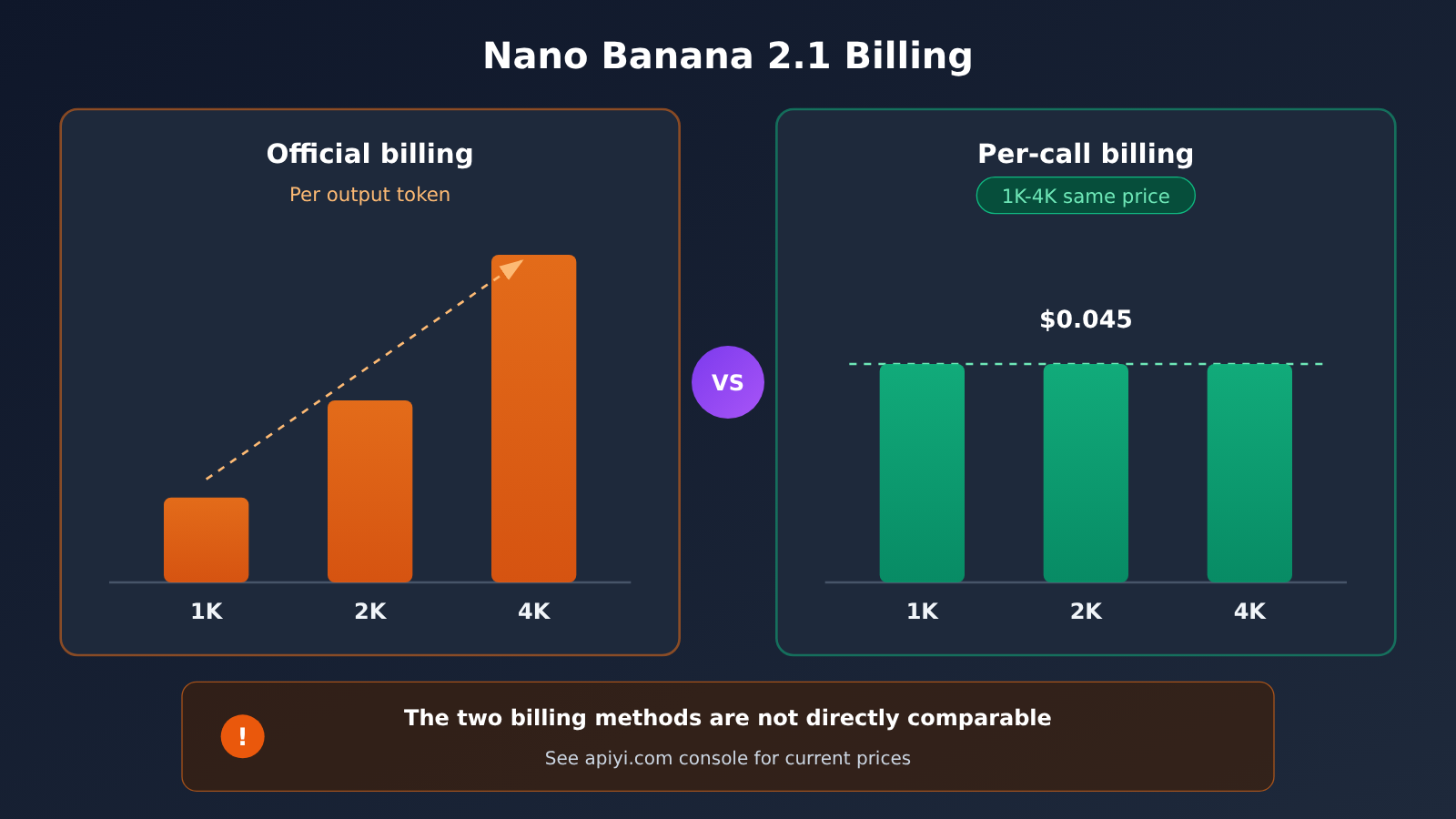
Pricing is one of the easiest things to miscalculate when evaluating a migration to Nano Banana 2.1, because there are two pricing models. Official pricing is based on output tokens, with different token counts for 1K, 2K, and 4K images—and therefore different costs. APIYI documentation, meanwhile, lists a per-image price of $0.045, with the same rate for 1K through 4K.
| Pricing model | Billing unit | How resolution affects cost | Best way to estimate costs | Source |
|---|---|---|---|---|
| Official per-token pricing | Output tokens | 4K uses about 3.4 times as many tokens as 1K | Estimate total tokens based on your resolution mix | Official documentation |
| Per-image pricing | Each image | Same price for 1K–4K | Estimate directly from the number of images generated | APIYI apiyi.com documentation lists $0.045/image |
The Two Nano Banana 2.1 Pricing Models Aren’t Directly Comparable
Per-image and per-token pricing use different calculations, so you can’t simply compare “price per image” with “price per million tokens.” A meaningful comparison uses your own workload: figure out what proportion of your images are 1K, 2K, and 4K, calculate the average token count per image, and then apply each pricing model.
With per-image pricing at the same rate for 1K–4K, the marginal cost of higher resolution no longer grows with the token count. For e-commerce and print workflows that need lots of 2K or 4K final assets, this changes the earlier trade-off of “explore at 1K, then increase the resolution for the final image.” That said, 1K images are usually still faster to generate, so using 1K during exploration can still save time.
💰 Pricing note: APIYI apiyi.com documentation lists Nano Banana 2.1 at $0.045 per image, with the same price for 1K–4K. Prices may change, so check the console and documentation for current rates. Check the console as well to see whether the platform supports all parameters, such as every aspect ratio and thinking level.
6 Steps to Migrate from gemini-3.1-flash-image to Nano Banana 2.1
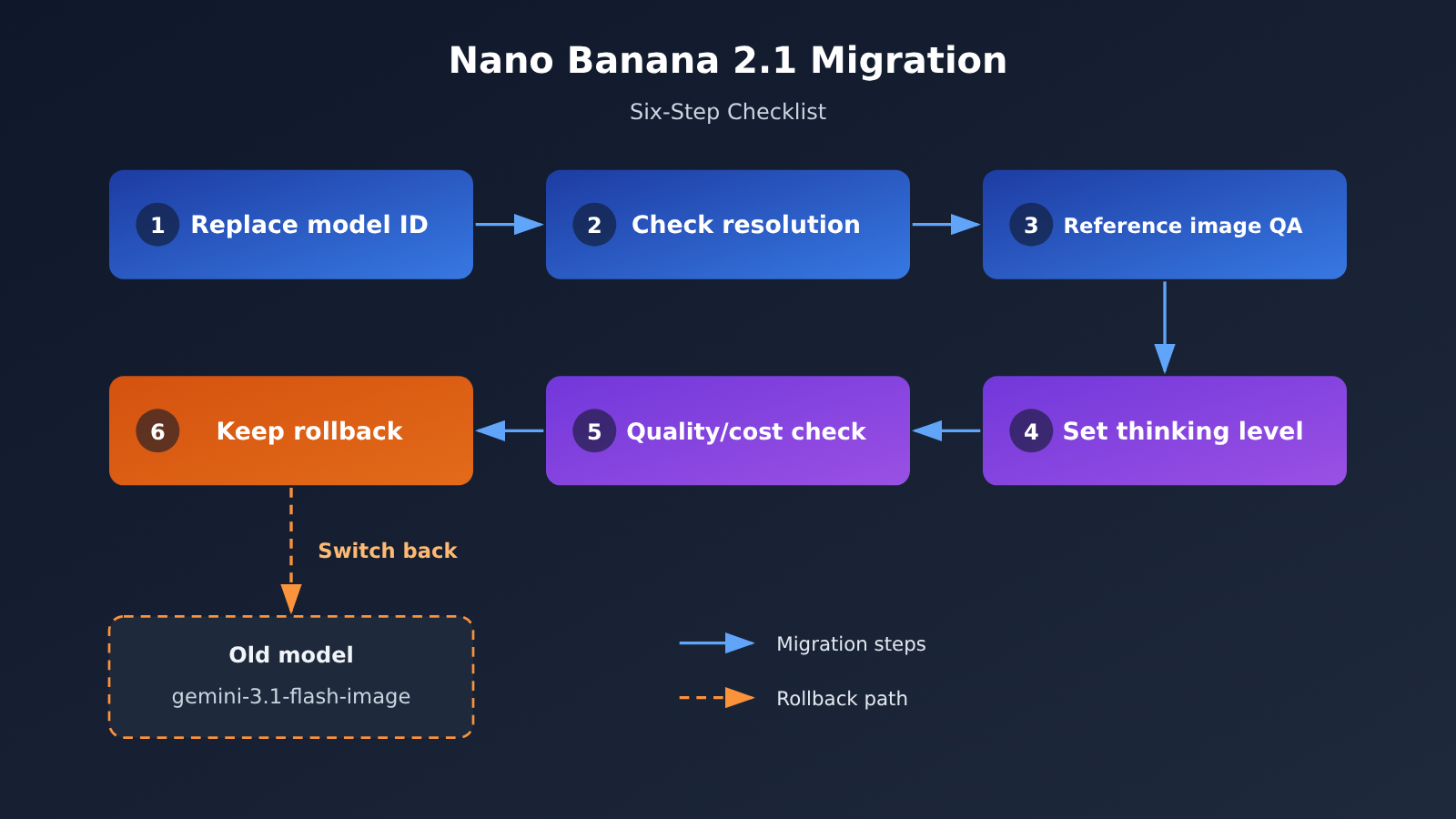
Now that we’ve covered the individual parameters, let’s put them together into a practical migration workflow. According to the reference material, migration involves six main steps:
- Replace the model ID: Change
gemini-3.1-flash-imagetogemini-nano-banana-2.1, and update your configuration center, environment variables, log searches, and monitoring rules. - Check dimensions and aspect ratios: Confirm whether your existing calls rely on the default resolution. Explicitly specify 2K or 4K where needed, and reassess high-resolution settings for widescreen and panoramic use cases.
- Check reference image limits: Validate the 14-image maximum on the client side, and inform users that the limits are four characters and 10 objects.
- Evaluate thinking levels: Establish a baseline with the default
mediumsetting, then route tasks tominimalorhighbased on task type. Monitor changes in latency and cost. - Compare output quality and billing: Run the same set of prompts and reference images through both models, then compare image quality, text rendering, and cost per image.
- Keep a rollback switch: Retain a configuration switch that lets you quickly revert to the old model if quality drops or costs behave unexpectedly.
Accessing Nano Banana 2.1 Through APIYI
If you’re using an OpenAI-compatible interface, set your client’s base_url to https://api.apiyi.com/v1, enter your APIYI API key, and change the model parameter to gemini-nano-banana-2.1. One API key gives you access to models from Gemini, OpenAI, Claude, and more, so you can compare the old and new models through the same integration during migration.
Before migrating, check the model list in the APIYI console to confirm that gemini-nano-banana-2.1 is available and review its pricing. You should also check the console and documentation for parameter support, such as specific aspect ratios or the high thinking level. Don’t assume every official parameter is available.
🚀 Migration tip: After checking Nano Banana 2.1 pricing in the model list at APIYI apiyi.com, use the free testing credits for new users to run a small batch and compare outputs from the old and new models before deciding whether to switch over completely.
Using Usage Logs to Validate Your Nano Banana 2.1 Migration
Migration validation isn’t just about how the images look—it also involves checking the bill. APIYI provides usage logs that show the model, invocation count, and cost by request. During the first week after migration, compare invocation volume and cost trends for the old and new models daily. Confirm that billing matches your expectations, and pay particular attention to any requests still using the old model ID.
For quality validation, prepare a fixed evaluation set that covers your core use cases: e-commerce product images, posters with text, character consistency series, and multi-image fusion. Select several sets of prompts and reference images for each category, run them before and after migration, and have designers assess the results blind. Until you have evaluation data of your own, don’t take claims of “across-the-board improvements” at face value.
Nano Banana 2.1 FAQ
Q1: How is Nano Banana 2.1 related to gemini-3.1-flash-image?
Nano Banana 2.1 (`gemini-nano-banana-2.1`) is an upgrade and the recommended replacement for Nano Banana 2 (`gemini-3.1-flash-image`), while maintaining Flash-level speed and cost. As for the underlying version, the official model card says it’s based on Gemini 3.6 Flash, while the API documentation describes it as an upgrade to Nano Banana 2. It’s best to mention both descriptions.
Q2: Do I need to change my code logic to migrate to Nano Banana 2.1?
In most cases, you don’t need to refactor your logic. The main changes are to the model ID and parameters: resolution, number of reference images, and thinking level. If your existing calls rely on the default resolution but your application needs 2K or 4K, you’ll need to specify it explicitly. When using APIYI apiyi.com’s OpenAI-compatible interface, you can switch models by changing the `model` parameter.
Q3: If 1K–4K costs the same, is it always better to use 4K?
With per-request pricing where 1K–4K costs the same, 4K won’t increase the cost per image, but generation and transfer may take longer, and storage costs will be higher. We still recommend using 1K for exploration and bulk screening, then switching to 2K or 4K for the final version. Check the APIYI apiyi.com console for current per-request prices.
Q4: What are the known limitations of Nano Banana 2.1?
You can use up to 14 reference images, with consistency support for up to 4 characters and 10 objects. If you need more, you’ll have to split the task. The `high` thinking level increases latency and cost. There are currently no public, reliable hands-on image quality comparisons, so you’ll need to validate migration results using your own evaluation set.
Nano Banana 2.1 Migration Summary and Checklist
Nano Banana 2.1 Key Takeaways
- Version positioning: An upgrade to Nano Banana 2 that replaces
gemini-3.1-flash-imagewhile maintaining Flash-level speed and cost. - Underlying model: The model card says it’s based on Gemini 3.6 Flash, while the API documentation describes it as a Nano Banana 2 upgrade. Note both descriptions.
- Resolution: 1K/2K/4K, with 1K as the default. Tiling artifacts in wide and panoramic aspect ratios at 2K/4K have been fixed.
- Reference images: Up to 14 images, with up to 4 characters and 10 objects—well suited for image series and multi-image blending.
- Thinking level: Defaults to
medium. Usehighfor complex compositions and text layouts, andminimalfor simple image edits. - Billing: Official pricing is token-based, while APIYI documentation lists the same per-image price. The two can’t be compared directly; check the console for current prices.
Nano Banana 2.1 Migration Checklist
| Check | Action | Completion criteria |
|---|---|---|
| Model ID | Replace all instances of gemini-3.1-flash-image with gemini-nano-banana-2.1 |
No calls to the old ID appear in usage logs |
| Resolution | Check whether the default 1K meets your needs; explicitly specify 2K/4K when needed | Output dimensions match business requirements |
| Aspect ratio | Reassess 2K/4K for wide and panoramic use cases | Long-form images and banners have no tiling artifacts |
| Reference images | Validate the 14-image limit on the client and indicate limits of ≤4 characters and ≤10 objects | Requests exceeding the limits are blocked on the client |
| Thinking level | Establish a baseline with the default medium, then route requests by task |
Latency and cost are within acceptable limits |
| Output format | Confirm that image and text output parsing is compatible | Downstream storage and display work correctly |
| Billing verification | Estimate costs based on your resolution mix and check console prices | Actual costs match estimates |
| Quality evaluation | Run a blind comparison of the old and new models using a fixed evaluation set | No quality regression in core use cases |
| Rollback switch | Retain the ability to switch back to the old model in the configuration layer | Rollback can be completed within minutes |
Migrating to Nano Banana 2.1 is essentially an engineering task: change the ID, adjust parameters, and validate the results. Configure resolution, reference images, and thinking levels for each use case, then verify the switch using both an evaluation set and usage logs.
We recommend using the same API key through APIYI at apiyi.com to call the old and new models in parallel for comparison. Check the usage logs against the per-call billing, then switch over fully once everything checks out.
Author: APIYI Technical Team
Technical discussions: Contact us through the APIYI website homepage. For more integration resources, visit the documentation center at docs.apiyi.com.


