
As Google DeepMind's latest video generation model, Veo 3.1 offers a few different ways to hook into its API, which can be a bit confusing for developers. What’s the actual difference between the Flow Reverse interface and Vertex Official Forwarding? In this post, we'll break down the differences across 6 core parameters to help you make the best choice.
Key Takeaway: By the end of this article, you'll know exactly which Veo 3.1 access method fits your specific use case and how to optimize your setup around certain parameter limits.
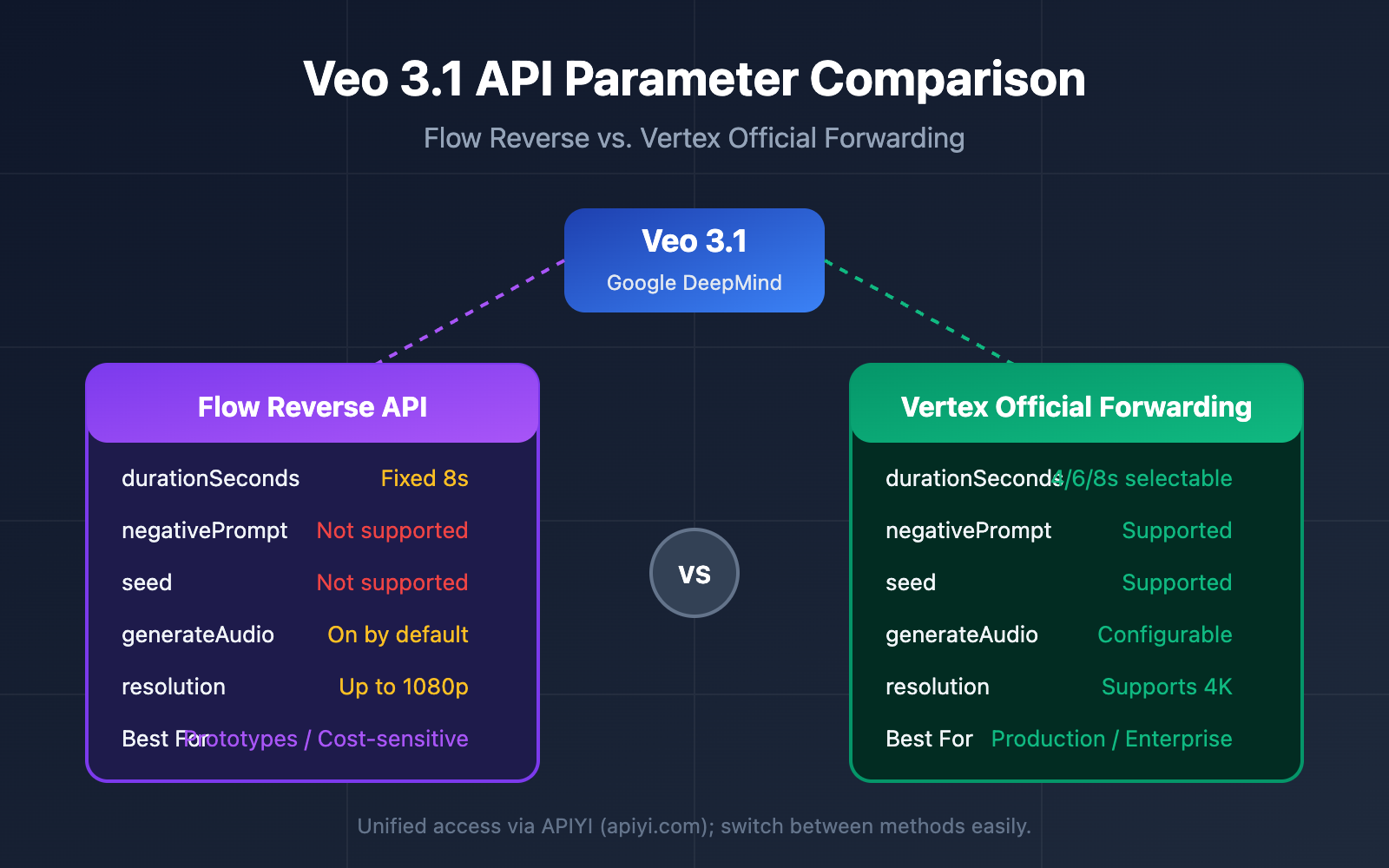
Overview of Veo 3.1 Access Methods
Before we dive into the parameter specifics, let's look at the basic context of these two access methods.
Veo 3.1 Access Method Basics
| Comparison Dimension | Flow Reverse API | Vertex Official Forwarding |
|---|---|---|
| Source | Reverse-engineered from Google Flow | Google Cloud Vertex AI |
| Stability | Moderate; may change without notice | High, Enterprise-grade SLA |
| Pricing | Lower | Official pricing |
| Parameter Support | Some parameters restricted | Full parameter support |
| Authentication | Token-based | JWT / OAuth 2.0 |
| Best For | Rapid prototyping, cost-sensitive projects | Production environments, enterprise apps |
Veo 3.1 Model Versions
| Model ID | Type | Features |
|---|---|---|
veo-3.1-generate-preview |
Standard | High-quality output, longer processing time |
veo-3.1-fast-generate-preview |
Fast | Quicker generation, great for rapid iteration |
veo-3.1-generate-001 |
Official | Available via Gemini API, supports 4K |
🎯 Tech Tip: During development, we recommend testing your calls through the APIYI (apiyi.com) platform. It provides a unified API interface for the entire Veo 3.1 model lineup, making it much easier to validate your technical approach quickly.
Detailed Breakdown of Veo 3.1 Core Parameter Differences
Next, let's analyze the differences between the two access methods across six core parameters.
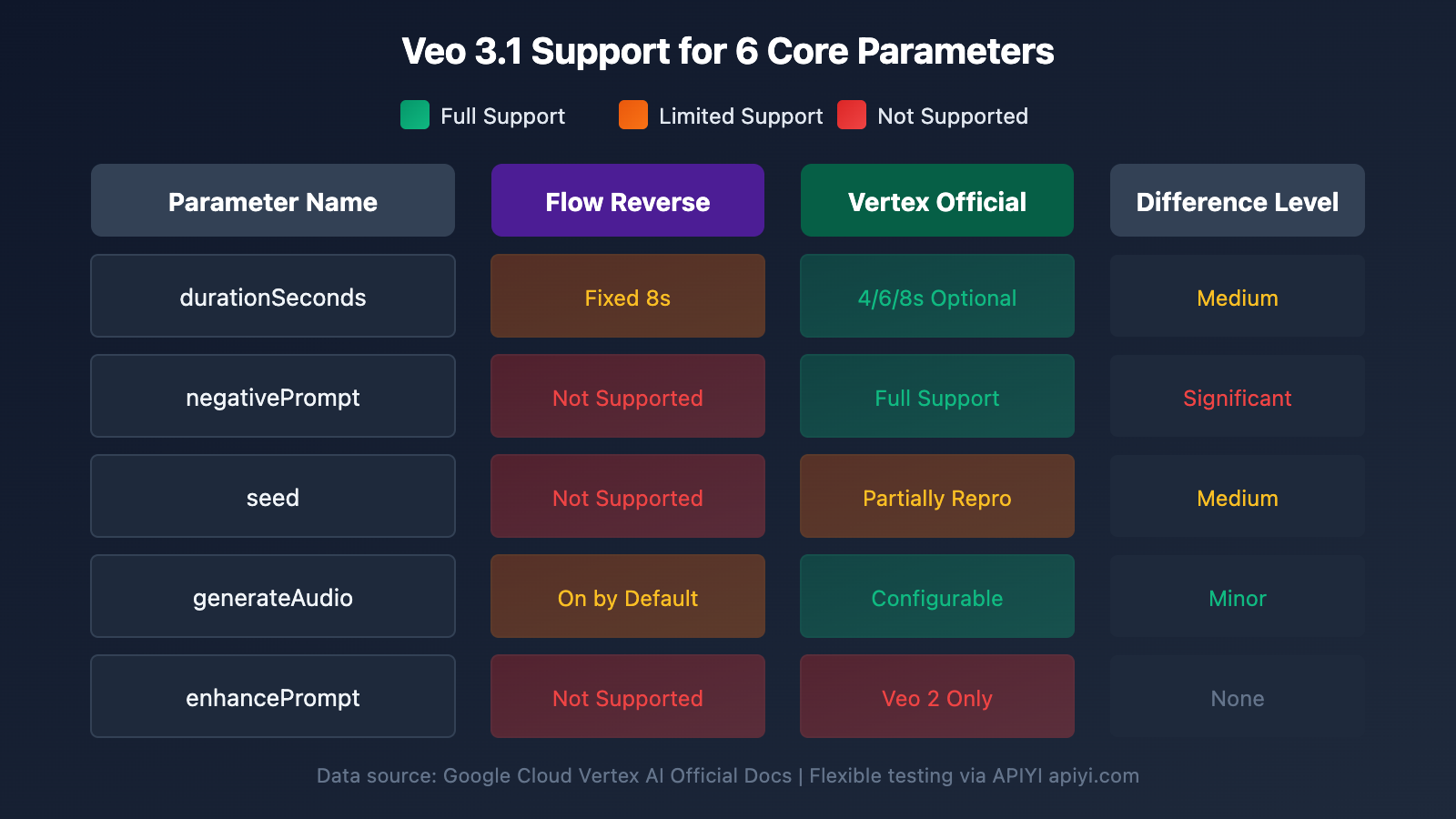
Parameter 1: durationSeconds (Video Duration)
Video duration is one of the most fundamental and critical parameters in video generation.
Veo 3.1 durationSeconds Comparison
| Feature | Flow Reverse | Vertex Official |
|---|---|---|
| Support Status | Fixed value | Configurable |
| Available Values | Fixed 8 seconds | 4 / 6 / 8 seconds |
| Default Value | 8 seconds | 8 seconds |
| Flexibility | Low | High |
Vertex Official Example:
from google import genai
from google.genai import types

client = genai.Client()

# Vertex official supports custom duration
operation = client.models.generate_videos(
    model="veo-3.1-generate-preview",
    prompt="A cinematic shot of ocean waves at sunset",
    config=types.GenerateVideosConfig(
        duration_seconds=6,  # Options: 4/6/8 seconds
        aspect_ratio="16:9",
        resolution="1080p"
    )
)
Flow Reverse Limitations:
The Flow Reverse API currently only outputs fixed 8-second videos. If your use case requires shorter clips, consider these alternatives:
- Post-processing: Generate the 8-second video and then trim it to your desired length using tools like FFmpeg.
- Scene Splicing: Use the Scene Extension feature to generate continuous segments.
💡 Pro Tip: If you need granular control over video length, the Vertex official relay is your best bet. You can easily switch between methods for testing via APIYI (apiyi.com).
Parameter 2: negativePrompt
Negative prompts are used to exclude unwanted elements from your visuals and are essential for fine-tuning the output quality.
Veo 3.1 negativePrompt Comparison
| Feature | Flow Reverse | Vertex Official |
|---|---|---|
| Support Status | Not Supported | Supported |
| Parameter Type | – | string |
| Usage Scenario | Needs workaround | Direct usage |
| Effect | – | Excludes specific content |
Vertex Official Example:
from google import genai
from google.genai import types

client = genai.Client()

# Vertex official supports negative prompts
operation = client.models.generate_videos(
    model="veo-3.1-generate-preview",
    prompt="A professional business meeting in modern office",
    config=types.GenerateVideosConfig(
        negative_prompt="cartoon, drawing, low quality, blurry, distorted",
        aspect_ratio="16:9"
    )
)
Flow Reverse Workarounds:
Although Flow Reverse doesn't support the negativePrompt parameter, you can achieve similar results by optimizing your positive prompt:
# Original Prompt
A cat playing in the garden

# Optimized Prompt (with exclusion terms)
A realistic, high-quality video of a cat playing in the garden.
Photorealistic style, sharp focus, natural lighting.
NOT cartoon, NOT animated, NOT low quality.
Prompt Optimization Tips:
| Technique | Description | Example |
|---|---|---|
| Style Prefixing | Define style at the start | "Cinematic, photorealistic…" |
| Quality Emphasis | Stress quality requirements | "High quality, 4K resolution…" |
| NOT Keywords | Use negative words | "NOT blurry, NOT distorted" |
| Concrete Details | Reduce ambiguity | Be specific about scene details |
Parameter 3: seed
Seeds are used to control the reproducibility of generation results, which is crucial for scenes requiring consistent output.
Veo 3.1 seed Comparison
| Feature | Flow Reverse | Vertex Official |
|---|---|---|
| Support Status | Not Supported | Supported |
| Parameter Type | – | uint32 |
| Value Range | – | 0-4294967295 |
| Reproducibility | Completely random | Partially reproducible |
Important Note: Even with the Vertex Official API, the seed parameter doesn't guarantee 100% determinism; it simply "slightly improves" result consistency.
Vertex Official Example:
from google import genai
from google.genai import types

client = genai.Client()

# Using seed to improve consistency
operation = client.models.generate_videos(
    model="veo-3.1-generate-preview",
    prompt="A golden retriever running on the beach",
    config=types.GenerateVideosConfig(
        seed=12345678,  # Specify seed value
        aspect_ratio="16:9",
        resolution="720p"
    )
)
Workaround Strategies for Flow Reverse:
Since Flow Reverse doesn't support seeds, if you need similar outputs:
- Save Successes: Keep track of prompts that produced great results.
- Batch Generation: Generate multiple results for the same prompt and pick the best one.
- Reference Image Guidance: Use the Image-to-Video feature to constrain the output with a reference image.
🎯 Recommendation: If your application demands high consistency (like brand videos or serial content), stick with the Vertex official relay. The APIYI (apiyi.com) platform supports quick switching and side-by-side testing for both methods.
Parameter 4: generateAudio
Native audio generation is one of Veo 3.1's standout features, including dialogue, sound effects, and background music.
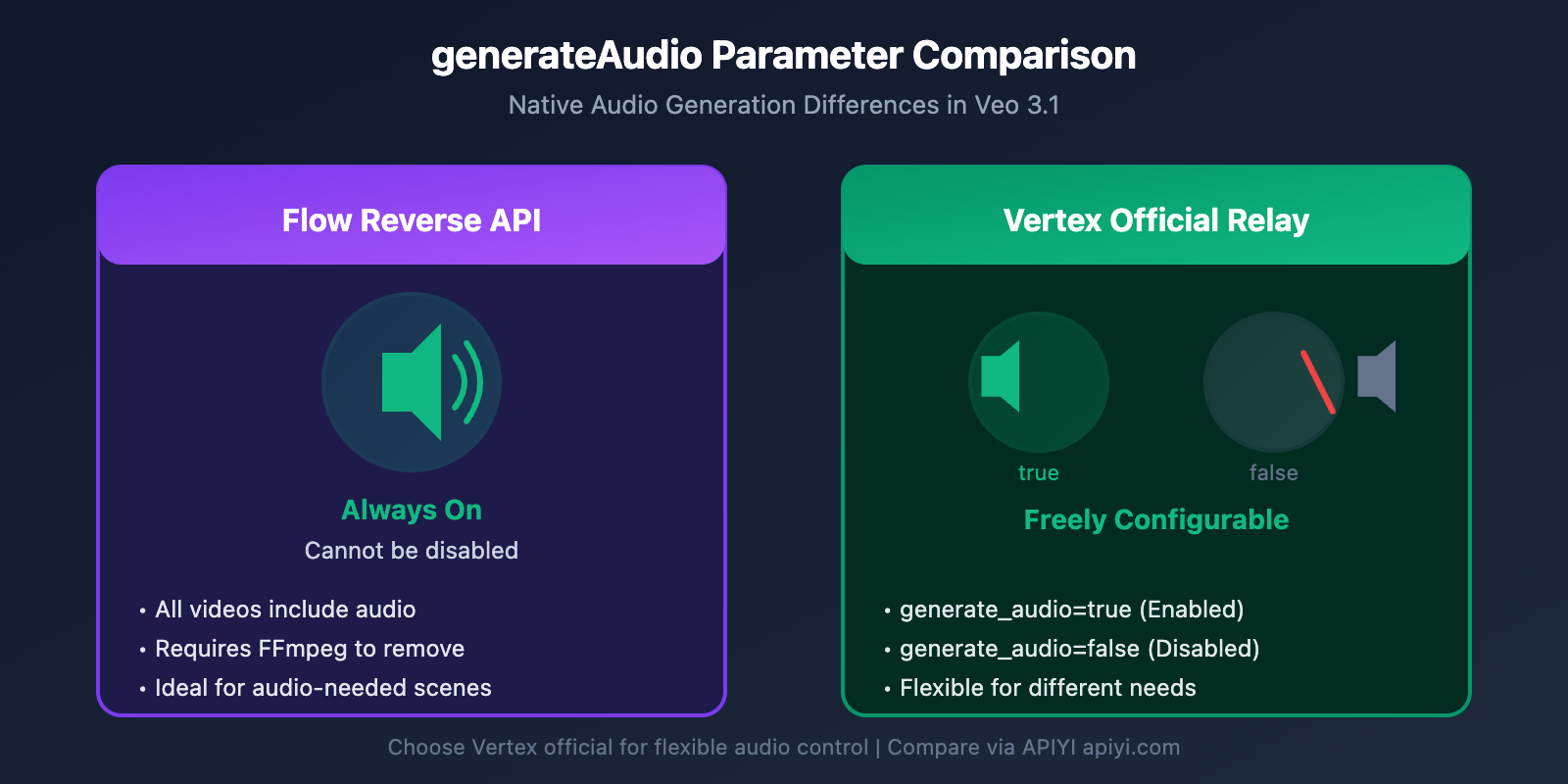
Veo 3.1 generateAudio Comparison
| Feature | Flow Reverse | Vertex Official |
|---|---|---|
| Support Status | On by Default | Configurable |
| Default Value | true (with audio) | false |
| Can be disabled? | No | Yes |
| Audio Quality | Standard | Standard |
Vertex Official Example:
from google import genai
from google.genai import types

client = genai.Client()

# You can choose whether to generate audio
operation = client.models.generate_videos(
    model="veo-3.1-generate-preview",
    prompt="A chef preparing sushi in a Japanese restaurant",
    config=types.GenerateVideosConfig(
        generate_audio=True,  # Enable audio generation
        aspect_ratio="16:9"
    )
)

# If you don't need audio, turn it off to save processing time
operation_silent = client.models.generate_videos(
    model="veo-3.1-generate-preview",
    prompt="Abstract geometric shapes morphing",
    config=types.GenerateVideosConfig(
        generate_audio=False,  # Disable audio
        aspect_ratio="16:9"
    )
)
Handling Audio in Flow Reverse:
Flow Reverse generates video with audio by default. If you don't want the native audio, you'll need to handle it yourself:
# Remove audio track with FFmpeg
ffmpeg -i input_video.mp4 -an -c:v copy output_silent.mp4

# Replace with custom audio
ffmpeg -i video.mp4 -i custom_audio.mp3 -c:v copy -c:a aac output.mp4
Parameter 5: enhancePrompt (AI Prompt Enhancement)
The enhancePrompt parameter allows the AI to automatically optimize and expand the prompt you input.
Veo 3.1 enhancePrompt Comparison
| Feature | Flow Reverse | Vertex Official |
|---|---|---|
| Support Status | Not Supported | Veo 2 Only |
| Veo 3.1 Support | No | No |
| Alternative | Manual Optimization | Manual Optimization |
Important Note: According to official Google documentation, the enhancePrompt parameter currently only supports the Veo 2 model. Veo 3.1 doesn't support this parameter yet.
Manual Prompt Optimization Tips:
Since Veo 3.1 doesn't support auto-enhancement, we recommend optimizing your prompts manually:
| Dimension | Technique | Example |
|---|---|---|
| Camera Language | Add cinematic terms | "Close-up shot", "Wide angle", "Tracking shot" |
| Lighting | Clarify lighting conditions | "Golden hour lighting", "Soft diffused light" |
| Style | Define visual style | "Cinematic", "Documentary style", "Slow motion" |
| Mood | Describe emotional tone | "Peaceful", "Dramatic", "Nostalgic" |
| Technical | Mention technical details | "8K quality", "Film grain", "High dynamic range" |
Prompt Template:
[Shot Type] + [Subject Description] + [Action/State] + [Environment/Background] + [Lighting] + [Style/Mood]

Example:
"Cinematic wide shot of a lone astronaut walking across Mars surface,
orange dust swirling around boots, dramatic backlighting from setting sun,
epic sci-fi atmosphere, film grain texture"
💰 Cost Optimization: For heavy prompt optimization, you can first use a Claude or GPT model to refine your prompt, then call Veo 3.1 to generate the video. The APIYI (apiyi.com) platform lets you call multiple models flexibly to optimize your overall costs.
Parameter 6: Other Key Parameter Comparison
Beyond the five core parameters, here are a few others worth noting.
Complete Comparison of Other Veo 3.1 Parameters
| Parameter | Flow Reverse | Vertex Official | Note |
|---|---|---|---|
| aspectRatio | Supported | Supported | 16:9 or 9:16 |
| resolution | Limited Support | 720p/1080p/4K | Resolution control |
| sampleCount | Fixed at 1 | 1-4 | Number of generations |
| personGeneration | Default | allow_adult | Control over human generation |
| storageUri | Not Supported | Supported | Cloud storage path |
| referenceImages | Limited Support | Up to 3 images | Reference image input |
| compressionQuality | Fixed | Configurable | Compression quality |
Resolution Support Details:
| Resolution | Flow Reverse | Vertex Official |
|---|---|---|
| 720p | Default | Supported |
| 1080p | Partial Support | Supported |
| 4K | Not Supported | Supported (veo-3.1-generate-001) |
Veo 3.1 Parameter Comparison Overview
For quick reference, here's a summary of all the parameter differences:
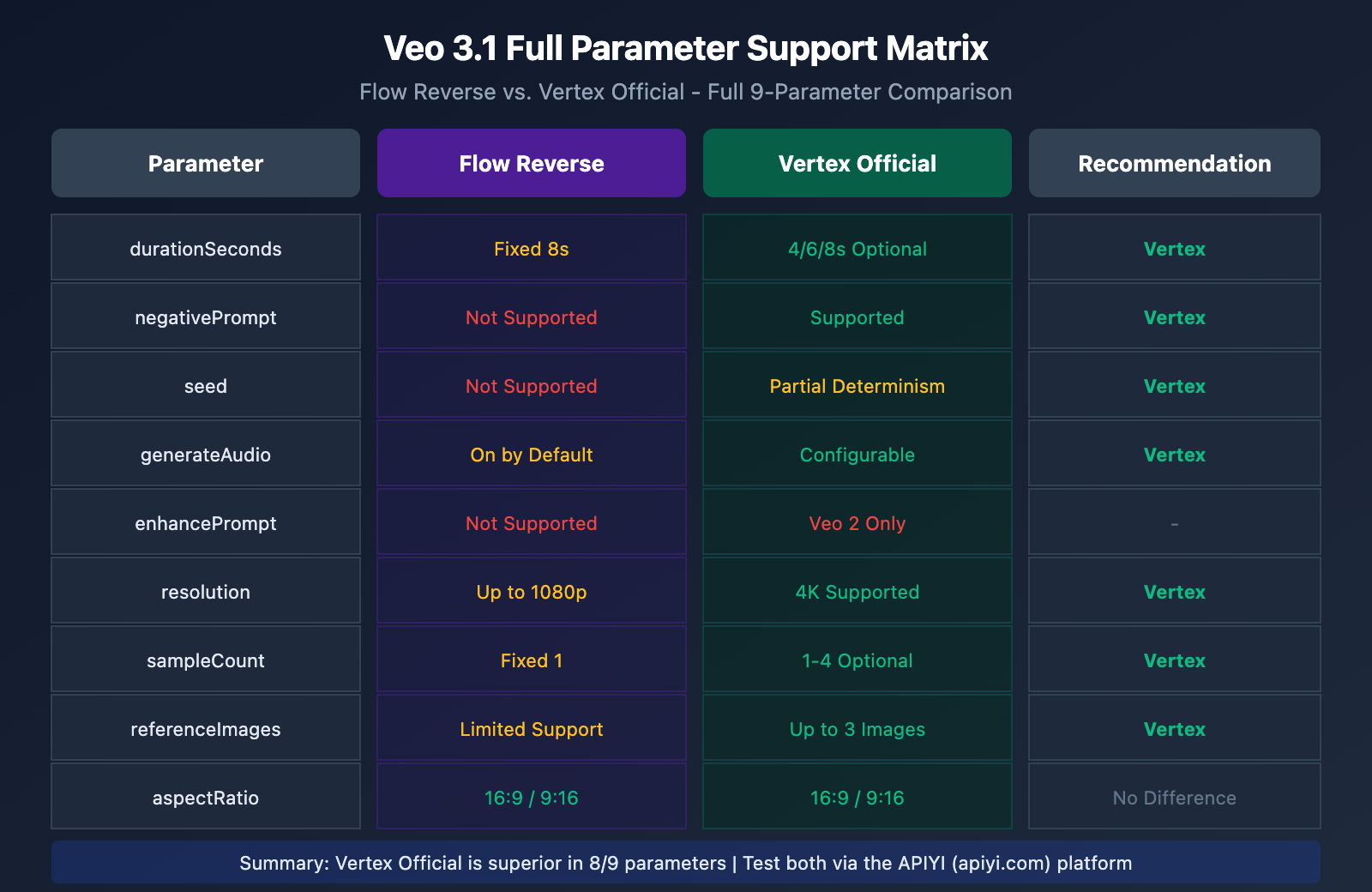
Veo 3.1 Flow Reverse vs. Vertex Official Parameter Matrix
| Parameter Name | Flow Reverse | Vertex Official | Difference Description |
|---|---|---|---|
durationSeconds |
Fixed 8s | 4/6/8s optional | Vertex is more flexible |
negativePrompt |
Not supported | Supported | Requires prompt engineering workarounds |
seed |
Not supported | Supported | Vertex offers better control |
generateAudio |
Enabled by default | Configurable | Flow always includes audio |
enhancePrompt |
Not supported | Veo 2 Only | Both require manual optimization |
aspectRatio |
Supported | Supported | No difference |
resolution |
Limited | Full support | Vertex supports 4K |
sampleCount |
Fixed 1 | 1-4 | Vertex allows batch generation |
referenceImages |
Limited | Up to 3 | Vertex is more comprehensive |
Veo 3.1 Access Method Selection Recommendations
Based on the parameter comparison above, here are our selection recommendations for different scenarios.
Scenario-Based Selection Guide
When to Choose Flow (Reverse Engineering)
| Scenario | Reason | Considerations |
|---|---|---|
| Quick Prototyping | Low cost for fast testing | Accept parameter limitations |
| Cost-Sensitive Projects | Significant price advantage | May require post-processing |
| Fixed 8-Second Output | Duration matches perfectly | No adjustments needed |
| Audio is Always Required | Audio included by default | Saves configuration time |
| Personal Projects/Learning | Low entry barrier | Non-production use |
When to Choose Official Vertex
| Scenario | Reason | Advantage |
|---|---|---|
| Production Deployment | Enterprise-grade stability | SLA guarantees |
| Need Negative Prompts | Precise output control | Exclude unwanted elements |
| Results Consistency | Seed parameter support | Reproducibility |
| Need 4K Output | Full resolution support | High-quality delivery |
| Batch Generation | sampleCount support | Increased efficiency |
| Compliance Requirements | Official certification | Data security |
Decision Flowchart
Start Selection
    │
    ├─> Is it for production? ──Yes──> Official Vertex
    │         │
    │         No
    │         │
    ├─> Need negativePrompt? ──Yes──> Official Vertex
    │         │
    │         No
    │         │
    ├─> Need 4K resolution? ──Yes──> Official Vertex
    │         │
    │         No
    │         │
    ├─> Is cost the priority? ──Yes──> Flow (Reverse)
    │         │
    │         No
    │         │
    └─> Choose based on specific needs
💡 Pro Tip: Choosing an access method really depends on your specific use case and quality requirements. We recommend running some real-world tests on the APIYI (apiyi.com) platform. It supports a unified interface for both methods, making it super easy to evaluate and switch between them.
Veo 3.1 API Quick Start Guide
Calling Veo 3.1 via the APIYI Platform
No matter which access method you pick, you can use a unified interface format through the APIYI platform:
import requests
import time

# APIYI 统一接口调用 Veo 3.1
def generate_video_via_apiyi(prompt, duration=8, aspect_ratio="16:9"):
    """
    通过 APIYI apiyi.com 调用 Veo 3.1 视频生成
    """
    url = "https://api.apiyi.com/v1/videos/generations"

    headers = {
        "Authorization": "Bearer YOUR_API_KEY",
        "Content-Type": "application/json"
    }

    payload = {
        "model": "veo-3.1-generate-preview",
        "prompt": prompt,
        "duration_seconds": duration,
        "aspect_ratio": aspect_ratio,
        "generate_audio": True
    }

    response = requests.post(url, json=payload, headers=headers)
    return response.json()

# 使用示例
result = generate_video_via_apiyi(
    prompt="A serene Japanese garden with cherry blossoms falling gently",
    duration=8,
    aspect_ratio="16:9"
)

print(f"视频生成任务 ID: {result.get('id')}")
View Full Code (Including Polling and Downloading)
import requests
import time
import os

class VeoVideoGenerator:
    """
    Veo 3.1 视频生成器
    通过 APIYI apiyi.com 统一接口调用
    """

    def __init__(self, api_key):
        self.api_key = api_key
        self.base_url = "https://api.apiyi.com/v1"
        self.headers = {
            "Authorization": f"Bearer {api_key}",
            "Content-Type": "application/json"
        }

    def generate_video(self, prompt, **kwargs):
        """
        提交视频生成任务

        参数:
            prompt: 视频描述提示词
            duration_seconds: 视频时长 (4/6/8)
            aspect_ratio: 画面比例 (16:9 或 9:16)
            negative_prompt: 负面提示词 (Vertex 模式)
            seed: 随机种子 (Vertex 模式)
            generate_audio: 是否生成音频
            resolution: 分辨率 (720p/1080p)
        """
        url = f"{self.base_url}/videos/generations"

        payload = {
            "model": kwargs.get("model", "veo-3.1-generate-preview"),
            "prompt": prompt,
            "duration_seconds": kwargs.get("duration_seconds", 8),
            "aspect_ratio": kwargs.get("aspect_ratio", "16:9"),
            "generate_audio": kwargs.get("generate_audio", True)
        }

        # 可选参数 (Vertex 模式支持)
        if "negative_prompt" in kwargs:
            payload["negative_prompt"] = kwargs["negative_prompt"]
        if "seed" in kwargs:
            payload["seed"] = kwargs["seed"]
        if "resolution" in kwargs:
            payload["resolution"] = kwargs["resolution"]

        response = requests.post(url, json=payload, headers=self.headers)
        response.raise_for_status()
        return response.json()

    def check_status(self, task_id):
        """检查生成任务状态"""
        url = f"{self.base_url}/videos/generations/{task_id}"
        response = requests.get(url, headers=self.headers)
        response.raise_for_status()
        return response.json()

    def wait_for_completion(self, task_id, timeout=600, interval=10):
        """
        等待视频生成完成

        参数:
            task_id: 任务 ID
            timeout: 超时时间 (秒)
            interval: 轮询间隔 (秒)
        """
        start_time = time.time()

        while time.time() - start_time < timeout:
            status = self.check_status(task_id)
            state = status.get("status", "unknown")

            if state == "completed":
                return status
            elif state == "failed":
                raise Exception(f"视频生成失败: {status.get('error')}")

            print(f"状态: {state}, 已等待 {int(time.time() - start_time)} 秒...")
            time.sleep(interval)

        raise TimeoutError("视频生成超时")

    def download_video(self, video_url, save_path):
        """下载生成的视频"""
        response = requests.get(video_url, stream=True)
        response.raise_for_status()

        with open(save_path, "wb") as f:
            for chunk in response.iter_content(chunk_size=8192):
                f.write(chunk)

        return save_path


# 使用示例
if __name__ == "__main__":
    # 初始化生成器
    generator = VeoVideoGenerator(api_key="YOUR_API_KEY")

    # 提交生成任务
    task = generator.generate_video(
        prompt="Cinematic aerial shot of a futuristic city at night, "
               "neon lights reflecting on wet streets, flying cars, "
               "cyberpunk atmosphere, high quality",
        duration_seconds=8,
        aspect_ratio="16:9",
        resolution="1080p",
        generate_audio=True
    )

    print(f"任务已提交, ID: {task['id']}")

    # 等待完成
    result = generator.wait_for_completion(task["id"])

    # 下载视频
    video_url = result["video_url"]
    generator.download_video(video_url, "output_video.mp4")

    print("视频已下载: output_video.mp4")
🚀 Getting Started: We recommend using the APIYI (apiyi.com) platform to quickly build your prototype. It offers out-of-the-box API interfaces so you can integrate everything without messing around with complex configurations.
Practical Alternatives for Veo 3.1 Parameter Limits
To address the parameter limits of Flow Reverse, here's a comprehensive summary of alternative solutions.
Alternatives Quick Reference Table
| Restricted Parameter | Alternative Solution | Implementation Difficulty | Effectiveness Assessment |
|---|---|---|---|
| durationSeconds | FFmpeg Cropping / Scene Extension | Low | Fully replaceable |
| negativePrompt | Front-end prompt optimization | Medium | 80% effective |
| seed | Batch generation filtering / Reference image constraints | Medium | 60% effective |
| generateAudio | FFmpeg audio removal | Low | Fully replaceable |
| enhancePrompt | Claude/GPT preprocessing | Low | Fully replaceable |
Front-end Prompt Optimization Template
# Universal Optimization Template
[Quality requirements], [Style definition], [Specific scene description].
[Action/Dynamics], [Lighting/Atmosphere].
NOT [Excluded element 1], NOT [Excluded element 2].

# Example: Product Showcase Video
"Professional commercial quality, clean minimalist style,
a sleek smartphone rotating on a white marble surface.
Smooth 360-degree rotation, soft studio lighting with subtle reflections.
NOT blurry, NOT cartoon, NOT low quality, NOT distorted."

# Example: Nature Landscape Video
"Cinematic documentary style, 8K quality,
a majestic waterfall in tropical rainforest at golden hour.
Slow motion water droplets, volumetric light rays through mist.
NOT artificial, NOT oversaturated, NOT CGI looking."
FAQ
Q1: Is the Flow Reverse API stable? Will it suddenly stop working?
The Flow Reverse API is based on the internal interfaces of the Google Flow product, so there are a few risks involved:
- Interface Changes: Google might adjust Flow's internal interfaces at any time.
- Rate Limiting Adjustments: They might tighten request frequency limits.
- Feature Reductions: New features might be restricted to official channels only.
Our Suggestion: For production environments, we recommend using official Vertex forwarding. If you're using Flow Reverse, it's a good idea to have a fallback plan. Using the APIYI (apiyi.com) platform allows you to quickly switch between different access methods, which helps lower migration costs.
Q2: Is there a difference in video quality between the two methods?
From the perspective of model output, both methods call the same Veo 3.1 model, so the core generation quality is identical. The differences mainly show up in:
| Dimension | Flow Reverse | Vertex Official |
|---|---|---|
| Model Version | Same | Same |
| Base Quality | Same | Same |
| Max Resolution | 1080p | 4K |
| Parameter Granularity | Restricted | Full |
If you need 4K output or precise parameter control, the official Vertex route is more suitable.
Q3: How can I quickly switch between the two methods for testing?
You can achieve seamless switching through the APIYI (apiyi.com) platform:
- Use a unified API interface format.
- Specify different model endpoints in your requests.
- Compare the output quality and costs of both methods.
The platform provides free test credits, so you can quickly verify the differences between the two solutions.
Q4: What’s the typical generation time for a Veo 3.1 video?
Generation time depends on the video length and resolution:
| Configuration | Typical Duration |
|---|---|
| 8 seconds / 720p | 3-5 minutes |
| 8 seconds / 1080p | 5-8 minutes |
| 60 seconds (Scene Extension) | 8-15 minutes |
The generation time is basically the same for both access methods.
Q5: How should I handle generation failures?
Here are common failure reasons and how to handle them:
| Reason for Failure | Handling Method |
|---|---|
| Content Moderation Rejection | Adjust the prompt and avoid sensitive content. |
| Timeout | Increase the polling wait time. |
| Insufficient Quota | Check your account balance. |
| Parameter Error | Check the parameter format and value range. |
We recommend adding retry mechanisms and error-handling logic to your code.
Veo 3.1 Parameter Comparison Summary
After diving deep into this comparison, here's the bottom line:
Key Differences at a Glance
- Duration Control: Vertex supports 4/6/8 seconds, while Flow is fixed at 8 seconds.
- Negative Prompts: Vertex supports them directly; for Flow, you'll need to use specific prefix prompts instead.
- Random Seed: Vertex supports it (though it's not perfectly deterministic), while Flow doesn't support it at all.
- Audio Generation: Vertex is configurable, while Flow has it turned on by default.
- Resolution: Vertex supports up to 4K, whereas Flow maxes out at 1080p.
- Batch Generation: Vertex lets you generate 1-4 videos at once, while Flow is limited to 1.
Which One Should You Choose?
| User Type | Recommended Method | Reason |
|---|---|---|
| Individual Developers / Learning | Flow (Reverse API) | Low cost, easy to get started quickly. |
| Startups / Prototyping | Choose based on needs | Evaluate both and decide based on your specific use case. |
| Enterprise Production | Official Vertex AI | High stability and a complete feature set. |
| High-Quality Content Creation | Official Vertex AI | 4K support and precise parameter control. |
No matter which path you take, the APIYI (apiyi.com) platform makes it easy to integrate and switch between options flexibly. We'd suggest starting with some small-scale tests to see what works best for you before committing to a primary method.
References
-
Google Cloud – Veo 3.1 Official Documentation: Full API Parameter Guide
- Link:
docs.cloud.google.com/vertex-ai/generative-ai/docs/models/veo/3-1-generate
- Link:
-
Google AI for Developers – Gemini API Video Generation: Veo 3.1 Usage Guide
- Link:
ai.google.dev/gemini-api/docs/video
- Link:
-
Google Developers Blog – Introducing Veo 3.1: New Creative Capabilities
- Link:
developers.googleblog.com/introducing-veo-3-1-and-new-creative-capabilities-in-the-gemini-api
- Link:
-
Vertex AI – Video Generation API Reference: Complete Parameter List
- Link:
docs.cloud.google.com/vertex-ai/generative-ai/docs/model-reference/veo-video-generation
- Link:
This article was written by the APIYI technical team. For more AI video generation tutorials, please visit the APIYI Help Center: help.apiyi.com


