
Author's Note: A deep dive into the Google VEO 3.1 Video Extend API. Learn how to generate videos up to 148 seconds long using 7-second incremental extensions, completely eliminating end-frame distortion. Includes full code examples.
When you're using AI video generation tools, end-frame distortion is one of the biggest headaches. You know the drill: the video looks great until the very end, where the image warps or characters start deforming, totally ruining the quality. In this post, I'll introduce you to the VEO 3.1 Video Extend API, which is designed to solve this exact problem.
The Bottom Line: By the end of this article, you'll understand how VEO 3.1's video extension technology works, how to call the API, and how to use the official interface to keep your videos distortion-free.
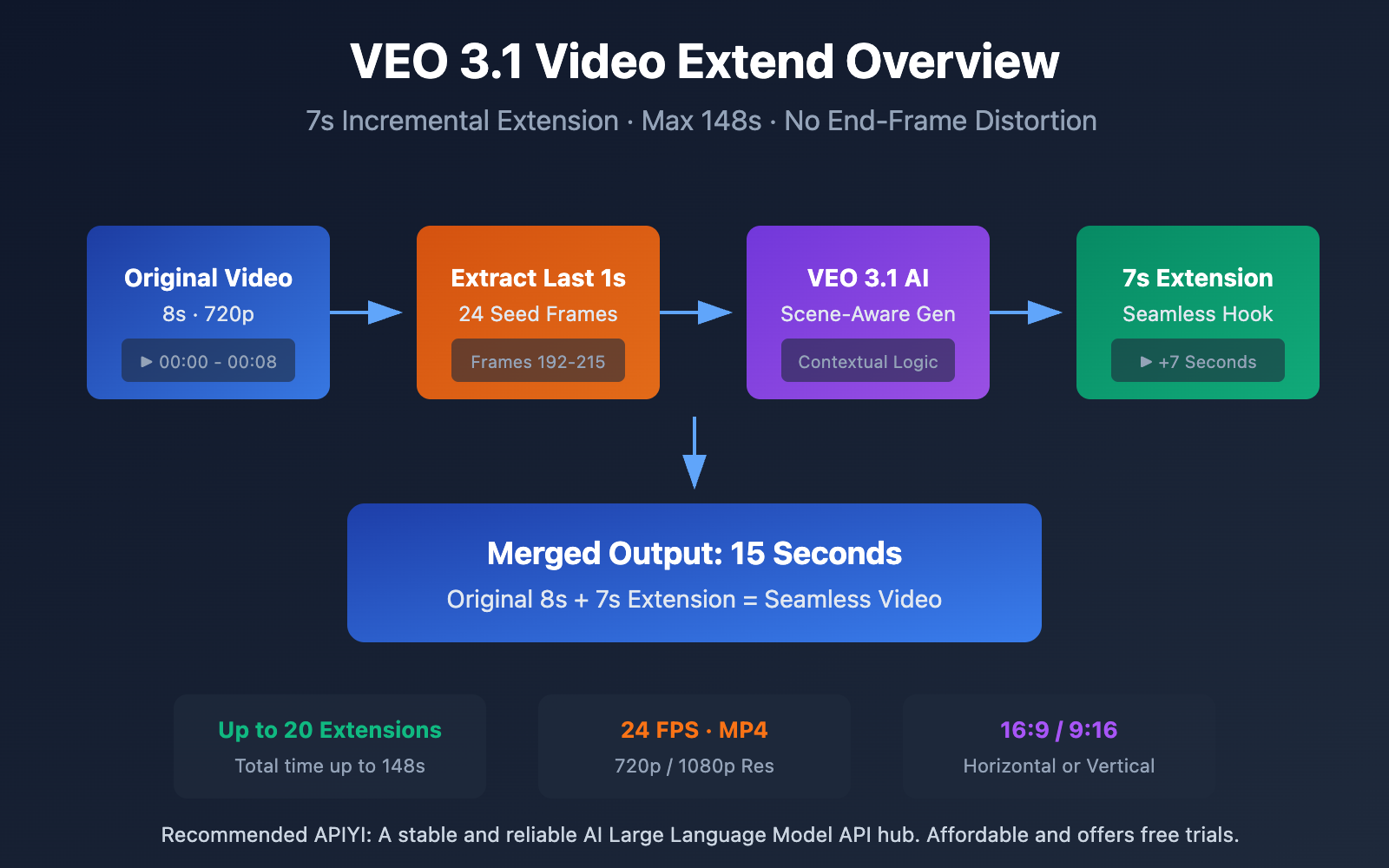
VEO 3.1 Video Extend API: Key Takeaways
| Feature | Description | Value |
|---|---|---|
| 7s Incremental Extension | Each expansion adds exactly 7 seconds of footage. | Precise length control; no sudden frame jumps. |
| Up to 148 Seconds | Supports up to 20 consecutive extensions. | Perfect for medium-to-long form content. |
| Scene-Aware Tech | Uses the last 1 second (24 frames) as "seed frames." | Ensures consistent style and fluid motion. |
| Official API Support | Available via Gemini API and Vertex AI. | Stable, production-ready interfaces. |
Deep Dive: How VEO 3.1 Video Extend Works
VEO 3.1's Video Extend isn't just basic stitching; it's a scene-aware video-to-video continuous generation technology. The core mechanic involves extracting the final 1 second (24 frames) of your source video to serve as "seed frames." Based on the visual data, motion paths, and scene context within those frames, it generates a brand-new 7-second segment that flows perfectly from the original.
The real magic here is the contextual understanding. Unlike traditional video splicing, VEO 3.1 understands movement trends, lighting, and scene elements. This ensures the extension is visually in sync with the original footage—which is exactly how it stops that annoying end-frame distortion from happening.
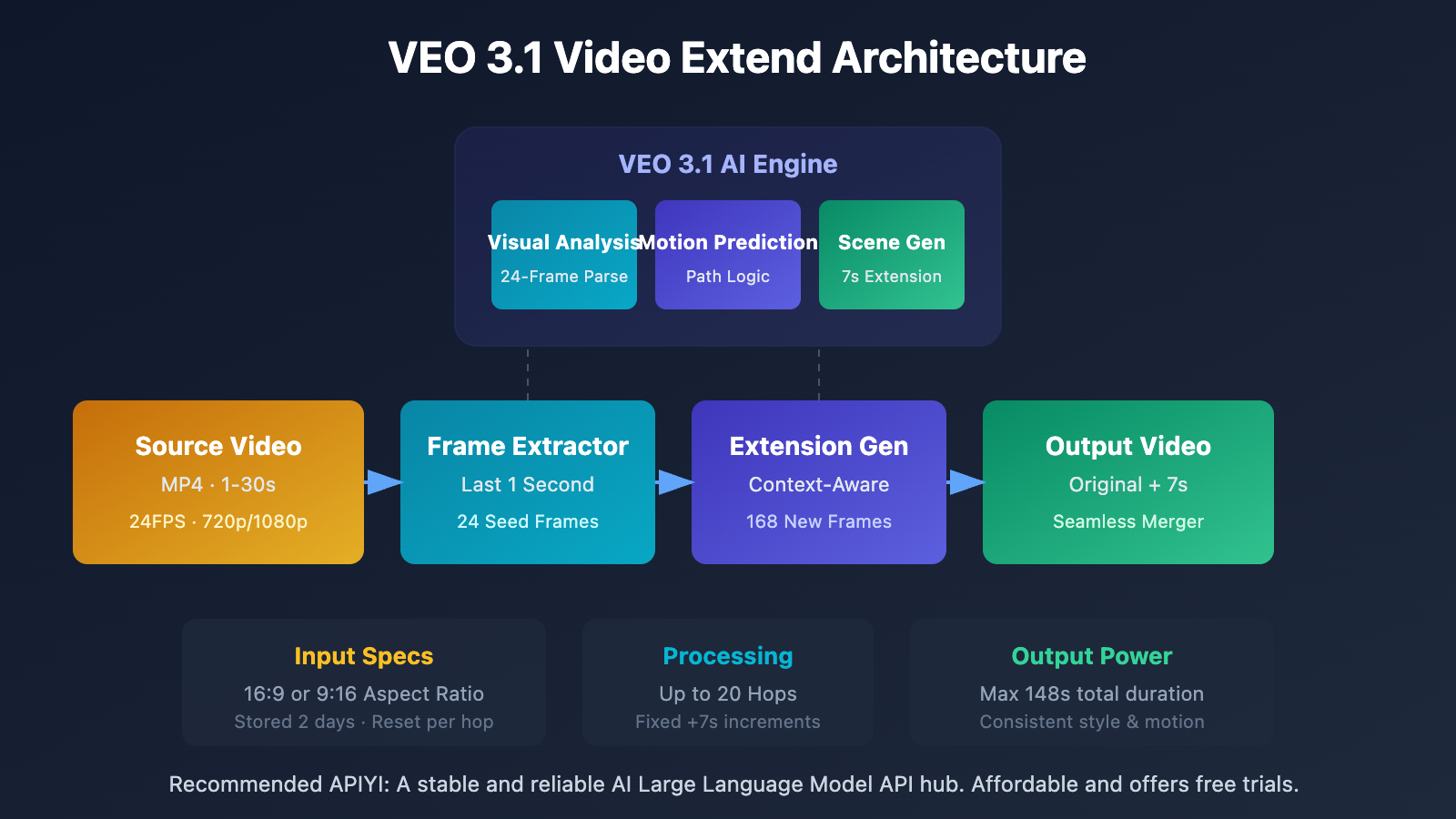
VEO 3.1 Video Extend API Input/Output Specifications
Understanding the API's technical specs is key to using it correctly. Here are the official input and output limits:
Input Video Requirements
| Parameter | Requirement | Description |
|---|---|---|
| File Format | MP4 | Must be in MP4 format |
| Video Duration | 1-30 seconds | Limit for the original video length |
| Frame Rate | 24 FPS | Fixed frame rate requirement |
| Resolution | 720p or 1080p | Supports two resolutions |
| Aspect Ratio | 16:9 or 9:16 | Landscape or portrait video |
Output Video Specifications
| Parameter | Specification | Description |
|---|---|---|
| Output Format | MP4 | Standard output format |
| Single Extension | 7 seconds | Fixed increment length |
| Max Extensions | 20 times | Maximum of 20 hops |
| Max Total Duration | 148 seconds | Original video + 20 × 7s extensions |
| Video Storage | 2 days | Extensions will reset the storage timer |
🎯 Technical Tip: The Gemini API currently only supports extending videos generated by VEO. If you need to extend external videos, you can do so through the VEO 3.1 official-relay API on the APIYI (apiyi.com) platform, which supports more flexible input sources.
VEO 3.1 Video Extend API Quick Start
Minimalist Example
Here's the simplest code for video extension using the Python SDK:
from google import genai

# Initialize the client
client = genai.Client(api_key="YOUR_API_KEY")

# Get the previously generated video
video_to_extend = "VIDEO_FILE_NAME_OR_REFERENCE"

# Perform video extension
operation = client.models.generate_videos(
    model="veo-3.1-generate-preview",
    prompt="Continue the scene with smooth camera movement",
    video=video_to_extend
)

# Wait for generation to complete
result = operation.result()
print(f"Extended video: {result.generated_videos[0].video}")
View full implementation (including error handling)
from google import genai
from google.genai import types
import time

def extend_veo_video(
    api_key: str,
    video_reference: str,
    prompt: str = "Continue the scene naturally",
    max_retries: int = 3
) -> dict:
    """
    VEO 3.1 video extension wrapper function

    Args:
        api_key: Google AI API key
        video_reference: Reference to the video to extend (VEO-generated video)
        prompt: Extension prompt (optional)
        max_retries: Maximum number of retries

    Returns:
        Dictionary containing the extension results
    """
    client = genai.Client(api_key=api_key)

    for attempt in range(max_retries):
        try:
            # Initiate extension request
            operation = client.models.generate_videos(
                model="veo-3.1-generate-preview",
                prompt=prompt,
                video=video_reference,
                config=types.GenerateVideoConfig(
                    aspect_ratio="16:9",  # Keep consistent with source video
                    output_resolution="720p"
                )
            )

            # Polling for completion
            while not operation.done:
                time.sleep(10)
                operation = client.operations.get(operation.name)

            if operation.error:
                raise Exception(f"Generation failed: {operation.error}")

            result = operation.result()
            return {
                "success": True,
                "video_url": result.generated_videos[0].video,
                "duration": "7 seconds extended"
            }

        except Exception as e:
            if attempt < max_retries - 1:
                time.sleep(5)
                continue
            return {
                "success": False,
                "error": str(e)
            }

# Usage example
result = extend_veo_video(
    api_key="YOUR_API_KEY",
    video_reference="previous_veo_video_reference",
    prompt="Continue with the character walking towards the door"
)

if result["success"]:
    print(f"Video extension successful: {result['video_url']}")
else:
    print(f"Extension failed: {result['error']}")
Note: APIYI (apiyi.com) is about to launch a VEO 3.1 official-relay API with Video Extend support. Compared to unofficial reverse-engineered flows, the official-relay interface is more stable and reliable for production environments.
VEO 3.1: Solving the End-Frame Distortion Issue
End-frame distortion is a common hurdle in AI video generation. Here’s a breakdown of the technical principles and best practices for using VEO 3.1 Video Extend to tackle this problem.
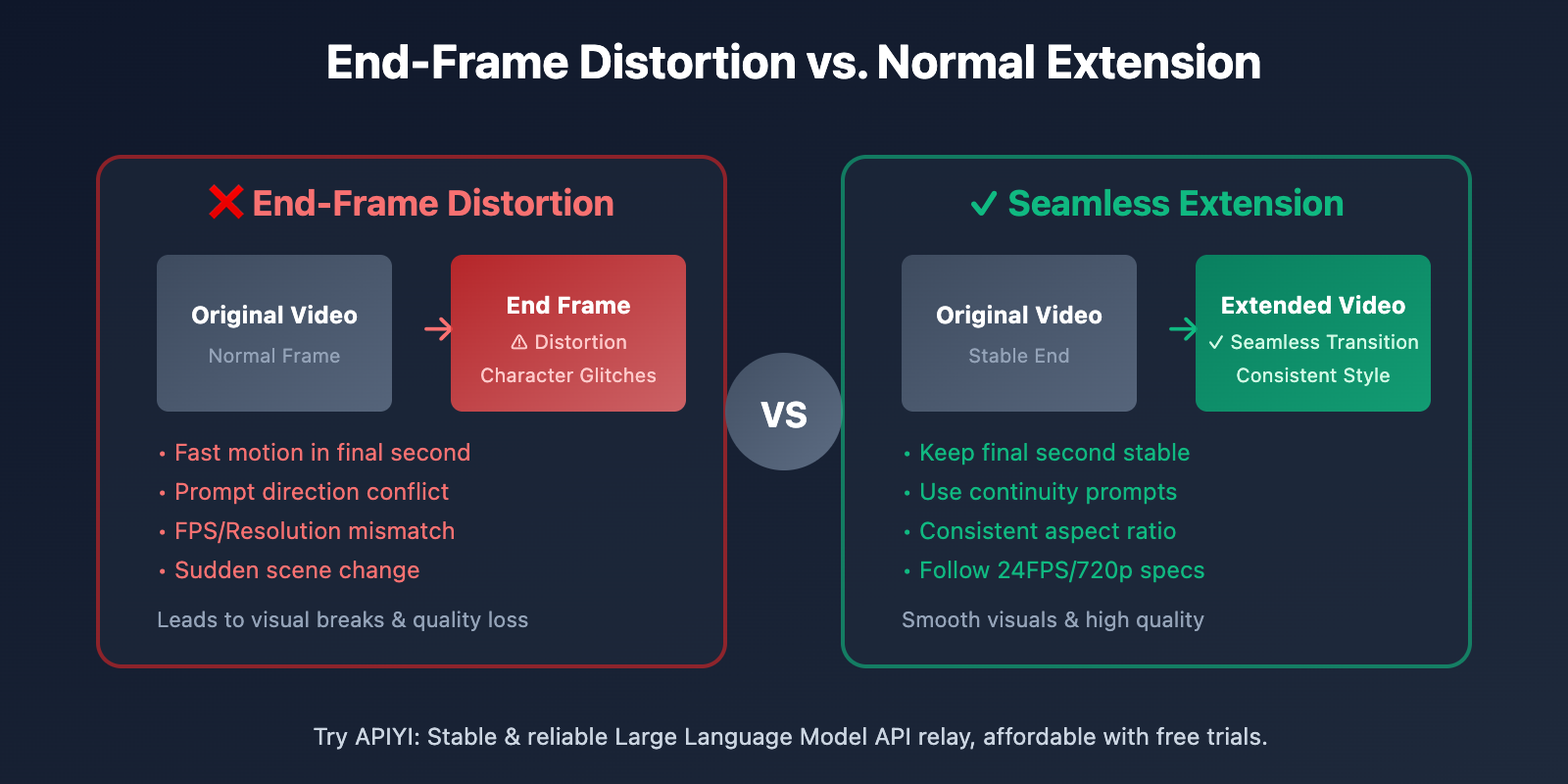
Common Causes of End-Frame Distortion
| Cause | Problem Description | Impact Level |
|---|---|---|
| Fast Motion | Rapid movement or drastic changes in the final 1 second | High |
| Prompt Conflict | The extension prompt conflicts with the original video's motion direction | High |
| Resolution Mismatch | Input video resolution doesn't meet the required specifications | Medium |
| Abnormal Frame Rate | Video input is not 24 FPS | Medium |
| Sudden Scene Change | A sharp scene transition occurs right at the end of the original video | Low |
Best Practices for VEO 3.1 Video Extend
1. Ensure the last second of the source video is stable
VEO 3.1’s extension relies on the context provided by the final 24 frames. If these frames contain intense motion or sudden scene shifts, the continuity of the extension will suffer.
Recommendation: When generating your initial video, try to keep the last second relatively stable—aim for a clear pose and consistent lighting conditions.
2. Use Continuity Prompts
When extending a video, your prompts should continue the existing motion trend rather than abruptly switching directions.
✅ Recommended: "continue", "follow with", "next", "gradually transition"
❌ Avoid: "suddenly cut to", "jump to", "instantly switch"
Example Comparison:
- ❌ Incorrect:
The camera quickly cuts to an indoor scene - ✅ Correct:
The camera slowly pushes forward as the character walks toward the building entrance
3. Keep Aspect Ratios Consistent
Throughout the extension process, you must maintain the same aspect ratio (16:9 or 9:16). Mixing aspect ratios will lead to stretching or cropping, which triggers visual artifacts.
VEO 3.1 Official Relay API vs. Reverse Flow Comparison
For developers, choosing the right API access method is crucial. Here’s a comparison between the Official Relay API and Reverse Flow methods.
| Comparison Dimension | Official Relay API (Coming Soon) | Reverse Flow (Current) |
|---|---|---|
| Stability | High – Direct official connection | Medium – Relies on reverse engineering |
| Video Extend Support | ✅ Full Support | ⚠️ Partial Support |
| Request Limits | Official Quota | May be restricted |
| Response Speed | Fast | Medium |
| Pricing | Transparent billing | Per-use / Per-duration |
| Best For | Production, batch tasks | Testing, small-scale use |
💡 Choice Suggestion: If your application requires a stable Video Extend feature to solve end-frame distortion issues, we recommend waiting for the VEO 3.1 Official Relay API to launch on APIYI (apiyi.com). The official interface ensures the full integrity and stability of Video Extend functionality.
VEO 3.1 Video Extend Multi-hop Workflow
VEO 3.1 supports up to 20 extensions. Here's the standard workflow for multi-hop video extensions.
Multi-hop Extension Code Example
from google import genai
import time

def multi_hop_extend(
    api_key: str,
    initial_video: str,
    prompts: list,
    max_hops: int = 5
) -> list:
    """
    Multi-hop extension wrapper function

    Args:
        api_key: API Key
        initial_video: Initial video reference
        prompts: List of prompts for each extension
        max_hops: Number of extensions (max 20)

    Returns:
        List of all extension results
    """
    client = genai.Client(api_key=api_key)
    results = []
    current_video = initial_video

    for i in range(min(max_hops, len(prompts), 20)):
        print(f"Extending hop {i+1}/{max_hops}...")

        operation = client.models.generate_videos(
            model="veo-3.1-generate-preview",
            prompt=prompts[i],
            video=current_video
        )

        # Wait for completion
        while not operation.done:
            time.sleep(10)
            operation = client.operations.get(operation.name)

        result = operation.result()
        video_ref = result.generated_videos[0].video

        results.append({
            "hop": i + 1,
            "video": video_ref,
            "total_duration": f"{8 + (i+1)*7} seconds"
        })

        # Set the current video to the one we just generated
        current_video = video_ref

    return results

# Example Usage
prompts = [
    "Continue walking forward",
    "Turn right and enter the room",
    "Look around the room slowly",
    "Sit down on the chair",
    "Start reading the book"
]

results = multi_hop_extend(
    api_key="YOUR_API_KEY",
    initial_video="initial_veo_video",
    prompts=prompts,
    max_hops=5
)

for r in results:
    print(f"Hop {r['hop']}: {r['total_duration']} - {r['video']}")
🚀 Quick Start: We recommend using the APIYI (apiyi.com) platform to quickly test VEO 3.1 Video Extend features. The platform provides a unified API interface and supports calls for various video generation models, including VEO 3.1.
VEO 3.1 Video Extend Use Cases
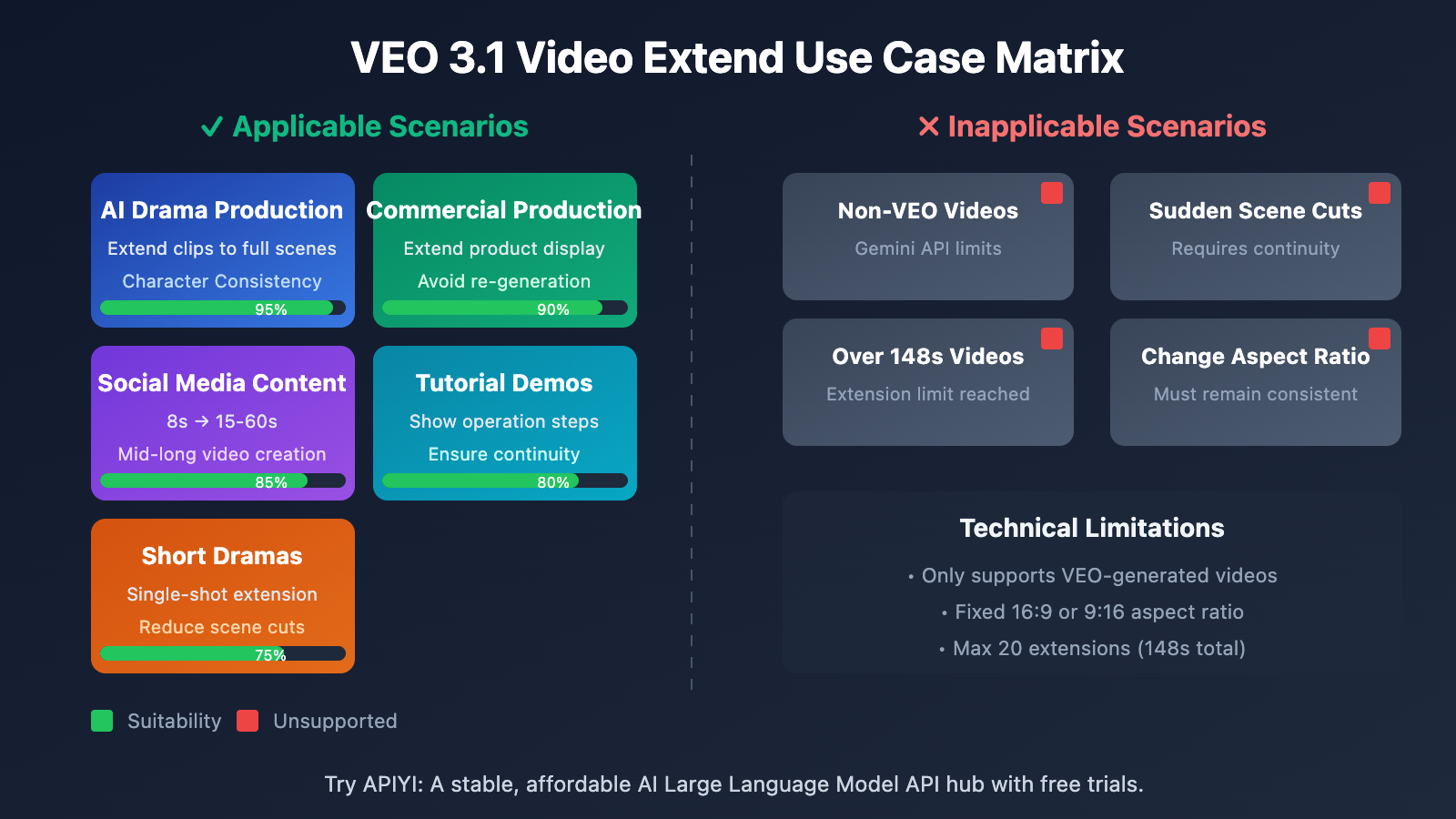
Best Suited For
- AI Manga/Drama Production: Extending short video clips into full scenes while maintaining character consistency.
- Commercial Video Production: Lengthening product displays to avoid the need for full re-generation.
- Social Media Content: Extending 8-second clips into 15–60 second medium-long videos.
- Tutorial Demos: Lengthening operation steps to ensure a smooth, continuous flow.
- Short Drama Creation: Extending the duration of a single shot to reduce the need for frequent scene cuts.
Not Suited For
- Non-VEO generated videos (due to Gemini API limitations).
- Content that requires sudden, drastic scene changes.
- Ultra-long video requirements exceeding 148 seconds.
- Scenarios where you need to change the video's aspect ratio.
FAQ
Q1: Can VEO 3.1 Video Extend extend videos not generated by VEO?
Currently, the Gemini API only supports extending videos that were originally generated by VEO. If you need to extend external videos, you'll need to wait for Vertex AI updates or use the upcoming VEO 3.1 official API from APIYI (apiyi.com).
Q2: Why is the end frame of my extended video distorted?
The main reasons are usually: 1) there's intense motion in the last second of the source video; 2) your extension prompt conflicts with the original video's motion direction; or 3) the input video's frame rate or resolution doesn't meet the specifications. We recommend checking these three areas and following the best practices mentioned in this article.
Q3: How can I quickly test the VEO 3.1 Video Extend feature?
We recommend using an API aggregator platform that supports VEO 3.1:
- Visit APIYI (apiyi.com) and register an account.
- Get your API Key and free credits.
- Use the code examples in this article for quick verification.
Q4: How long are Video Extend videos stored?
VEO-generated videos are stored for 2 days. However, if a video is used for an extension operation, its storage timer resets. This means if you're planning multiple extensions, each one will extend the video's overall availability.
Summary
Here are the core takeaways for the VEO 3.1 Video Extend API:
- 7-Second Incremental Extension: Each extension adds a fixed 7 seconds, up to 20 times, for a total duration of up to 148 seconds.
- Scene Perception Technology: It generates continuous video based on the context of the last 1 second (24 frames), which helps solve end-frame distortion issues.
- Strict Input Specs: Videos must be in MP4 format, 24 FPS, 720p/1080p, and use a 16:9 or 9:16 aspect ratio.
- Key Best Practices: Ensure the last second of the source video is stable, use consistent prompts, and maintain the same aspect ratio throughout.
For developers who need a stable way to use the Video Extend feature, we recommend connecting through the APIYI (apiyi.com) platform. They're about to launch the official VEO 3.1 API, which offers full support for Video Extend compared to current unofficial versions, making it much better for production environments.
📚 References
⚠️ Link Format Note: All external links use the
Resource Name: domain.comformat. This makes them easy to copy while preventing clickable redirects to avoid SEO weight loss.
-
Google Gemini API Video Documentation: VEO 3.1 Official Usage Guide
- Link:
ai.google.dev/gemini-api/docs/video - Note: Contains the full API reference and code samples for Video Extend.
- Link:
-
Vertex AI Video Extend Documentation: Google Cloud Enterprise-grade Interface
- Link:
docs.cloud.google.com/vertex-ai/generative-ai/docs/video/extend-a-veo-video - Note: Detailed documentation for video extension on the Vertex AI platform.
- Link:
-
Google Developers Blog: VEO 3.1 Feature Introduction
- Link:
developers.googleblog.com/en/introducing-veo-3-1-and-new-creative-capabilities-in-the-gemini-api - Note: Official blog post announcing new features for VEO 3.1.
- Link:
-
APIYI VEO 3.1 Tutorial: Video Extension Practical Guide
- Link:
help.apiyi.com/veo-3-1-video-extend-guide - Note: Includes optimizations for domestic access and real-world use cases.
- Link:
Author: APIYI Team
Tech Talk: Feel free to join the discussion in the comments! For more resources, visit the APIYI (apiyi.com) technical community.


