
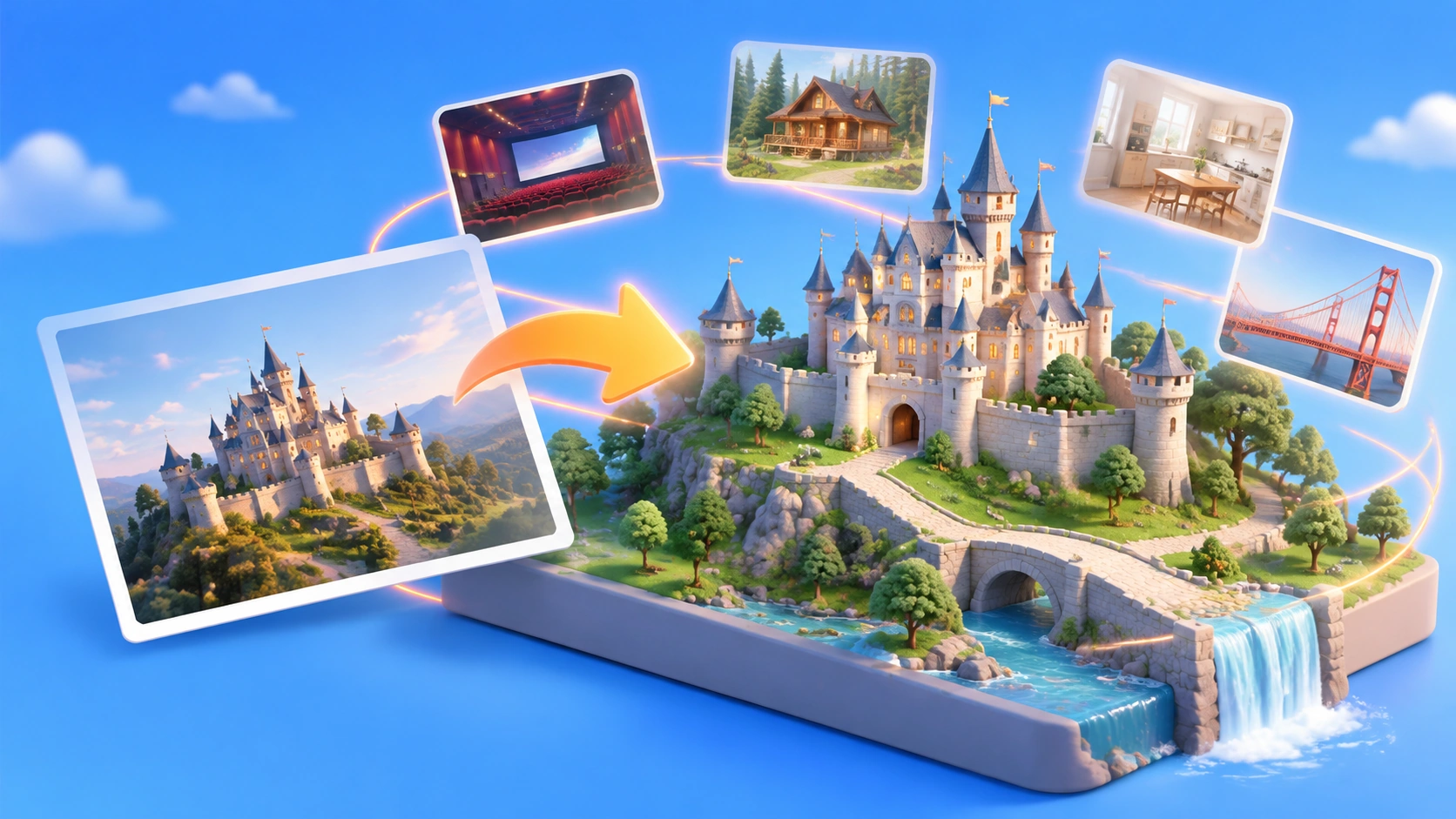
Author’s note: this article uses five public examples to show, when Genie 4 generates an explorable world from a single image, which parts come from the photo, which parts the model fills in on the spot, and how to check how faithfully the scene is reproduced.
Abstract: This article answers one question: with just one photo, how far can Genie 4 reproduce a real scene, and how should you verify the result?
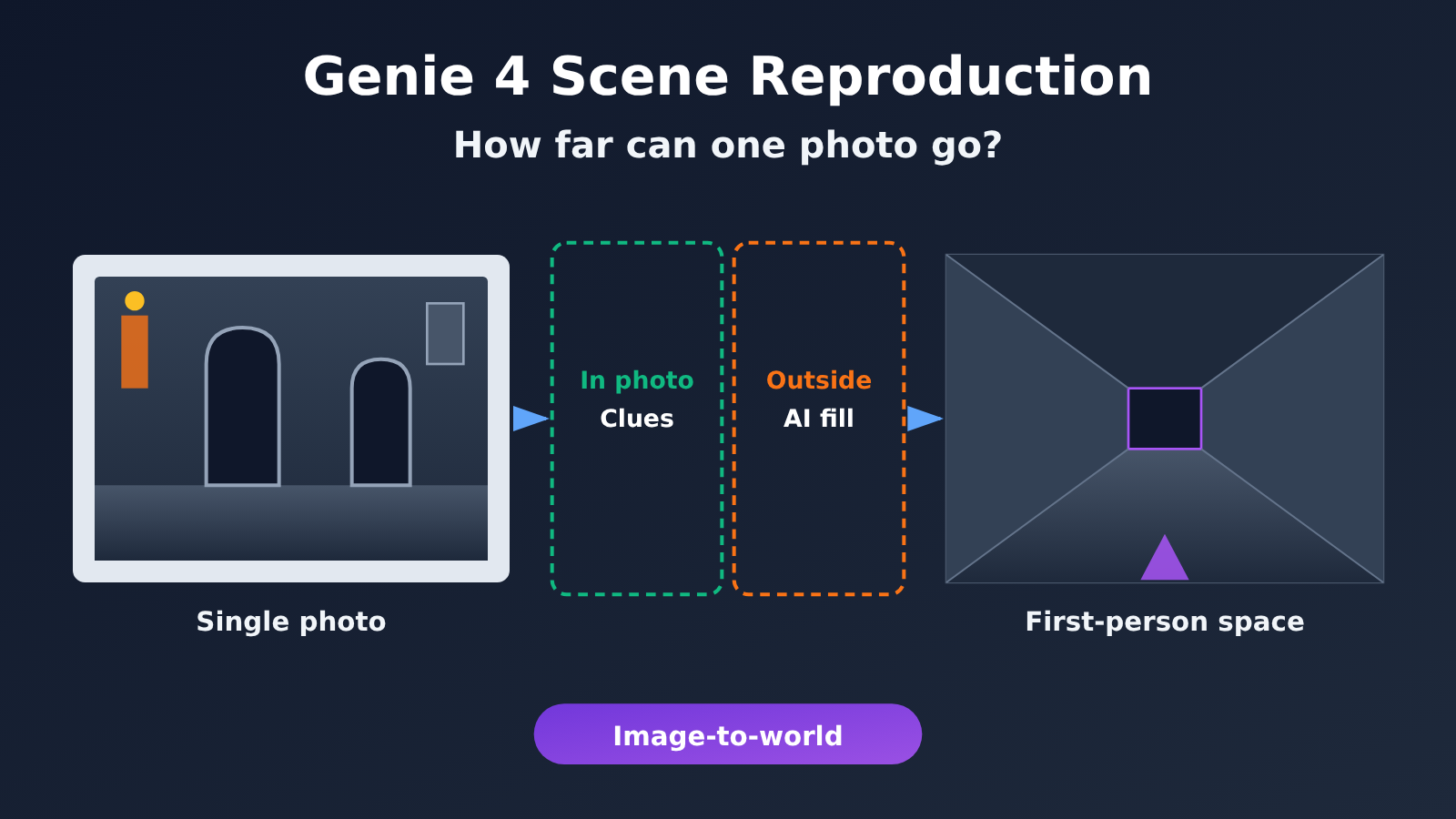
The short version: Genie 4 can build a scene with a movable viewpoint from a single photo. The landmarks, materials, and relative positions already captured in the photo become your opening clues; the areas you see after walking past the original frame are generated by the model on the fly.
Public hands-on tests show that the filled-in areas usually carry over the style of the original image — the texture of a wall, the feel of a neighborhood. Whether doors, passages, and landmarks still line up on a return visit depends on what each session generates. So Genie 4 is good for atmosphere previews and walk-through experiences, but you can’t use it as a floor plan or survey data for a real place.
There are also two caveats that affect what you can reproduce:
- Different entry points, different input rules. Public hands-on tests of the web version, Project Genie, all use “an image plus one sentence,” while the Gemini API explicitly supports starting from a single image on its own.
- Different levels of evidence. The cases below come from three kinds of sources: first-hand programs, screenshots from independent players, and developer demos. A demo clip doesn’t equal a stable feature.
Knowledge Map: The Full Picture of Genie 4 Scene-Recreation Gameplay
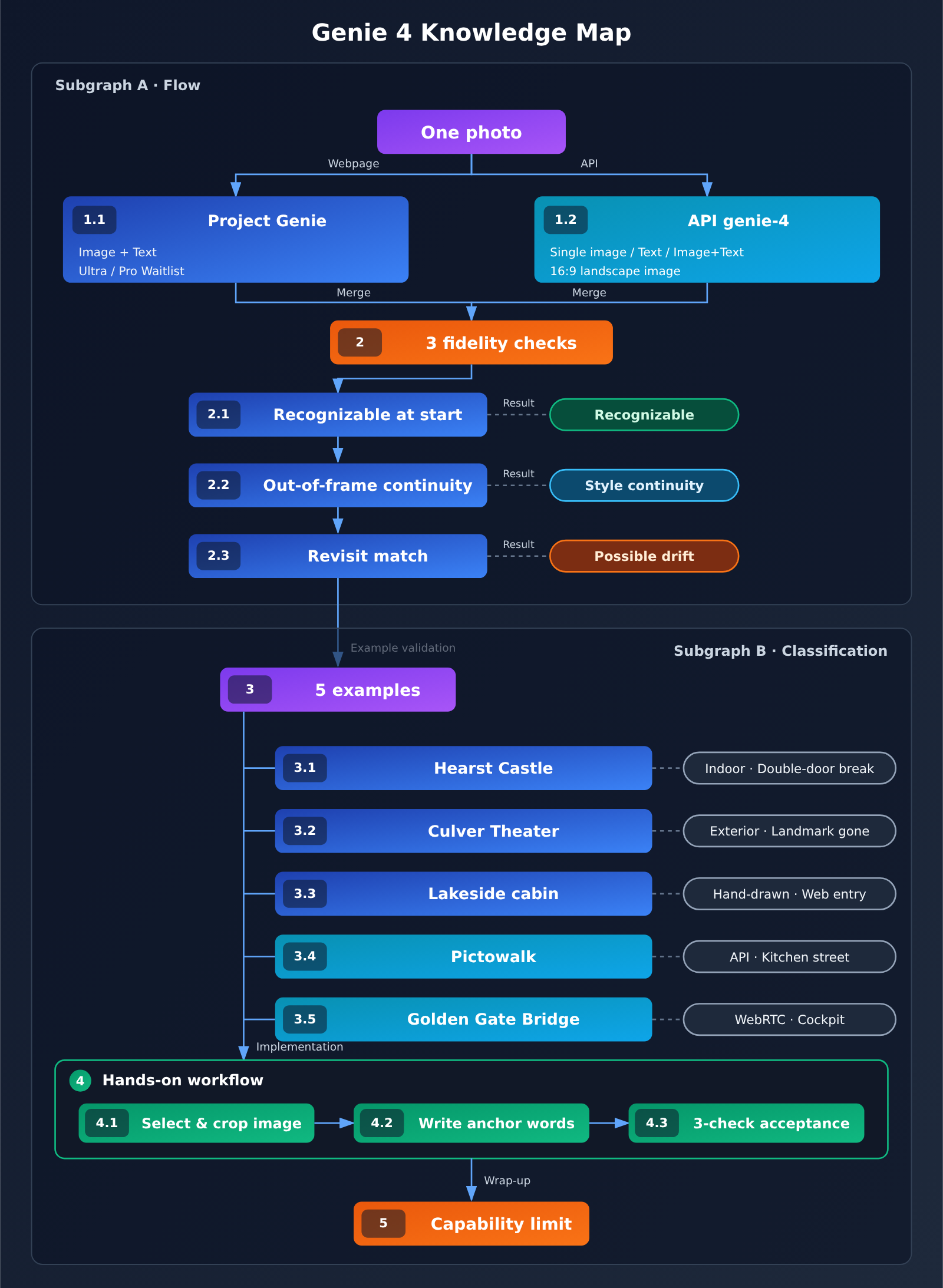
Figure note: Subfigure A is the main path: a photo enters Genie 4 through two entry points, then three observable results are used to check fidelity. Subfigure B hangs the five example groups below the verification framework, so you can compare how indoor and street scenes fail. Finally, it lands on the hands-on workflow and boundary judgments.
Index: Reading order for this Genie 4 article
| No. | Section | What it sets up for later | What you’ll get after reading |
|---|---|---|---|
| 1 | Two entry points | Input rules and eligibility prerequisites | Know where you can start |
| 2 | Three fidelity checks | Evaluation criteria | A single ruler to measure with |
| 3 | Five example groups | Evidence measured against that ruler | See clearly what it can and can’t do |
| 4 | Hands-on workflow | Turn criteria into actions | Run a round yourself and verify it |
| 5 | Capability boundaries | Conditions under which the conclusions apply | Avoid misuse and misreading |
Sections 1 and 2 are prerequisites; read them in order. The five cases in Section 3 are parallel, so you can consult them as needed. Section 4 depends on the criteria from Section 2. The Q&A in Sections 5 and 6 is for wrapping up and catching gaps.
To Know: Essential terms for understanding Genie 4
| Term | Brief explanation |
|---|---|
| World model | A model that continuously generates interactive frames based on input and actions; Genie 4 belongs to this category |
| Out-of-frame completion | When the viewpoint moves outside the original photo’s frame, the model generates areas the original image didn’t capture |
| Revisit consistency | Whether the same object or passage is still in the same place when you leave and come back |
| Rolling time window | The model only “remembers” the most recent segment of frames; content that leaves the view for too long may be rewritten |
| Experience Builder | A builder assistant inside Project Genie for conversational inspection and preview adjustment |
| Interactions API | The interface in Gemini API for creating Genie 4 sessions; the model ID is genie-4 |
1. The Two Entry Points for Genie 4: Web and API
Genie 4 is a world model, while Project Genie is a web product that offers several models at once — they’re two different things at different levels. Here’s the timeline: on October 27, 2026, Google DeepMind gave Genie 4 to trusted testers as a research preview and mentioned an experimental direction of using a single profile photo to build explorable simulations. Starting November 18, the new Project Genie rolled out to eligible Google AI Ultra members, with Google AI Pro members able to join the waitlist. On November 19, the Gemini API and Google AI Studio opened up Genie 4.
1.1 Working with the Project Genie Web Entry Point
Based on the official help page and publicly available screenshots, the web flow goes like this:
- Sign in to Project Genie with a personal Google account and go to “Create with Genie”.
- Add a reference image in the creation box and describe the action.
- Confirm Genie 4 is selected in the model dropdown and click “Create”.
- You can chat with Experience Builder to check the preview; once you’re happy with it, click “Explore” to enter the scene.
- By default, use WASD to move and the arrow keys to change direction. The help center also notes that specific experiences may use custom keys, so follow the on-screen prompts.
One thing to keep in mind: every public hands-on report of the web version includes a text description alongside the image. There’s currently no evidence that the web button supports starting a session from a single image alone, so don’t apply the API’s rules to the web when you’re writing tutorials.
1.2 The genie-4 Entry Point in the Gemini API
The developer path goes through the Interactions API, with the model ID genie-4. When creating a session, you can pass in one 16:9 landscape starting image, a piece of text, or both together. At this entry point, a single image can serve as the input on its own.
| Comparison | Project Genie Web | Gemini API (genie-4) |
|---|---|---|
| Eligibility | Eligible Ultra members; Pro can join the waitlist | Access via Gemini API / AI Studio |
| Image input | Reference image; public hands-on tests all pair it with text | 16:9 landscape starting image, can be used standalone |
| Text input | Describes the action | Optional, can be combined with the image |
| Controls | WASD, arrow keys, or custom keys | Determined by the interface the developer builds |
| History | Visit History to revisit past records | Implemented by the app itself |
| Auxiliary step | — | Image selection and prompt writing can use APIYI apiyi.com to call multimodal models |
The last row of the table is only about the preparation stage. This article doesn’t assume APIYI already offers a genie-4 model; for Genie 4 sessions themselves, please go through Google’s official entry point.
2. Genie 4 Scene Reproduction Fidelity: Three Checks
Whether a reproduction “looks right” can easily become a subjective judgment. We recommend recording three observable outcomes, each tied to specific evidence in Section 3.
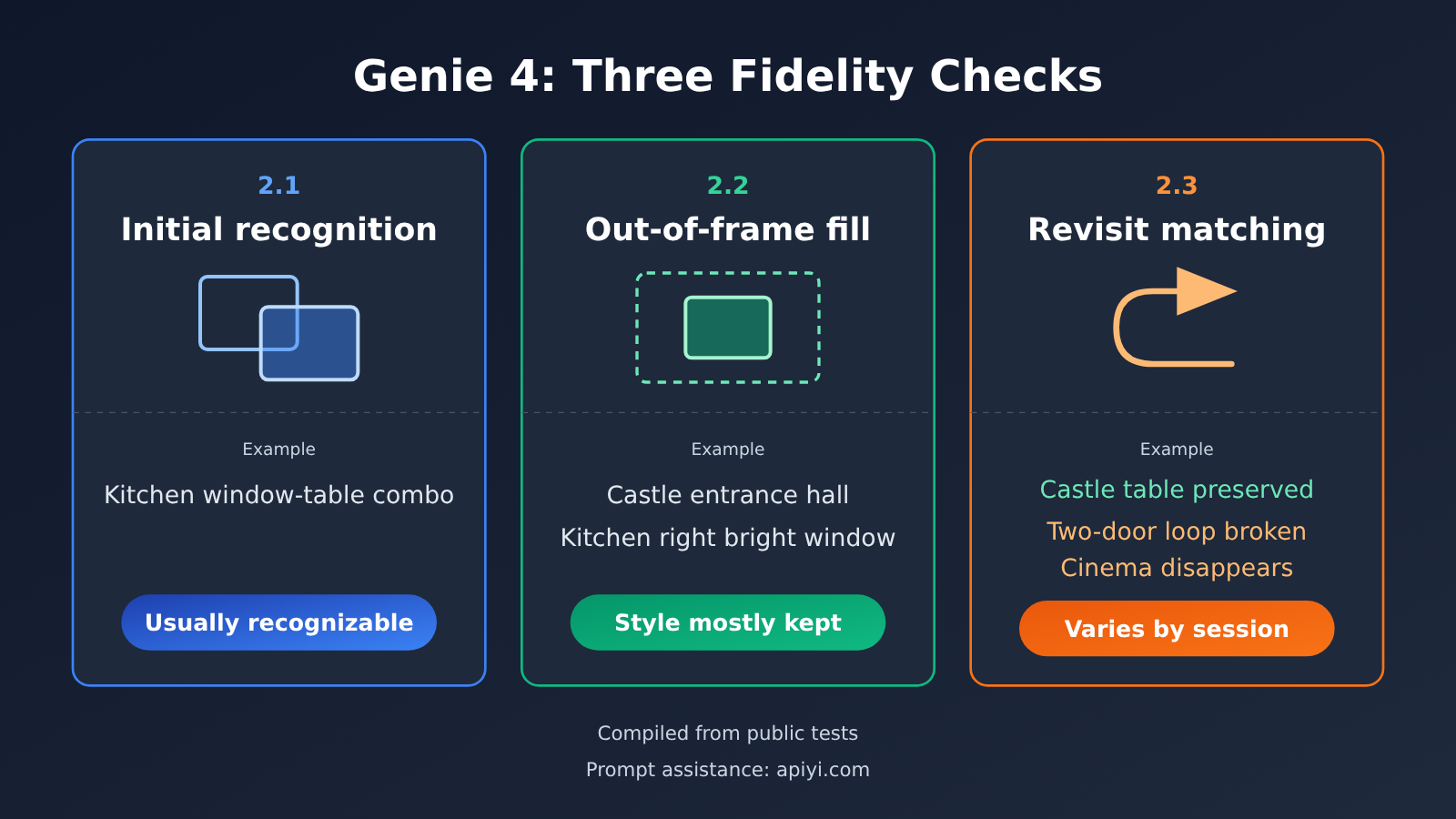
| Check | What to observe | Positive example | Failure example |
|---|---|---|---|
| 2.1 Opening recognition | Whether the photo’s own landmarks and composition are recognizable | Kitchen window and table-and-chair arrangement | Cabin composition rearranged |
| 2.2 Out-of-frame completion | Whether the new perspective continues the original image’s materials and layout | Castle entrance hall; bright window on the right side of the kitchen | Movie theater street gradually becomes generic |
| 2.3 Revisit correspondence | Whether the same object and passage match when you return | Castle table retained briefly | Double-door loop breaks; movie theater disappears |
2.1 Opening Recognition
The opening frame is closest to the original image and represents the highest point of reproduction fidelity. That said, “recognizing landmarks” and “copying the composition item by item” are two different things. In both the lakeside cabin and Golden Gate Bridge examples, the observer’s position was rearranged.
2.2 Out-of-Frame Completion
Once you turn beyond the frame, the model generates areas that “look like they belong here.” It can often continue the same wall or architectural style, but where doors open and where streets lead depend on what is generated on the spot.
2.3 Revisit Correspondence
The official API documentation states that the model uses a rolling time window. After leaving the field of view for about eight seconds or more, or turning a full circle in place, landmarks, doors, and buttons may all shift; the exact result is determined by the session. The help page also notes that replaying the same experience may produce different results.
3. Five Examples of Reproducing Single-Image Scenes with Genie 4
First, a quick note on the levels of evidence. 3.1 and 3.2 come from the same first-hand episode; the timecodes are based on the verbatim transcript on the original page, and the team used the early Google Labs test entry point before the November 18 web rollout. 3.3 is a screenshot captured by an independent player through the official web entry point. 3.4 and 3.5 are demos built by developers on top of the API.
3.1 Inside Hearst Castle: Out-of-Frame Entry Hall Completion and a Broken Two-Door Loop
On October 31, 2026, Joey Daoud and Addy Ghani shared this hands-on test on the Denoised show. Starting at 08:13, they began moving and rotating the viewpoint from a photo of the castle interior. At 08:35 they turned to reveal an entry hall that wasn’t captured in the original photo; the host felt it looked stylistically like the castle, and when they looked back, the table was still exactly as it was. Then they triggered the scene-recommendation prompt, and a book floated up from the bookshelf, showing that the existing space could be modified.
The attempt at 09:00 is even more telling. They walked in through one of the double doors, planning to return to the starting point through the other door; but once inside, the second door never appeared, and when they exited through the original entrance, they ended up in a completely different space. At 09:58 they also demonstrated grabbing a ladder and trying to push things. The entry hall “looking like the castle” was just the host’s impression, while the broken two-door loop directly shows that this generated space can’t be treated as a floor plan of the castle.
3.2 Culver Theater exterior: the neighborhood’s character carries over, but the landmark disappears
The same episode switched to a photo of the Culver Theater. From 12:36 the camera moves along the street: at first you can still see the theater and the street front from the photo, but the further it goes, the more it looks like an ordinary block. At 12:51, when they turn back to look for it, the theater is already gone — though the host still feels the whole street has the flavor of Culver City.
From 13:10, they point out a figure holding up a selfie stick in the reflection on the storefront glass, but there’s no matching person on the empty street. There are two different kinds of judgment here: the neighborhood’s character carries over, but the landmark is lost. The reflection only shows that the model generated this kind of image; as for who the person in the glass is, that’s just the host’s joke. The castle and the theater come from the same group of testers, which makes them a handy contrast between two different failure modes — indoors and on the street.
3.3 Lakeside cabin: the image-plus-text flow through the official web entry
On November 20, 2026, the independent site genie4.net ran a test with a Project Genie account that had been let in from the Pro waitlist. The author uploaded a lake scene they had drawn themselves — a cabin, a chimney, a dock, a red canoe, pine trees, and three mountains — and added one sentence: row from the red canoe toward the cabin at sunset. The dropdown in the creation screenshot showed Genie 4, and the playtest screen also carried the Genie 4 mark. The author reports that Builder finished this round in about a minute, after which they used “Explore” to enter a first-person world called Sunset Canoe.
Compared with the original image, the combination of cabin, chimney, dock, and distant mountains is recognizable, but the appearance has been reworked. In the original, the canoe is just a red blob offshore; the output puts the viewpoint inside the red canoe and also generates wooden oars, reflections on the lake, and glowing windows. In the original the house sits toward the left, while the playtest composition places the cabin straight ahead of the bow. The screenshot shows three suggested actions — “row toward the dock,” “fog rolls in,” and “light breeze” — and what the buttons can do comes from the Builder interface text. It’s worth noting that this example’s input is a hand-drawn image rather than a photo; what it adds is the image-plus-text flow under the official entry point.
3.4 Pictowalk Kitchen and Black-and-White Street: Third-Party API App
Developer alvisanovari published setup notes on November 20, 2026, explaining that Pictowalk uses the Genie 4 Gemini API. The app first crops the photo to a landscape aspect ratio, checks it, and then prepares scene text and suggested actions. The 20-second limit per walk is a timer the app sets itself, and the sample video notes that it plays at 1.5x speed.
- Kitchen: The original image has yellow tables and chairs, a checkered floor, a patterned wall, and a window directly facing the camera. At around 00:04, the viewpoint moves closer to the countertop, and the window plus the table-and-chair grouping are still recognizable. At around 00:07, as the view turns right, a bright window appears outside the frame, carrying over the wall pattern and daylight—a typical example of out-of-frame completion.
- Black-and-white street: The original image has building facades on both sides and a pointed spire at the far end. At around 00:04, the viewpoint shifts left; nearby doors and windows, balconies, and stone walls take up more of the frame, the street stays in grayscale, and the distant spire is still there. The product labels it “1940s street,” but the short video can only show stylistic continuity and a small range of walking and looking around. It cannot be used to infer the actual era, the backs of the buildings, or long-range loops.
3.5 Golden Gate Bridge: The Photo Provides the Structure, the Text Specifies the Cockpit
On November 21, 2026, developer Nitin Tiwari released his own Genie 4 World Explorer. The open-source repository includes the starting photo, the generated animated clip, and the corresponding prompt. The original photo was taken by Hnapel and shows the northbound bridge deck, with the red towers, cables, and traffic all clearly visible; it’s released under a CC BY-SA 4.0 license. The prompt asks the player to sit in a stopped car in the right lane, look forward in first person, and grip a black steering wheel with both hands. This example runs through Genie 4 on the Gemini API plus WebRTC, inside the author’s self-built browser interface.
At the start of the animated clip, the newly added car window, steering wheel, and hands take up the foreground, while the red tower and the right-side guardrail still line up with the original photo. At around 00:04, the position of the vehicle ahead on the left has already changed; at around 00:07, the viewpoint is closer to the tower, the signage along the bridge shifts with the viewpoint, and the numbers in the frame appear distorted. You can see that the photo supplies the recognizable structure, while the cockpit is entirely specified and generated from text. Together with the lakeside cabin, this example shows that recognizing a landmark doesn’t mean the composition and the observer’s position will be reproduced item by item.
| Example | Entry / Evidence Level | Input | 2.1 Opening | 2.2 Continuation | 2.3 Revisit |
|---|---|---|---|---|---|
| 3.1 Castle | Labs early test / first-hand program | Indoor photo | Recognizable | Foyer style matches | Table preserved, double doors broken |
| 3.2 Cinema | Labs early test / first-hand program | Exterior photo | Recognizable | Block gets genericized | Cinema disappears |
| 3.3 Cabin | Web official entry / independent screenshots | Hand-drawn + text | Combination recognizable, composition rearranged | Oars and reflections added | Not shown |
| 3.4 Kitchen/Street | API third-party app / developer demo | Photo | Recognizable | Bright window on the right continues | Not covered in the 20-second clip |
| 3.5 Golden Gate | API+WebRTC / developer open source | Photo + text | Tower and guardrail correspond | Cockpit is generated | Sign numbers distort |
If you want to systematically organize your own playtest results, you can use APIYI (apiyi.com) to call a vision model, generate object inventories for the original image and the screenshots separately, and then compare the conclusions for 2.1 through 2.3 item by item.
4. A Three-Step Workflow to Reproduce Genie 4 Scenes Hands-On
This section turns the validation criteria from Section 2 into actionable steps. The prerequisite is that you already have access to Project Genie, or can call genie-4 through the Gemini API.
4.1 Choosing and Cropping an Image
The official prompt guide recommends clear, well-lit photos. The API requires a horizontal 16:9 starting image, so when you crop, keep the main landmark in the center of the frame—don’t let it get cut off at the edge. The web interface doesn’t publicly state an aspect ratio requirement, but cropping in advance reduces the chance that your composition gets rearranged.
4.2 Writing Anchor Prompts
The guide recommends clearly stating whether the prompt is in first person or third person. A more practical approach is to anchor the action next to objects that are easy to recognize in the image — something like “first walk from the edge of the table to the window, then turn around and look back at the table” — so the revisit check has clear reference points. The example below uses a multimodal model to analyze a photo and draft this kind of prompt; you then paste the generated text into the Genie 4 entry field.
import base64, openai

client = openai.OpenAI(
    api_key="YOUR_API_KEY",
    base_url="https://api.apiyi.com/v1"  # APIYI unified endpoint, used for prompt drafting
)
img = base64.b64encode(open("scene_16x9.jpg", "rb").read()).decode()

resp = client.chat.completions.create(
    model="gpt-4o-mini",
    messages=[{"role": "user", "content": [
        {"type": "text", "text": "列出图中3个最易识别的物件,并写一句第一人称动作提示:从物件A走到物件B,再回头看A。"},
        {"type": "image_url", "image_url": {"url": f"data:image/jpeg;base64,{img}"}}
    ]}]
)
print(resp.choices[0].message.content)
View the full implementation code (16:9 crop + lighting check + prompt and acceptance checklist)
import base64, io, json
import openai
from PIL import Image, ImageStat

def crop_16x9(path: str) -> bytes:
    """Center-crop to 16:9 landscape and return JPEG bytes"""
    im = Image.open(path).convert("RGB")
    w, h = im.size
    target = 16 / 9
    if w / h > target:
        nw = int(h * target)
        left = (w - nw) // 2
        im = im.crop((left, 0, left + nw, h))
    else:
        nh = int(w / target)
        top = (h - nh) // 2
        im = im.crop((0, top, w, top + nh))
    buf = io.BytesIO()
    im.save(buf, "JPEG", quality=92)
    return buf.getvalue()

def brightness_ok(jpeg: bytes, threshold: float = 70) -> bool:
    """Roughly check average brightness; if the photo is too dark, consider replacing it"""
    im = Image.open(io.BytesIO(jpeg)).convert("L")
    return ImageStat.Stat(im).mean[0] >= threshold

def draft_prompt(jpeg: bytes, view: str = "第一人称") -> dict:
    client = openai.OpenAI(
        api_key="YOUR_API_KEY",
        base_url="https://api.apiyi.com/v1"  # APIYI; can be swapped for other vision models the platform supports
    )
    img = base64.b64encode(jpeg).decode()
    instruction = (
        f"你在为世界模型准备{view}探索提示词。请只输出 JSON:"
        '{"anchors":[3个图中易识别物件],'
        '"prompt":"一句动作提示,从anchor1走到anchor2后回看anchor1",'
        '"checklist":["开局应认出…","补全应延续…","回访应看到…"]}'
    )
    resp = client.chat.completions.create(
        model="gpt-4o-mini",
        response_format={"type": "json_object"},
        messages=[{"role": "user", "content": [
            {"type": "text", "text": instruction},
            {"type": "image_url",
             "image_url": {"url": f"data:image/jpeg;base64,{img}"}}
        ]}]
    )
    return json.loads(resp.choices[0].message.content)

if __name__ == "__main__":
    jpeg = crop_16x9("castle_room.jpg")
    open("castle_room_16x9.jpg", "wb").write(jpeg)
    if not brightness_ok(jpeg):
        print("照片偏暗,建议换一张光线充足的图")
    plan = draft_prompt(jpeg)
    print(json.dumps(plan, ensure_ascii=False, indent=2))
    # Use castle_room_16x9.jpg and plan["prompt"] in a Project Genie or genie-4 session
    # During the playtest, go through plan["checklist"] item by item and record the 2.1/2.2/2.3 results
🚀 Quick-start tip: You can handle image selection, object identification, and prompt drafting during the prep phase through APIYI (apiyi.com). With a single API key, you can switch between multiple vision models and compare how well they describe things—and new users get free trial credits. Genie 4 sessions themselves still need to be run in Google’s official interface.
4.3 Running and Acceptance Testing
- Web interface: Follow the steps in 1.1 to upload the cropped image and paste the prompt. Make sure Genie 4 is selected in the dropdown. After clicking Create, check the preview in Builder first, then go to Explore.
- API side: Create a session with the model
genie-4, feed in a 16:9 starting image, and you can optionally add a prompt. - Acceptance testing: Follow the checklist route in order: “start → leave the anchor → return to the anchor.” You can test a short return trip and a departure lasting more than eight seconds separately, then record the differences against the expectations in 2.3. On the web interface, you can review with Visit History. Replays may produce different results, so it’s best to run several rounds before drawing conclusions.
5. Capability Boundaries of Genie 4 Scene Reconstruction
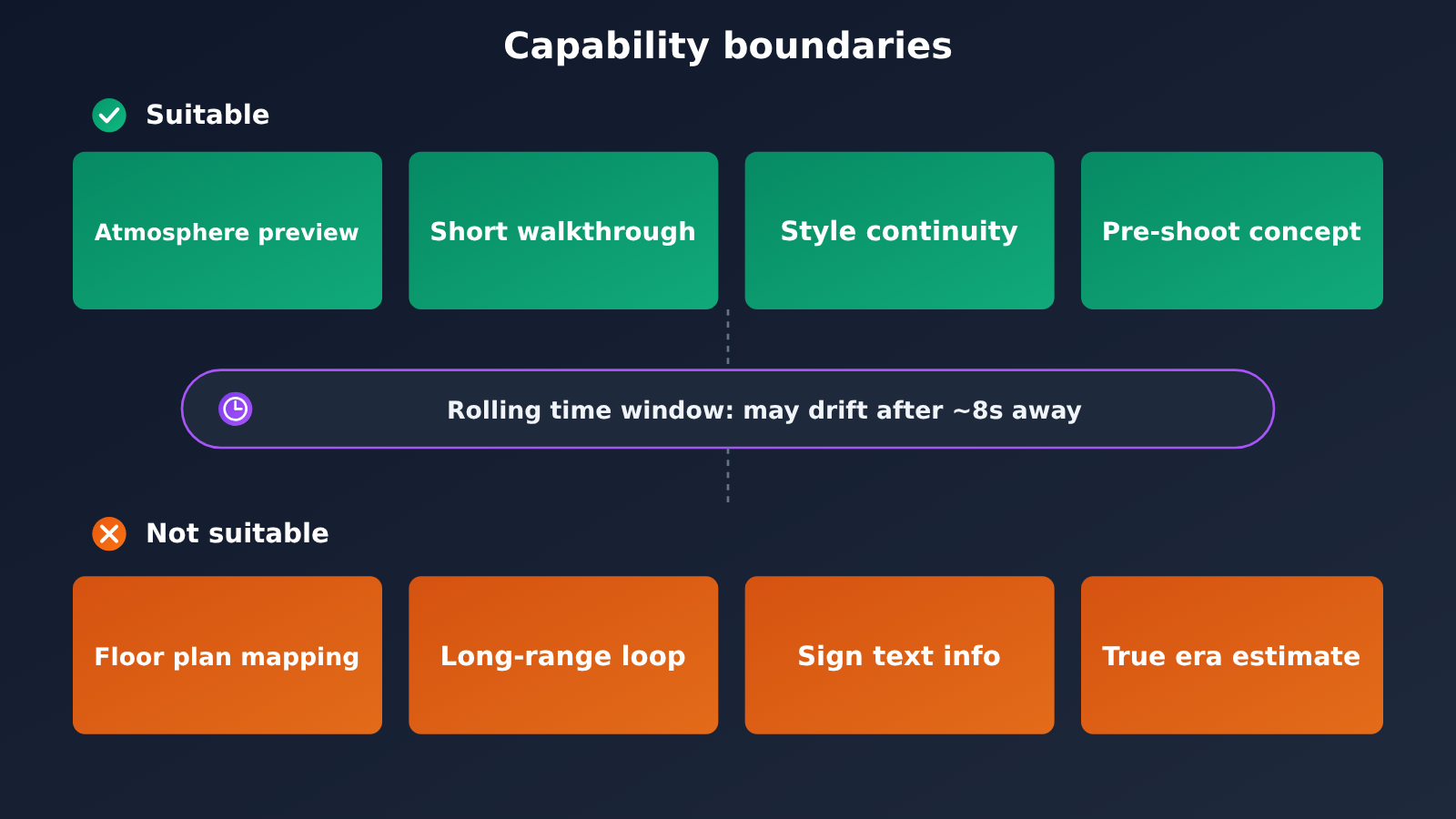
- It isn’t a floor plan: the broken double-door loop and the disappearing theater both show that the generated space’s topology isn’t reliable.
- Anything outside the frame is only a guess: the foyer and bright windows are “reasonable completions,” not spaces that actually exist. When describing a real place, ground your annotations in the original image, and describe the completed regions as generated output.
- Text details are easy to get wrong: the numbers on the Golden Gate Bridge sign came out distorted. For signage, lane connections, and similar details, go back to the original photo or on-site material to verify.
- A short clip doesn’t prove sustained capability: Pictowalk’s 20-second timer and 1.5x playback are both app-layer settings—they don’t tell you anything about long-range performance.
- Don’t conflate similar entry points: the Petra canyon look-around demo is officially listed under Genie 3’s 360-degree panorama feature; the panorama start provides images from more directions. Living Memory in the gallery is an app-layer personal-photo feature. When writing about Genie 4’s single-photo output, stick to cases where the model version can be traced.
6. Genie 4 FAQ
Q1: Are Genie 4 and Project Genie the same thing?
No. Genie 4 is the world model, while Project Genie is a web product that lets you pick from multiple models. When creating a project, you need to confirm in the dropdown that you’ve selected Genie 4.
Q2: Can I upload just a single photo on the web version?
The thing that can truly start from a single image on its own is the API’s `genie-4`. Public testing of the web version has all involved image plus text, and there’s no evidence so far that the web supports image-only input.
Q3: How can I prepare ahead of time without Ultra access?
Pro members can join the waitlist first. While you’re waiting, you can crop your photos and draft your anchor prompts, then use APIYI apiyi.com to call a vision model and generate an acceptance checklist—so you’re ready to start testing the moment you get access.
Q4: Can APIYI call genie-4 directly?
This article makes no such assumption—please refer to the model list in the APIYI apiyi.com console. The recommended division of labor for now is: run Genie 4 sessions through Google’s official Gemini API, and hand off prompt drafting and screenshot analysis to multimodal models.
Here’s a judgment method you can put to use right away: once you get a Genie 4 generation result, tick off three things—”recognizable at the start,” “completable where it continues,” “consistent on revisit.” If all three pass, it’s good for previewing a scene’s atmosphere. If only the first two pass, that means it can tell you “roughly what this place looks like” but can’t answer “how exactly do I walk through here.” Tasks like preparing assets and organizing acceptance records can be done on APIYI apiyi.com by cross-checking across multiple models.
References
- Denoised’s First-Hand Episode Page (Real-World Tests in an Old Castle and a Movie Theater)
- Link:
vp-land.com/stories/we-walked-through-genie-4-worlds-built-from-a-single-photo-and-debated-ais-place-on-iatse
- Link:
- Genie 4 October Research Preview
- Link:
deepmind.google/blog/genie-4-a-new-generation-of-world-simulation
- Link:
- Project Genie November Product Announcement
- Link:
blog.google/innovation-and-ai/models-and-research/google-deepmind/genie-4-now-available-project-genie
- Link:
- Google Labs Help (Controls, Visit History, Replay Instructions)
- Link:
support.google.com/labs/answer/16875695
- Link:
- Gemini API Genie Docs (Start Image Parameters and Limits)
- Link:
aistudio.google.com/docs/genie
- Link:
- DeepMind Genie Prompt Guide and Model Limitations
- Link:
deepmind.google/models/genie/prompt-guide
- Link:
- genie4.net Lakeside Cabin Field Test
- Link:
genie4.net/guides/genie-4-image-to-world
- Link:
- Pictowalk Developer Examples
- Link:
pictowalk.com
- Link:
- Genie 4 World Explorer Open-Source Repository
- Link:
github.com/NSTiwari/Genie-4-World-Explorer
- Link:
Author: APIYI Technical Team
Technical Discussion: Feel free to visit APIYI at apiyi.com to discuss multimodal model integration practices with us. For more resources, see the docs.apiyi.com documentation center.


