
Summary: This article explains what tasks GPT-6.2 Chat, Work, and Codex each handle, and why the same model generation appears under different names with different default settings at different entry points.
Bottom line up front: Chat, Work, and Codex are three entry points, while GPT-6.2 is the name of this model generation—they’re not the same layer of the product. Chat centers on conversation and outputs answers and explanations. Work centers on deliverables, can call on connected apps and files, and produces documents, spreadsheets, slide decks, or reports. Codex centers on code repositories, can work with directories, terminals, and tests, and produces code changes and test results. The same model generation is split into different modes because each entry point gives the model a different context, different actions it can take, and different final artifacts. Within Work, Codex, and the API, GPT-6.2 is further split into two models: Astra and Sol. Astra targets the hardest long-chain professional tasks, while Sol targets everyday work and offers faster speed and lower cost. Choose the entry point based on what environment the task needs, and choose the model based on task difficulty and budget. As for whether the three entry points share training data or how routing thresholds are set, the official source hasn’t disclosed this, and it can’t be inferred from product naming.
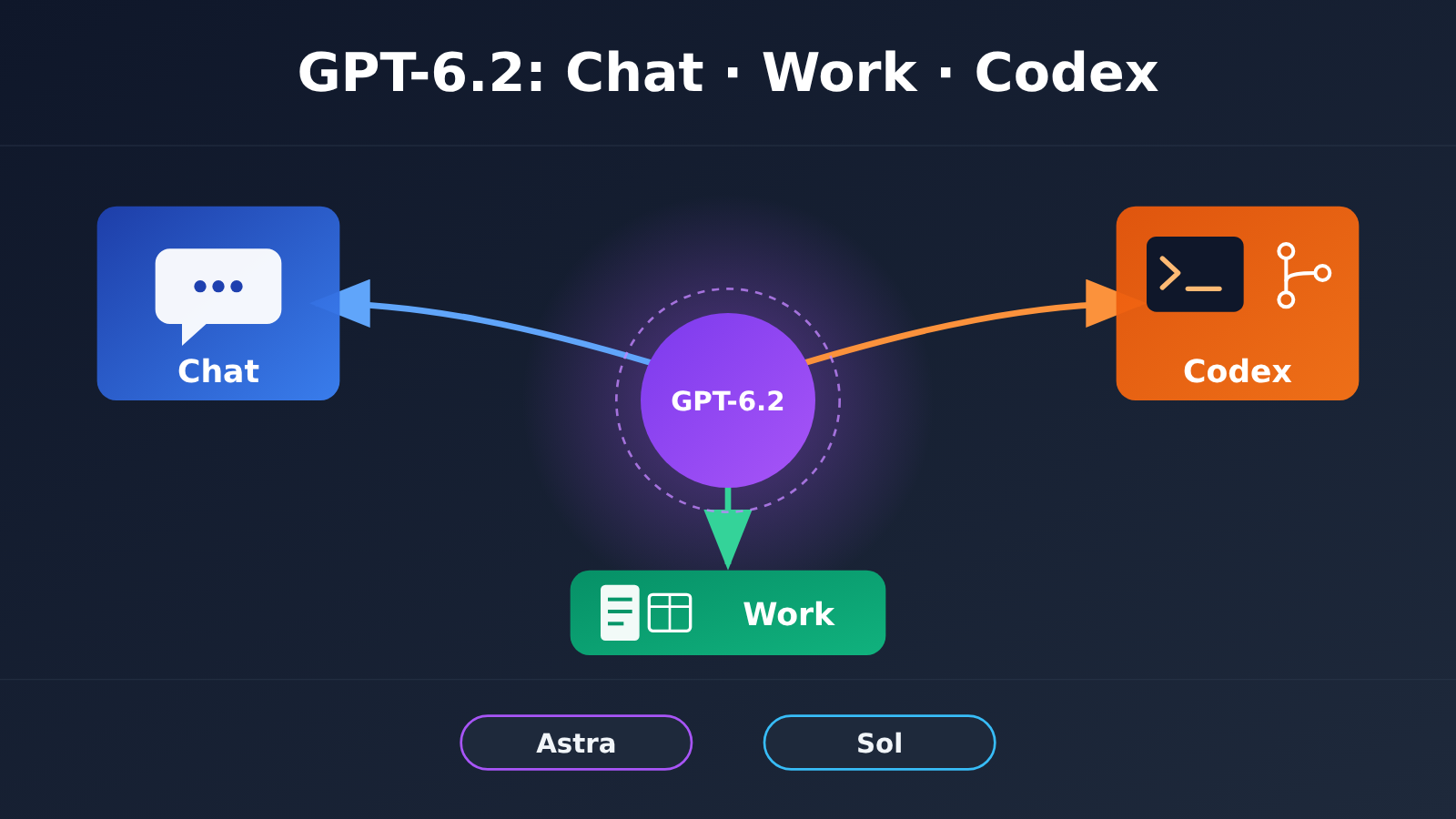
Knowledge Map: How GPT-6.2 Chat, Work, Codex, and the Models Relate
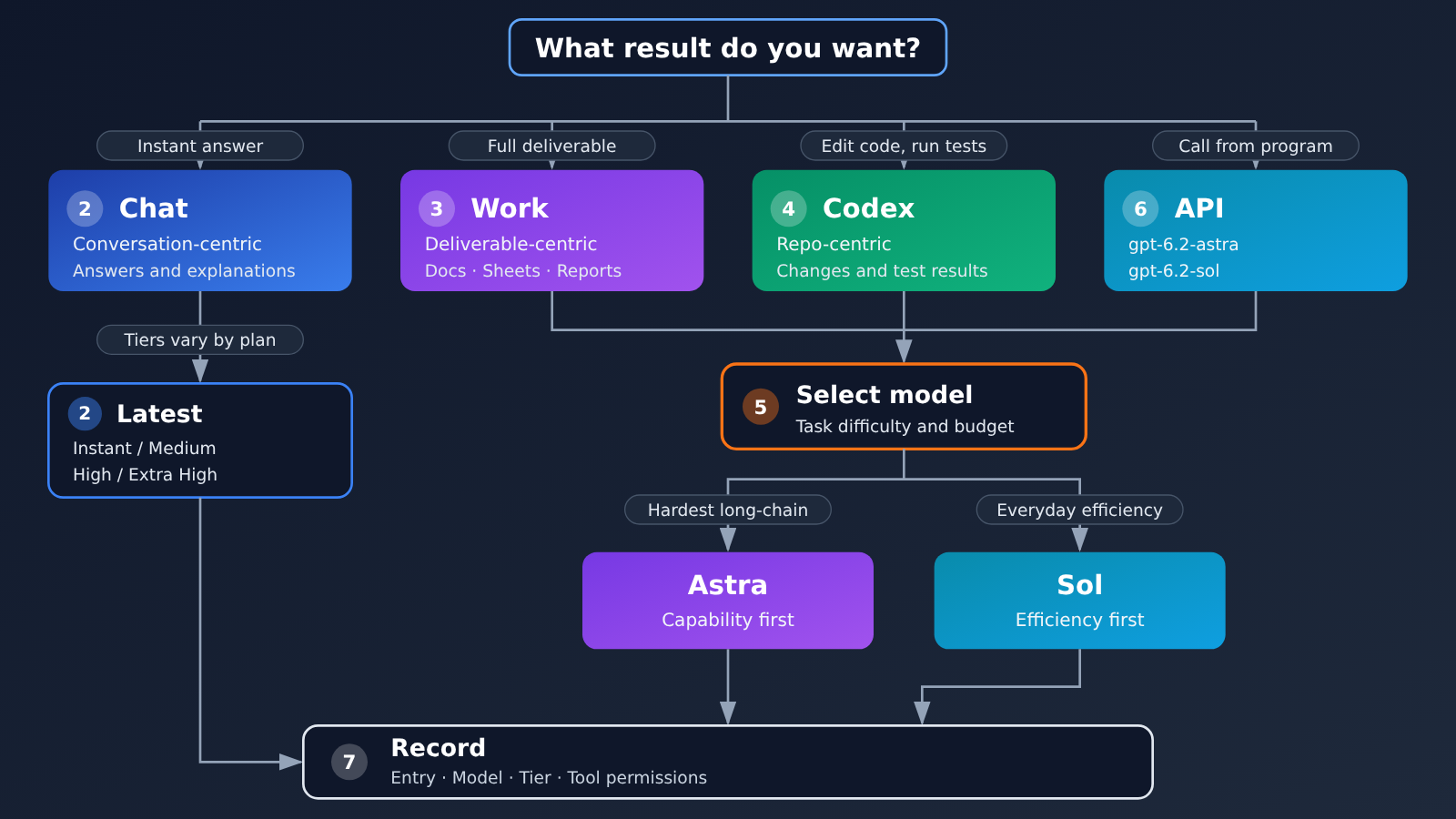
Figure note: first pick your entry point based on the result you want (sections 2, 3, 4, and 6), then, within Work, Codex, or API, choose Astra or Sol based on task difficulty and budget (section 5). Chat stands on its own with the Latest tier system (section 2). Whichever path you take, when you review your work you should record the entry point, model, tier, and tool permissions together (section 7).
Index: Reading Order for GPT-6.2 Usage Patterns
- Section 1 starts by separating the three layers — “entry point, model, and tier” — and every comparison that follows builds on that distinction.
- Sections 2, 3, and 4 cover Chat, Work, and Codex respectively. They’re parallel sections, so you can jump to whichever one you need.
- Section 5 explains how Astra and Sol are positioned, how they’re benchmarked, and what they cost, answering “why does the same model generation come in two versions?”
- Section 6 is for developers, showing how to invoke GPT-6.2 through the API.
- Section 7 lays out a reusable decision method and a record-keeping checklist, so you can put it to work right after reading.
To Know: Key Terms for Understanding GPT-6.2 Entry Point Differences
| Term | Brief Explanation |
|---|---|
| Entry point (usage experience) | Product interfaces like Chat, Work, and Codex that determine what context the model receives and what actions it can take |
| GPT-6.2 Astra | The model built for the hardest long-chain professional tasks; API identifier is gpt-6.2-astra |
| GPT-6.2 Sol | The model built for a wide range of everyday work, emphasizing speed and efficiency; API identifier is gpt-6.2-sol |
| Latest | The option in Chat’s new model selector, mapping to tiers such as Instant, Medium, High, and Extra High |
| Reasoning tier | A setting that controls how much thinking effort the model invests; the naming differs across entry points |
| Deliverable | Work’s final output, such as a document, spreadsheet, slide deck, report, or website |
1 GPT-6.2 Chat, Work, and Codex: A Three-Layer Structure
1.1 What Each of the Three Entry Points Handles
Chat and Work are two experiences inside ChatGPT, while Codex is a standalone working view built for software development that also ships clients such as a command-line tool. According to OpenAI’s usage notes, the division of labor looks like this:
| Experience | Official purpose | Typical context | Typical output |
|---|---|---|---|
| Chat | Asking questions, searching, brainstorming, instant conversation | Current conversation, attachments, available tools | Answers plus explanations you can keep questioning |
| Work | Multi-step investigation, analysis, producing complete deliverables | Connected apps, files, approved tools | Documents, spreadsheets, slides, reports, or websites |
| Codex | Writing and debugging code, running commands and tests, reviewing changes | Directories, repositories, terminals, dev tools | Code changes, test results, review findings |
This split describes each entry point’s main tasks and available environment; it isn’t a hard boundary. You can discuss a program in Chat, organize engineering material in Work, or generate repository-related notes in Codex. When deciding which entry point to use, don’t just check whether the prompt contains code — look at three things: what context the model needs to receive, what actions it needs to perform, and what verifiable result should be left behind.
1.2 Why Chat Shows Latest While Work Shows Astra and Sol
The names differ because the two updates happened at different times and targeted different entry points.
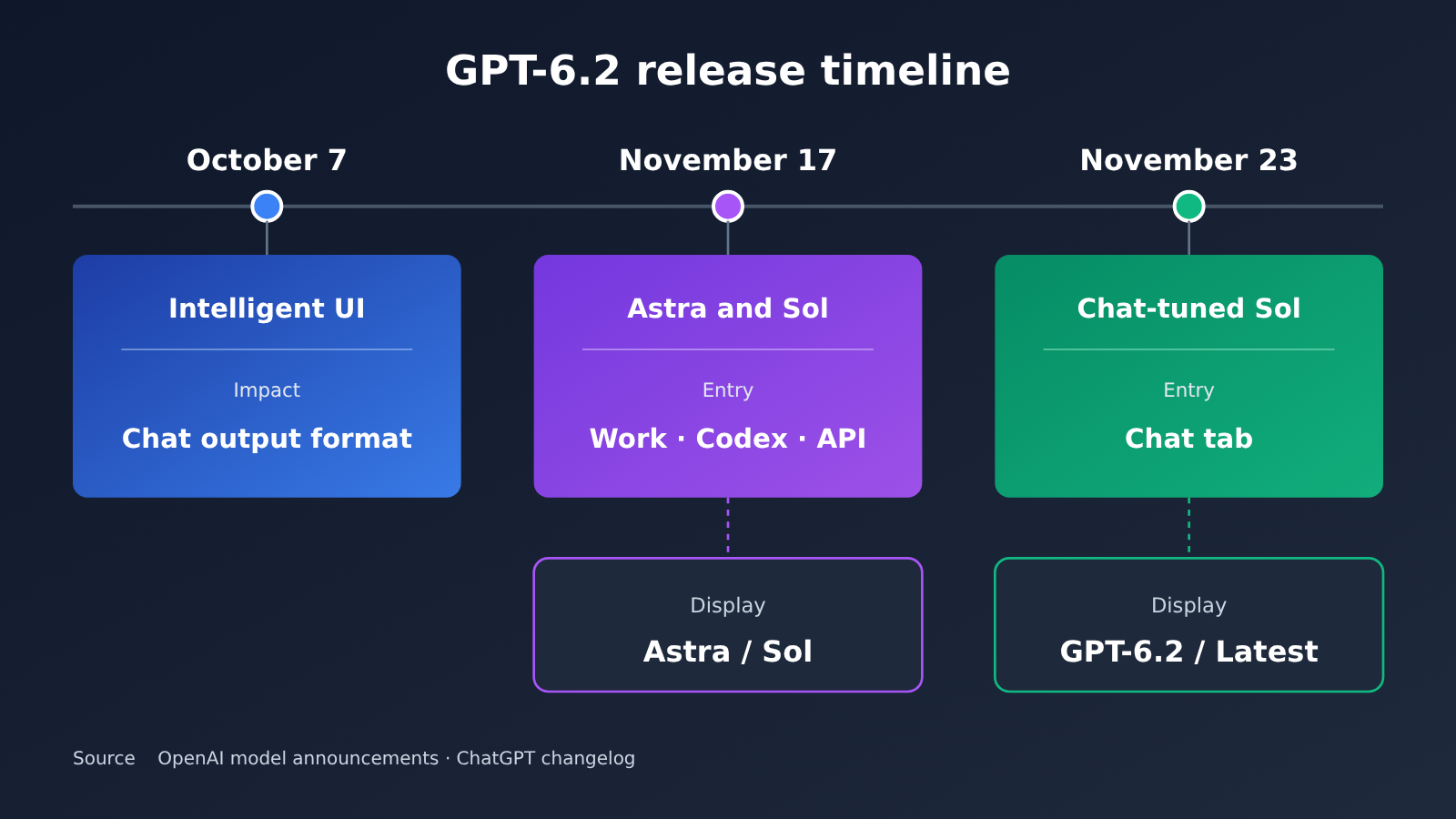
As the timeline shows, on November 17 OpenAI released GPT-6.2 Astra and GPT-6.2 Sol for Work, Codex, and the API, and those entry points display the full model names directly. On November 23, OpenAI began rolling out a version of GPT-6.2 Sol tuned specifically for everyday conversation to the Chat tab across the four plans, while the Chat interface shows GPT-6.2 or Latest. The two updates are recorded in two separate official posts.
2 GPT-6.2 Chat: Conversation-Centric
After the Chat update, GPT-6.2 is used for Instant and Thinking. In the new model selector, the available tiers under Latest include Instant, Medium, High, and Extra High: Instant is for quick Q&A, Medium provides regular reasoning, and High and Extra High are for more complex questions that require more reasoning effort. Which tiers you can use depends on your plan and workspace.
One point that’s easy to confuse: “6 Pro” in the Chat interface refers to GPT-6 Pro, which is powered by GPT-6 Astra, not GPT-6.2. And “Pro” itself can also refer to a subscription plan. So when discussing model configuration, it’s best to write out the full model name, or list the subscription plan in a separate column.
Chat can read images shared in the conversation, search the web as needed for the question, and offer immediate suggestions. The example OpenAI gave on November 23 was to compare the location and price of several weekend stays and, when appropriate, suggest setting a follow-up reminder. OpenAI also published evaluation results for complex instructions and image understanding under the same entry point, showing that this entry point is optimized for everyday conversation. In addition, Intelligent UI, released on October 7, is another layer of product capability that organizes text, diagrams, and interactive elements as needed; it affects the output format of Chat.
3 GPT-6.2 Work: Multi-Step Tasks Built Around Deliverables
3.1 Where Work Runs and What Permissions It Has
A typical Work task starts with a bundle of materials: analyze the content, check the numbers, then produce a deck or spreadsheet following a template. While it runs, you can watch progress, steer the direction, and authorize important actions. Once authorized, the desktop version can access local files and applications; Work on web and mobile runs in the cloud, and cloud conversations can pick up across supported clients. Org admins can also control access to Work Cloud and Work Local separately by role.
So for a Work task, the questions “which model does it use,” “can it read this kind of file,” and “can it perform this action” should be answered in that order — by entry point, then by permissions. No matter how capable the model is, without the matching file or tool permissions it can’t carry out the corresponding operation.
3.2 Work’s Default Model and Session Upgrade Rules
In the model selector, Work lets you choose GPT-6.2 Astra or Sol. According to the official note from November 17, new sessions start with these defaults:
| Scenario | Starting default | Notes |
|---|---|---|
| Eligible individual plans | Sol’s Light | Starting point for new sessions |
| Enterprise workspaces with the model enabled | Sol’s Medium | Workspaces can configure their starting default |
| Interface shows the Power slider | Enter Advanced | You can choose a specific model and reasoning settings |
| New sessions using Astra/Sol via Default | Upgraded in place | Automatically switches to the new version |
| Some sessions already using Astra/Sol | Optional switch prompt appears | You can also stay on the current model |
| Model already explicitly selected, or default is GPT-6 Luna | Existing configuration kept | No automatic change |
What actually takes effect depends on your role’s effective permissions, the client, and what the interface actually shows. Keep in mind that Chat’s Instant through Extra High and Work’s default slider are naming schemes internal to two separate products, and the official docs describe them separately — they shouldn’t be mapped one-to-one. Org-level roles and starting defaults are likewise set in separate controls for Chat and for Work and Codex. When you’re reviewing a task afterward, it’s worth noting whether that session kept the existing selection, started from the default, or only began after a switch.
4 GPT-6.2 Codex: Repositories, Runtime Environments, and Changes
Codex desktop is a standalone view, and its history is stored separately from regular Chat. Within the permissions it’s granted, it can work with local directories, repositories, terminals, and dev tools; Codex Cloud can also run tasks in environments that are already configured. A typical example: hand it a regression problem in some feature of the repository, and Codex locates the relevant files, modifies the implementation, runs the targeted tests, and finally delivers the code changes along with real run results.
On model selection, the official examples list cross-service troubleshooting and full test suites as Astra use cases, and pull request review and revisions based on feedback as Sol use cases. These examples show how models get chosen, but the repository, tools, and permissions are always provided by the Codex session itself.
Codex has three entry points for model selection: the desktop picker, supported clients, and the /model interaction in the command line. The official minimum version for the CLI to use GPT-6.2 Astra or Sol is 0.166.0, and while choosing a model you can also adjust the reasoning tier supported by the current session. The desktop model guide also lists Ultra, which invokes subagents for tasks that split well; Ultrafast, meanwhile, is a low-latency speed tier for eligible accounts, with additional restrictions on plan, model, and quota. When documenting this, keep these official full names so you don’t confuse the two controls’ working modes and usage rules.
5 GPT-6.2 Astra and Sol: Why Does One Generation Ship Two Models?
5.1 Official Positioning and Evaluation of Astra and Sol
OpenAI positions GPT-6.2 Astra for the hardest long-chain professional tasks, including complex R&D, software development, and producing deliverables from templates. Sol focuses on broad coverage of everyday work, along with speed, efficiency, and natural collaboration.
The launch post includes one measurable comparison: Cognition’s FrontierCode 2.0 scores real code changes by whether they meet maintainers’ merge standards. At the max setting, Sol trails Astra by only 0.5 points, while Sol costs about one-fifth as much as Astra. Another set of data comes from OpenAI’s internal second version of GDPval, which samples long-chain knowledge work tasks from actual projects. The vendor reports that Astra scores 6.2 percentage points higher than the previous-generation Astra and produces 22% fewer output tokens, while Sol improves 5.3 percentage points over the previous-generation GPT-6.1 Sol. Each of these data sets uses its own previous generation as the baseline, so the absolute levels of Astra and Sol cannot be compared across them. They explain why the vendor offers both a model focused on hard tasks and one focused on efficiency. All figures above are vendor-published; this article did not run its own tests.
5.2 GPT-6.2 Pricing and Billing Basis
Developers can invoke these two models through the distinct API model IDs gpt-6.2-astra and gpt-6.2-sol. Under the standard pricing in the November 17 announcement (in USD per million tokens):
| Model | Input | Cached input | Output | Official positioning |
|---|---|---|---|---|
| gpt-6.2-astra | 8 | 0.40 | 40 | Hardest long-chain professional tasks |
| gpt-6.2-sol | 2 | 0.10 | 10 | Everyday work, speed, and efficiency |
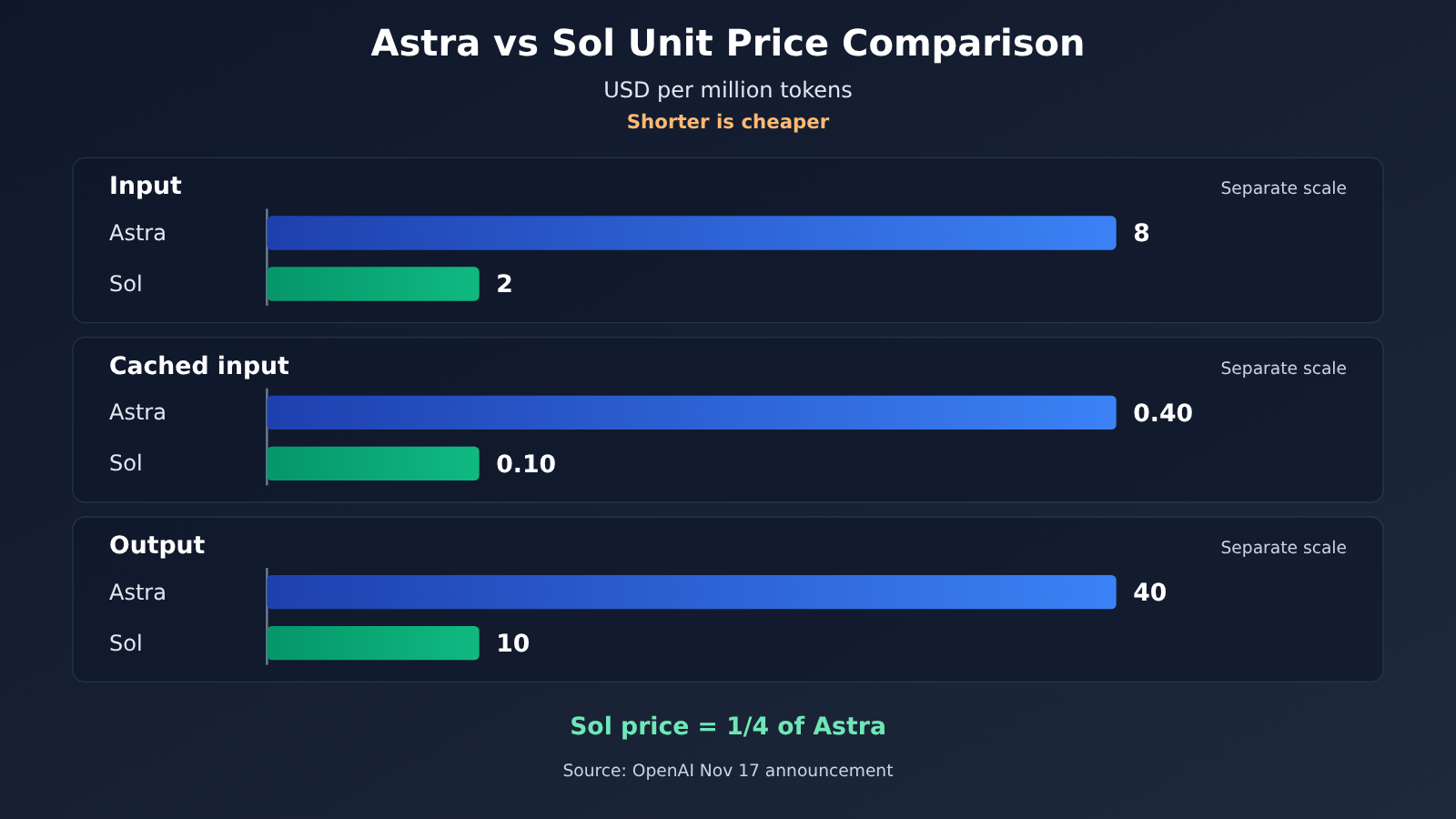
The chart shows that, under the same pricing basis, all three unit prices for Sol are one-quarter of Astra’s. As for the claim of “about one-fifth the cost” in FrontierCode 2.0, that refers to the total cost of completing that benchmark task, which also includes differences in output volume—a different basis.
Billing also depends on the entry point: if you sign in to Codex with a ChatGPT account, usage is metered under ChatGPT plan rules; if you use your own API key, you’re billed at API prices. Work and Codex quotas are calculated under agentic task rules, while regular Chat uses its own model and tool limits. If you want to compare the actual cost of the two models in your own project, you can first run small batches of requests against each model on APIYI apiyi.com, then convert the cost based on real input and output tokens. The specific models available and billing are subject to the platform’s model list.
6 How to Call GPT-6.2 Astra and Sol Through the API
According to the official API logs, both models support the Responses and Chat Completions interfaces, and tool calling needs to go through Responses. The model cards show that they accept text and image input and output text. In other words, capabilities like Work generating spreadsheets or Codex editing a repository come from each product’s tool invocation, runtime environment, and file permissions — calling the API model on its own won’t automatically give you those abilities.
Here’s a minimal example using the OpenAI-compatible interface:
from openai import OpenAI

client = OpenAI(
    api_key="YOUR_API_KEY",
    base_url="https://api.apiyi.com/v1"  # APIYI OpenAI-compatible interface
)

resp = client.chat.completions.create(
    model="gpt-6.2-sol",  # use gpt-6.2-astra for harder tasks
    messages=[{"role": "user", "content": "用三句话解释 Chat、Work、Codex 的区别"}],
)
print(resp.choices[0].message.content)
View the full code: compare Astra and Sol and log the configuration
import json
import time
from typing import Optional
from openai import OpenAI

client = OpenAI(
    api_key="YOUR_API_KEY",
    base_url="https://api.apiyi.com/v1"  # APIYI unified interface
)

def run(model: str, prompt: str, effort: Optional[str] = None) -> dict:
    """Call the model and log the model field, reasoning settings, usage, and elapsed time.
    The valid values for effort depend on the corresponding model card; keep it as None when unsure.
    """
    kwargs = {
        "model": model,
        "messages": [{"role": "user", "content": prompt}],
    }
    if effort:
        kwargs["reasoning_effort"] = effort

    start = time.time()
    resp = client.chat.completions.create(**kwargs)
    elapsed = round(time.time() - start, 2)

    return {
        "model_requested": model,
        "model_returned": resp.model,
        "reasoning_effort": effort,
        "tools": [],  # no tools enabled this time; for tool calling, the official guidance is to use Responses
        "prompt_tokens": resp.usage.prompt_tokens,
        "completion_tokens": resp.usage.completion_tokens,
        "seconds": elapsed,
        "answer": resp.choices[0].message.content,
    }

if __name__ == "__main__":
    task = "审阅下面的函数并指出潜在的边界错误:\ndef avg(xs): return sum(xs)/len(xs)"
    records = [run(m, task) for m in ("gpt-6.2-sol", "gpt-6.2-astra")]
    for r in records:
        print(json.dumps({k: v for k, v in r.items() if k != "answer"},
                         ensure_ascii=False, indent=2))
        print(r["answer"][:300], "\n" + "-" * 40)
The full code logs the requested model, the model field actually returned, the reasoning settings, the tools, and the usage all together. Even when the product and the API show the same full model name, analyzing results after the fact still requires factoring in the tools that were accessible at the time — this is exactly the basis for the logging checklist in Section 7.
Quick-start tip: APIYI apiyi.com provides an OpenAI-compatible interface, so one API key lets you call multiple mainstream models, and new users get free test credits — a good way to run a first round of Astra vs. Sol comparison with the script above. If you need tool calling, check the platform docs first to confirm Responses interface support.
7 Choosing the Entry Point and Model for GPT-6.2 for a Given Task
Using the same set of public release materials as an example, here are sample scenarios built around entry-point positioning — with no measured results included:
- Chat: quickly clarify what a term means, then follow up on how it affects your usage.
- Work: look up the announcement and organize the materials separately, producing a handoff document.
- Codex: check the affected project interfaces in an existing repository and submit changes with test records attached.
The entry point determines which materials you can use, which workflow you follow, and what artifacts you end up with; the choice between Astra and Sol determines the model capability and cost tier within that same entry point. When deciding, work through it in this order: first pick the entry point based on the outcome you want, then choose between Astra and Sol based on task length and difficulty, and finally adjust the reasoning level within what the entry point allows.
To make every session reviewable, it’s worth recording the following fields for each one:
| Field | Why record it | Example value |
|---|---|---|
| Entry point | Determines the context and the actions available | Work (desktop, Work Local) |
| Full model name | Avoids confusion from names like Latest or 6 Pro | GPT-6.2 Sol |
| Tier or reasoning setting | Naming differs across entry points | Medium / Light |
| Session starting point | Continued, started from default, or started after switching | Created via Default |
| Tools and permissions | Whether the capability comes from tools rather than the model | Local files, terminal |
| Billing method | Plan quota or API billing | Own API key |
If you’re building a Work- or Codex-like workflow yourself through the API, you can switch between gpt-6.2-astra and gpt-6.2-sol at APIYI apiyi.com, write the fields from the table above into your logs, and compare completion quality and token cost across the same batch of tasks.
A test method you can use as-is: take a real task and first ask yourself, “What do I ultimately want to walk away with — an answer, a deliverable, or a code change?” Then pick Chat, Work, or Codex accordingly. In Work, Codex, or the API, run Sol first; only if the results fall short and the task is a long-chain professional job should you switch to Astra for comparison. If the gap between the two is small, stick with Sol. Run this comparison round with the free quota at APIYI apiyi.com, and you’ll be able to decide which model to use by default based on your own data.
References
- OpenAI GPT-6.2 Astra and Sol Launch Announcement: model positioning, evaluation, and API pricing
- Link:
openai.com/index/introducing-gpt-6-2-astra-sol
- Link:
- ChatGPT Changelog: November 23 Chat update and Work launch entries
- Link:
help.openai.com/en/articles/6825453-chatgpt-release-notes
- Link:
- ChatGPT Work and Codex Help: entry point purposes, permissions, model switching, and metering
- Link:
help.openai.com/en/articles/20001275-chatgpt-work-and-codex
- Link:
- GPT-6 and Other Models in ChatGPT: Chat model selector and thinking levels
- Link:
help.openai.com/en/articles/20001354-gpt-6-and-other-models-in-chatgpt
- Link:
- ChatGPT Learn Model Documentation: Work default settings, Ultra and Ultrafast
- Link:
learn.chatgpt.com/docs/models
- Link:
- OpenAI API Changelog and Model Cards: interface support and reasoning settings
- Link:
developers.openai.com/api/docs/changelog
- Link:
Author: APIYI Technical Team
Technical Discussion: Feel free to reach out to us through the APIYI apiyi.com homepage. For more integration resources, see the docs.apiyi.com documentation center.


