
Handling AI understanding for huge video files has always been a pain point for developers—uploads timeout, base64 encoding causes memory overflows, and APIs return 413 errors. The good news is that in January 2026, Google significantly boosted Gemini API's file handling capabilities: inline upload limits increased from 20MB to 100MB, Files API now supports up to 2GB, and a new YouTube URL direct analysis feature was added. This article will detail these three solutions for handling oversized videos, helping you choose the best technical path.
Core Value: After reading this, you'll master the complete solution for handling videos from 100MB to 2GB, and you'll be able to choose the optimal upload method based on video size, frequency of use, and business scenario.
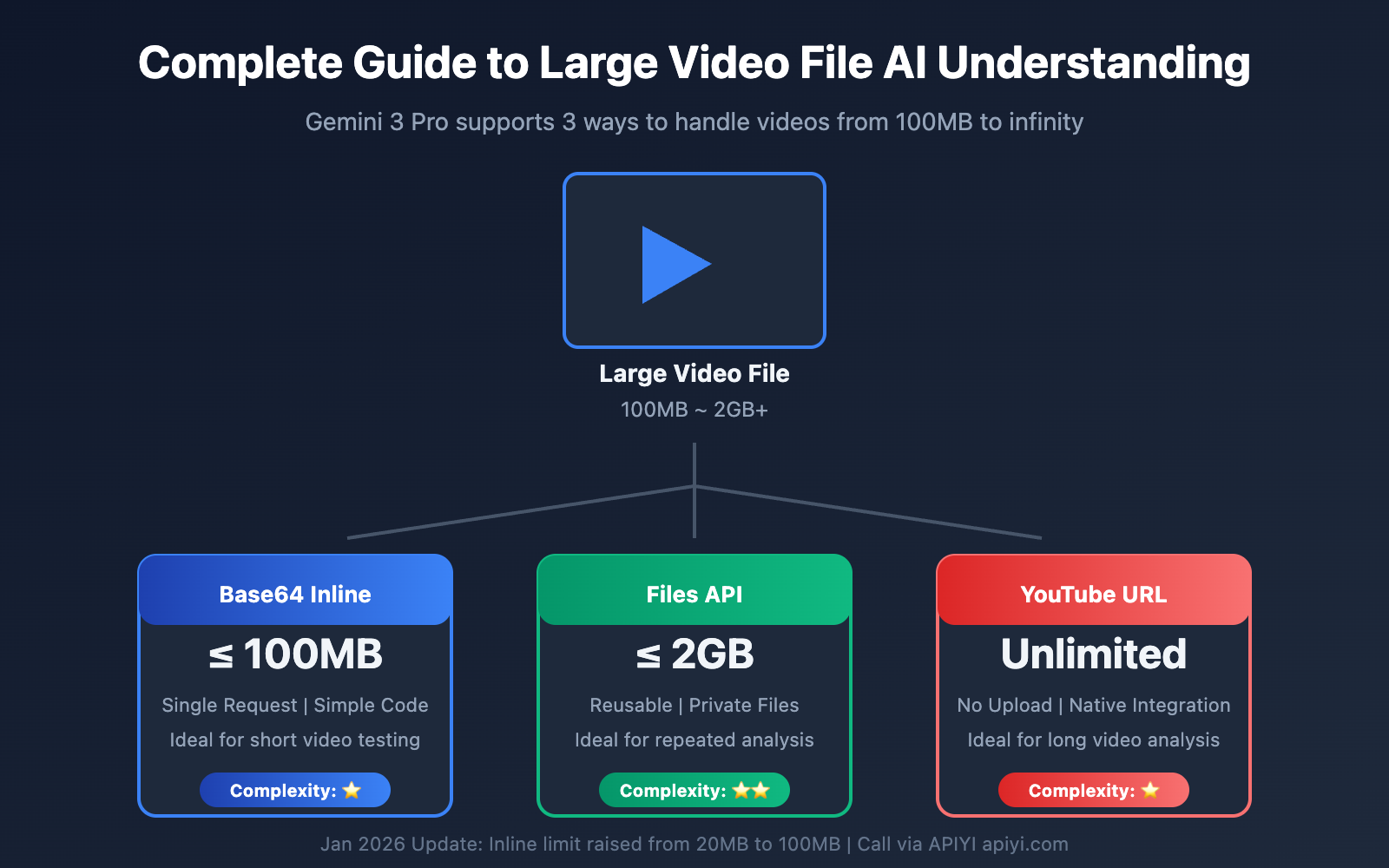
Gemini Large Video Upload Options at a Glance
Before diving into the technical details, let's look at the three video upload methods Gemini offers:
| Upload Method | File Size Limit | Scenario | Advantages | Limitations |
|---|---|---|---|---|
| Base64 Inline | ≤ 100MB | Short videos, quick testing | Single request, simple code | High memory pressure for large files |
| Files API | ≤ 2GB | Large videos, repeated use | Supports huge files, reusable | Requires two-step process |
| YouTube URL | Unlimited* | Ultra-long videos, public content | No upload needed, handles huge videos | Supports Public/Unlisted only |
🎯 Core Advice: For video files over 100MB, prioritize uploading to YouTube for analysis via URL, or use the Files API. Both methods can stably handle videos at the GB level.
Gemini Models for Video Understanding
| Model | Max Video Duration | Context Window | Features |
|---|---|---|---|
| gemini-3-pro-preview | 6 hours (low res) | 2M tokens | Strongest video understanding |
| gemini-2.5-flash | 3 hours (low res) | 1M tokens | Best value for money |
| gemini-2.5-pro | 6 hours (low res) | 2M tokens | First choice for complex tasks |
Gemini Video Understanding Option 1: Direct YouTube URL Analysis
For massive video files, the most elegant solution is uploading them to YouTube and letting Gemini analyze them directly via URL. This is a native Google integration, which means you don't have to deal with any manual file transfers.
Key Advantages of the YouTube URL Approach
| Advantage | Description |
|---|---|
| No File Size Limits | YouTube supports uploads of up to 256GB per video. |
| No Redundant Uploads | If the video is already on YouTube, you can just reference it. |
| Native Integration | Being a Google product, it offers the lowest possible latency. |
| Support for Long Videos | The paid version has no duration limits. |
YouTube URL Video Understanding Code Example
import openai

client = openai.OpenAI(
    api_key="YOUR_API_KEY",
    base_url="https://api.apiyi.com/v1"  # Using the APIYI unified interface
)

# Analyze video via YouTube URL
response = client.chat.completions.create(
    model="gemini-3-pro-preview",
    messages=[
        {
            "role": "user",
            "content": [
                {
                    "type": "text",
                    "text": "Please analyze the main content of this video and list the key timestamps with their corresponding events."
                },
                {
                    "type": "video_url",
                    "video_url": {
                        "url": "https://www.youtube.com/watch?v=VIDEO_ID"
                    }
                }
            ]
        }
    ],
    max_tokens=4096
)

print(response.choices[0].message.content)
YouTube URL Usage Limits
| Limit Item | Free Version | Paid Version |
|---|---|---|
| Daily Upload Duration | 8 hours | Unlimited |
| Videos per Request | 1 | 10 (Gemini 2.5+) |
| Visibility Requirements | Public/Unlisted | Public/Unlisted |
| Private Videos | ❌ Not supported | ❌ Not supported |
💡 Pro Tip: If your video contains private info, you can set it to "Unlisted" on YouTube. This way, only people with the link can see it, but the Gemini API can still analyze it perfectly. This YouTube URL feature is fully supported when calling through the APIYI (apiyi.com) API.
Timestamp Query Example
Gemini supports precise queries for specific moments in a video:
# Query content at specific timestamps
response = client.chat.completions.create(
    model="gemini-3-pro-preview",
    messages=[
        {
            "role": "user",
            "content": [
                {
                    "type": "text",
                    "text": "Can you tell me what's happening at the 02:30 and 05:45 marks in this video?"
                },
                {
                    "type": "video_url",
                    "video_url": {
                        "url": "https://www.youtube.com/watch?v=VIDEO_ID"
                    }
                }
            ]
        }
    ]
)
Gemini Video Understanding Option 2: Uploading Large Files via Files API
For private videos that you can't upload to YouTube (like internal training sessions or trade secrets), the Files API is your best bet for handling files between 100MB and 2GB.
Files API Upload Workflow
Local Video File → Files API Upload → Obtain file_uri → Initiate Analysis Request
Files API Full Code Example
import google.generativeai as genai
import time

# Configure API
genai.configure(api_key="YOUR_API_KEY")

def upload_large_video(video_path: str) -> str:
    """
    Upload large video files to Gemini Files API.
    Supports files up to 2GB.
    """
    print(f"Uploading video: {video_path}")

    # Upload the file
    video_file = genai.upload_file(
        path=video_path,
        display_name="large_video"
    )

    # Wait for processing to complete
    while video_file.state.name == "PROCESSING":
        print("Processing...")
        time.sleep(5)
        video_file = genai.get_file(video_file.name)

    if video_file.state.name == "FAILED":
        raise ValueError(f"File processing failed: {video_file.state.name}")

    print(f"Upload successful! URI: {video_file.uri}")
    return video_file.uri

def analyze_video(file_uri: str, prompt: str) -> str:
    """
    Analyze the uploaded video.
    """
    model = genai.GenerativeModel("gemini-3-pro-preview")

    response = model.generate_content([
        file_uri,
        prompt
    ])

    return response.text

# Usage Example
video_uri = upload_large_video("/path/to/large_video.mp4")
result = analyze_video(
    video_uri,
    "Please provide a detailed analysis of this video, including main scenes, character actions, and key information."
)
print(result)
Files API Management
# List all uploaded files
for file in genai.list_files():
    print(f"File Name: {file.name}")
    print(f"  URI: {file.uri}")
    print(f"  Size: {file.size_bytes / 1024 / 1024:.2f} MB")
    print(f"  Status: {file.state.name}")
    print()

# Delete files you no longer need (to save storage space)
genai.delete_file(file.name)
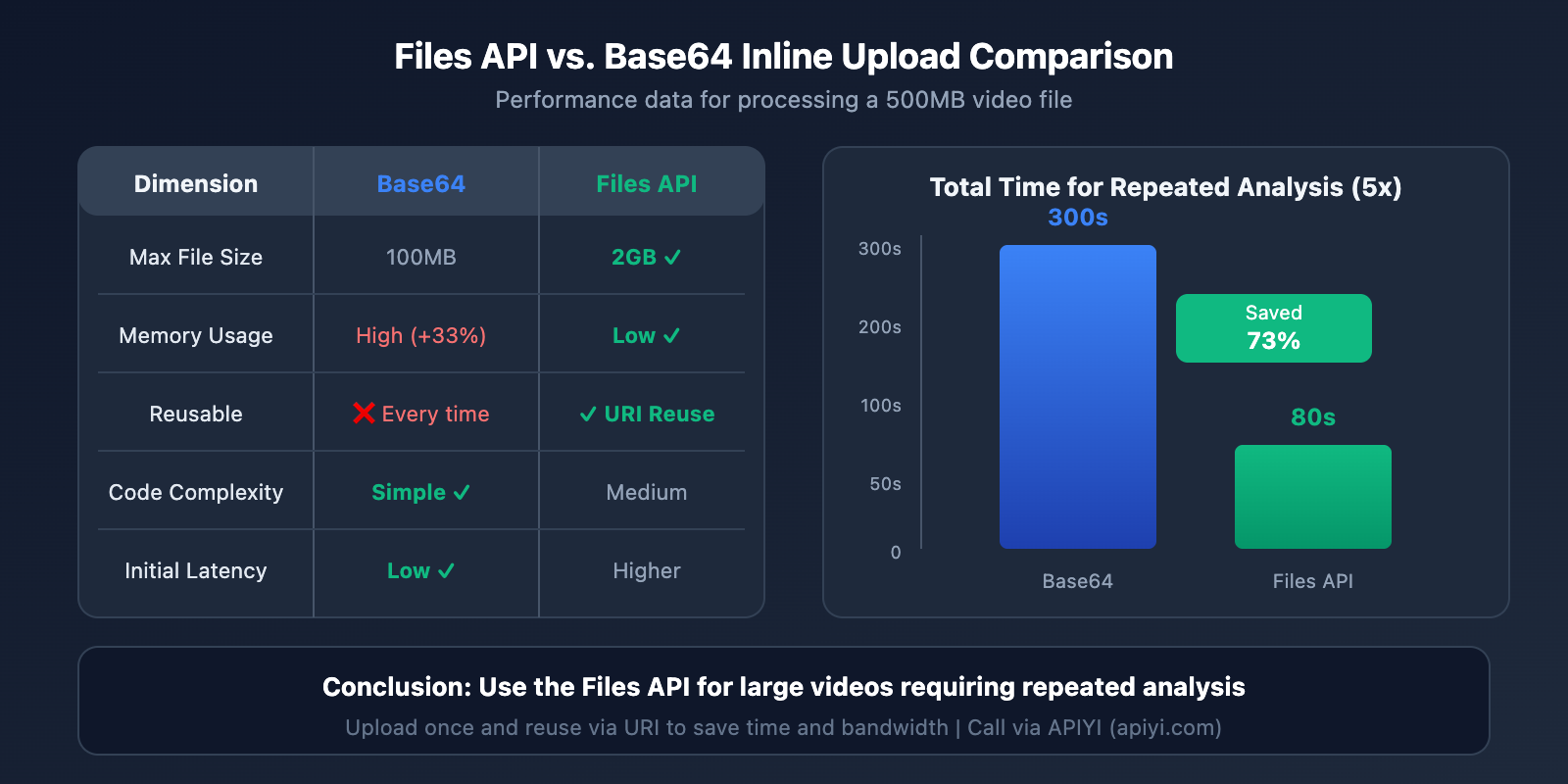
🎯 Cost Optimization: Files uploaded via the Files API can be reused across multiple requests, which helps you avoid redundant uploads. We recommend uploading once and saving the
file_urifor any video that needs repeated analysis. The APIYI (apiyi.com) platform supports the full range of Files API features.
Gemini Video Understanding Solution 3: Base64 Inline Upload
For small videos under 100MB, Base64 inline upload is the simplest approach. It lets you wrap everything up in a single API call.
Code Example: Base64 Inline Upload
import openai
import base64
from pathlib import Path

client = openai.OpenAI(
    api_key="YOUR_API_KEY",
    base_url="https://api.apiyi.com/v1"  # APIYI Unified Interface
)

def analyze_video_inline(video_path: str, prompt: str) -> str:
    """
    Inline upload for video analysis (suitable for videos ≤100MB)
    """
    # Read and encode video
    video_bytes = Path(video_path).read_bytes()
    video_size_mb = len(video_bytes) / 1024 / 1024

    if video_size_mb > 100:
        raise ValueError(f"Video size {video_size_mb:.2f}MB exceeds the 100MB limit. Please use the Files API.")

    video_base64 = base64.b64encode(video_bytes).decode('utf-8')

    # Determine MIME type
    suffix = Path(video_path).suffix.lower()
    mime_types = {
        '.mp4': 'video/mp4',
        '.avi': 'video/avi',
        '.mov': 'video/quicktime',
        '.webm': 'video/webm',
        '.mkv': 'video/x-matroska'
    }
    mime_type = mime_types.get(suffix, 'video/mp4')

    response = client.chat.completions.create(
        model="gemini-3-pro-preview",
        messages=[
            {
                "role": "user",
                "content": [
                    {"type": "text", "text": prompt},
                    {
                        "type": "image_url",  # Videos also use the image_url type
                        "image_url": {
                            "url": f"data:{mime_type};base64,{video_base64}"
                        }
                    }
                ]
            }
        ],
        max_tokens=4096
    )

    return response.choices[0].message.content

# Usage example
result = analyze_video_inline(
    "short_clip.mp4",
    "Please describe the main content of this video clip"
)
print(result)
Considerations for Base64 Inline Upload
| Consideration | Description |
|---|---|
| Memory Usage | Base64 encoding increases the data size by roughly 33%. |
| Timeout Risk | Large file uploads take longer and might trigger a timeout. |
| Not Reusable | You'll have to re-upload the data for every single request. |
| Recommended Duration | Best for short videos under 1 minute. |
Gemini Video Understanding: Token Calculation and Cost Optimization
Understanding how tokens are calculated is key to keeping your costs under control.
Gemini Video Token Calculation Formula
| Resolution | Video Frame | Audio | Total per Second |
|---|---|---|---|
| Standard/High | 258 tokens/frame | 32 tokens/second | ~300 tokens/second |
| Low (360p) | 66 tokens/frame | 32 tokens/second | ~100 tokens/second |
Token Consumption for Different Video Durations
| Video Duration | Standard Resolution | Low Resolution | Savings % |
|---|---|---|---|
| 1 minute | 18,000 | 6,000 | 67% |
| 10 minutes | 180,000 | 60,000 | 67% |
| 1 hour | 1,080,000 | 360,000 | 67% |
| 6 hours | 6,480,000 | 2,160,000 | 67% |
Saving Costs by Setting Low Resolution
# Use low resolution for long videos to save 67% on tokens
response = client.chat.completions.create(
    model="gemini-3-pro-preview",
    messages=[...],
    extra_body={
        "media_resolution": "low"  # 360p, 100 tokens/second
    }
)
💰 Cost Optimization: For general content understanding tasks (like video summaries or classification), low resolution is usually plenty. You only really need high resolution when the task requires identifying fine details, like specific text or small objects. You can get more competitive pricing for Gemini video understanding features by using APIYI at apiyi.com.
Gemini Large Video Processing in Action: Complete Workflow
Here's a complete solution that automatically selects the best upload method based on video size.
Click to expand the full code
"""
Gemini 超大视频文件理解完整解决方案
自动根据视频大小选择最佳上传方式
"""

import openai
import google.generativeai as genai
import base64
import time
from pathlib import Path
from typing import Optional, Union
from dataclasses import dataclass
from enum import Enum

class UploadMethod(Enum):
    INLINE = "inline"
    FILES_API = "files_api"
    YOUTUBE = "youtube"

@dataclass
class VideoAnalysisResult:
    success: bool
    method: UploadMethod
    content: Optional[str] = None
    error: Optional[str] = None
    tokens_used: Optional[int] = None

class GeminiVideoAnalyzer:
    """
    智能视频分析器
    自动选择最佳上传方式处理各种大小的视频
    """

    # 文件大小阈值 (字节)
    INLINE_MAX_SIZE = 100 * 1024 * 1024  # 100MB
    FILES_API_MAX_SIZE = 2 * 1024 * 1024 * 1024  # 2GB

    def __init__(
        self,
        api_key: str,
        base_url: str = "https://api.apiyi.com/v1"
    ):
        self.client = openai.OpenAI(
            api_key=api_key,
            base_url=base_url
        )
        genai.configure(api_key=api_key)

    def _get_file_size(self, video_path: str) -> int:
        """获取文件大小"""
        return Path(video_path).stat().st_size

    def _choose_method(
        self,
        video_path: Optional[str] = None,
        youtube_url: Optional[str] = None
    ) -> UploadMethod:
        """根据输入自动选择上传方式"""

        if youtube_url:
            return UploadMethod.YOUTUBE

        if video_path:
            file_size = self._get_file_size(video_path)
            if file_size <= self.INLINE_MAX_SIZE:
                return UploadMethod.INLINE
            elif file_size <= self.FILES_API_MAX_SIZE:
                return UploadMethod.FILES_API
            else:
                raise ValueError(
                    f"文件大小 {file_size / 1024 / 1024 / 1024:.2f}GB "
                    f"超过 2GB 限制,请上传到 YouTube 后使用 URL 分析"
                )

        raise ValueError("必须提供 video_path 或 youtube_url")

    def _analyze_inline(
        self,
        video_path: str,
        prompt: str,
        media_resolution: str = "standard"
    ) -> str:
        """内联上传分析"""
        video_bytes = Path(video_path).read_bytes()
        video_base64 = base64.b64encode(video_bytes).decode('utf-8')

        suffix = Path(video_path).suffix.lower()
        mime_types = {
            '.mp4': 'video/mp4',
            '.avi': 'video/avi',
            '.mov': 'video/quicktime',
            '.webm': 'video/webm'
        }
        mime_type = mime_types.get(suffix, 'video/mp4')

        response = self.client.chat.completions.create(
            model="gemini-3-pro-preview",
            messages=[{
                "role": "user",
                "content": [
                    {"type": "text", "text": prompt},
                    {
                        "type": "image_url",
                        "image_url": {
                            "url": f"data:{mime_type};base64,{video_base64}"
                        }
                    }
                ]
            }],
            extra_body={"media_resolution": media_resolution}
        )

        return response.choices[0].message.content

    def _analyze_files_api(
        self,
        video_path: str,
        prompt: str,
        media_resolution: str = "standard"
    ) -> str:
        """Files API 上传分析"""
        # 上传文件
        video_file = genai.upload_file(path=video_path)

        # 等待处理完成
        while video_file.state.name == "PROCESSING":
            time.sleep(5)
            video_file = genai.get_file(video_file.name)

        if video_file.state.name == "FAILED":
            raise ValueError("文件处理失败")

        # 分析视频
        model = genai.GenerativeModel("gemini-3-pro-preview")
        response = model.generate_content(
            [video_file, prompt],
            generation_config={
                "media_resolution": media_resolution
            }
        )

        return response.text

    def _analyze_youtube(
        self,
        youtube_url: str,
        prompt: str,
        media_resolution: str = "standard"
    ) -> str:
        """YouTube URL 分析"""
        response = self.client.chat.completions.create(
            model="gemini-3-pro-preview",
            messages=[{
                "role": "user",
                "content": [
                    {"type": "text", "text": prompt},
                    {
                        "type": "video_url",
                        "video_url": {"url": youtube_url}
                    }
                ]
            }],
            extra_body={"media_resolution": media_resolution}
        )

        return response.choices[0].message.content

    def analyze(
        self,
        prompt: str,
        video_path: Optional[str] = None,
        youtube_url: Optional[str] = None,
        media_resolution: str = "standard",
        force_method: Optional[UploadMethod] = None
    ) -> VideoAnalysisResult:
        """
        分析视频内容

        Args:
            prompt: 分析提示词
            video_path: 本地视频路径 (可选)
            youtube_url: YouTube 视频 URL (可选)
            media_resolution: 分辨率 ("low"/"standard"/"high")
            force_method: 强制使用的上传方式 (可选)

        Returns:
            VideoAnalysisResult 对象
        """

        try:
            # 选择上传方式
            method = force_method or self._choose_method(video_path, youtube_url)
            print(f"使用上传方式: {method.value}")

            # 执行分析
            if method == UploadMethod.INLINE:
                content = self._analyze_inline(video_path, prompt, media_resolution)
            elif method == UploadMethod.FILES_API:
                content = self._analyze_files_api(video_path, prompt, media_resolution)
            elif method == UploadMethod.YOUTUBE:
                content = self._analyze_youtube(youtube_url, prompt, media_resolution)

            return VideoAnalysisResult(
                success=True,
                method=method,
                content=content
            )

        except Exception as e:
            return VideoAnalysisResult(
                success=False,
                method=method if 'method' in dir() else UploadMethod.INLINE,
                error=str(e)
            )


# 使用示例
if __name__ == "__main__":
    analyzer = GeminiVideoAnalyzer(api_key="your-api-key")

    # 示例1: 小视频 (自动使用内联上传)
    result = analyzer.analyze(
        prompt="请描述视频内容",
        video_path="small_clip.mp4"
    )

    # 示例2: 大视频 (自动使用 Files API)
    result = analyzer.analyze(
        prompt="请分析这个培训视频的主要知识点",
        video_path="training_video_500mb.mp4",
        media_resolution="low"  # 长视频用低分辨率节省成本
    )

    # 示例3: YouTube 视频
    result = analyzer.analyze(
        prompt="请总结这个视频的核心观点",
        youtube_url="https://www.youtube.com/watch?v=VIDEO_ID"
    )

    if result.success:
        print(f"分析方式: {result.method.value}")
        print(f"结果:\n{result.content}")
    else:
        print(f"分析失败: {result.error}")
Gemini Video Understanding FAQ
Q1: How do I handle videos over 2GB?
For videos exceeding 2GB, you've got a few options:
- Upload to YouTube: This is the most recommended method. YouTube supports videos up to 256GB, and you can set them to "Unlisted" to keep them private.
- Video Compression: Use FFmpeg to lower the resolution or bitrate.
- Video Splitting: Break the long video into multiple segments and analyze them individually.
# Compress a video to under 1GB using FFmpeg
ffmpeg -i input.mp4 -vcodec h264 -acodec aac -fs 1G output.mp4

# Split a video into 10-minute segments
ffmpeg -i input.mp4 -c copy -segment_time 600 -f segment output_%03d.mp4
When calling through the APIYI (apiyi.com) platform, all standard video processing methods are supported.
Q2: Can Gemini analyze private YouTube videos?
Currently, the Gemini API doesn't support analyzing "Private" videos, but it does support the other two:
| Visibility | Supported | Notes |
|---|---|---|
| Public | ✅ Yes | Visible to everyone |
| Unlisted | ✅ Yes | Only visible to those with the link |
| Private | ❌ No | Only visible to the owner |
Pro Tip: If your video contains sensitive content, setting it to "Unlisted" is your best bet—it keeps the video private while still allowing the API to analyze it.
Q3: How can I analyze a specific segment of a video?
Gemini offers two ways to target specific video clips:
Method 1: Timestamp Queries
prompt = "Please analyze the content between 05:30 and 08:45"
Method 2: Video Clipping Parameters (New 2026 Feature)
response = client.chat.completions.create(
    model="gemini-3-pro-preview",
    messages=[...],
    extra_body={
        "video_clip": {
            "start_time": "00:05:30",
            "end_time": "00:08:45"
        }
    }
)
Q4: How do I save on costs when analyzing long videos?
Here are 3 tips for optimizing long-video costs:
- Use Low Resolution: Setting
media_resolution: "low"can save you up to 67% on tokens. - Specify Analysis Segments: Only process the parts you actually need instead of the entire video.
- Reuse Uploaded Files: Save the URI after uploading via the Files API to avoid redundant uploads.
By using APIYI (apiyi.com) to call Gemini video understanding, you'll get more competitive pricing than the official rates, making it ideal for high-volume video analysis tasks.
Gemini Large Video Processing Solution Summary
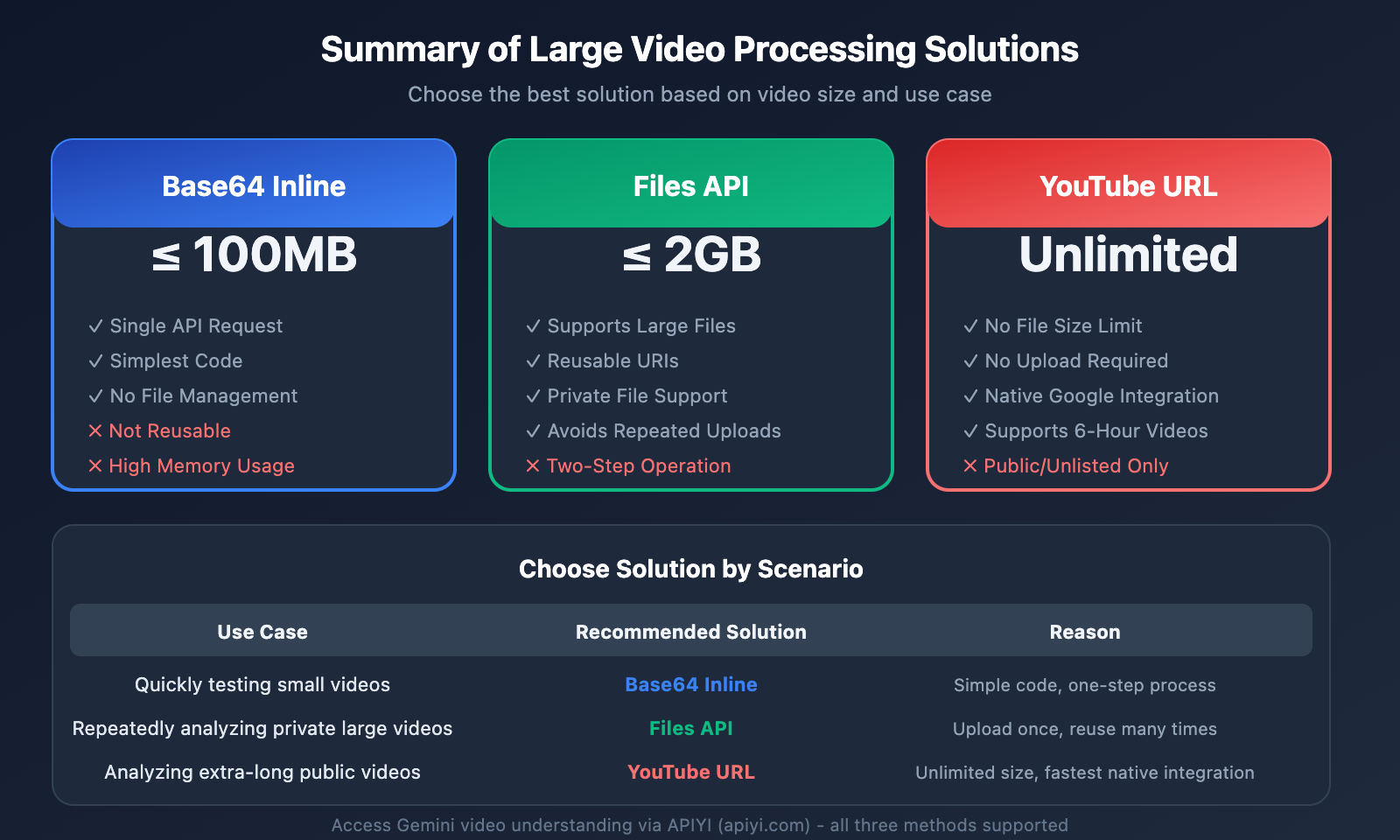
This article outlines three complete solutions for handling large video files:
| Solution | File Size | Best Use Case | Complexity |
|---|---|---|---|
| Base64 Inline | ≤ 100MB | Quick testing, short clips | ⭐ |
| Files API | ≤ 2GB | Private large videos, repeated analysis | ⭐⭐ |
| YouTube URL | Unlimited | Extra-long videos, public content | ⭐ |
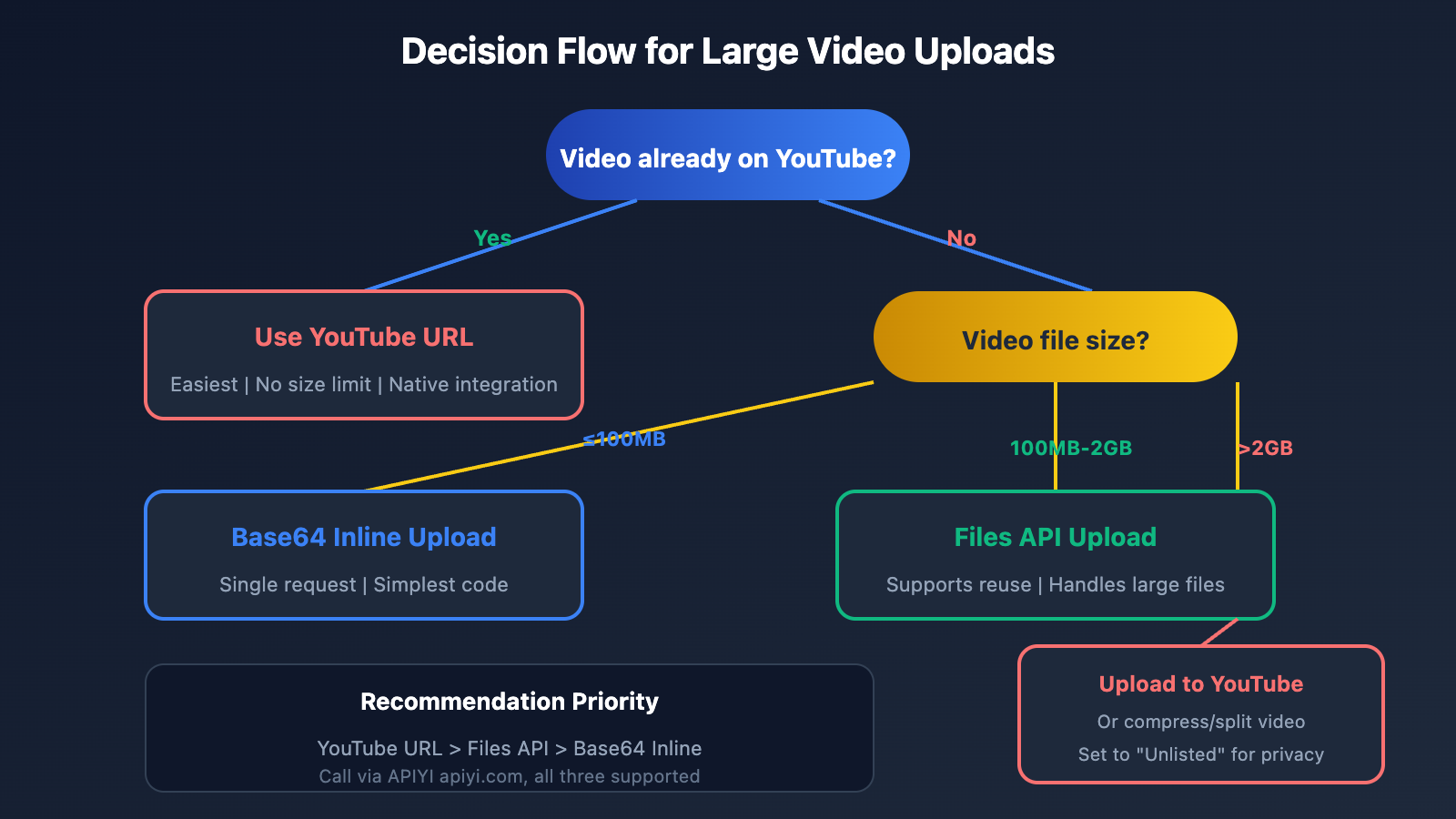
Solution Selection Flowchart
Is the video already on YouTube?
├── Yes → Use YouTube URL (Simplest)
└── No → Video size?
    ├── ≤ 100MB → Base64 Inline (Single request)
    ├── 100MB-2GB → Files API (Supports reuse)
    └── > 2GB → Upload to YouTube or compress/split
🎯 Final Verdict: For extra-large video files, prioritize the YouTube URL solution. Not only is there no file size limit, but it also leverages native Google integration for the lowest possible latency. We recommend using APIYI (apiyi.com) to call Gemini's video understanding features for better pricing and more stable service.
Written by the APIYI technical team. To learn more tips for using multimodal AI APIs, visit apiyi.com for technical support.


