
If you've ever opened a Codex client, Codex CLI, or the ChatGPT desktop app, only to be greeted by a white-on-black OpenAI logo and a popup saying "Something went wrong! Error during verification (unknown_country). Please try again," you've likely hit a common wall. Here's the kicker: Just because the ChatGPT web interface works doesn't mean your current network IP is accepted by OpenAI for client-side authentication. This counter-intuitive fact is the root cause of the unknown_country error that leaves most people spending all night clearing caches, restarting, or switching accounts to no avail.
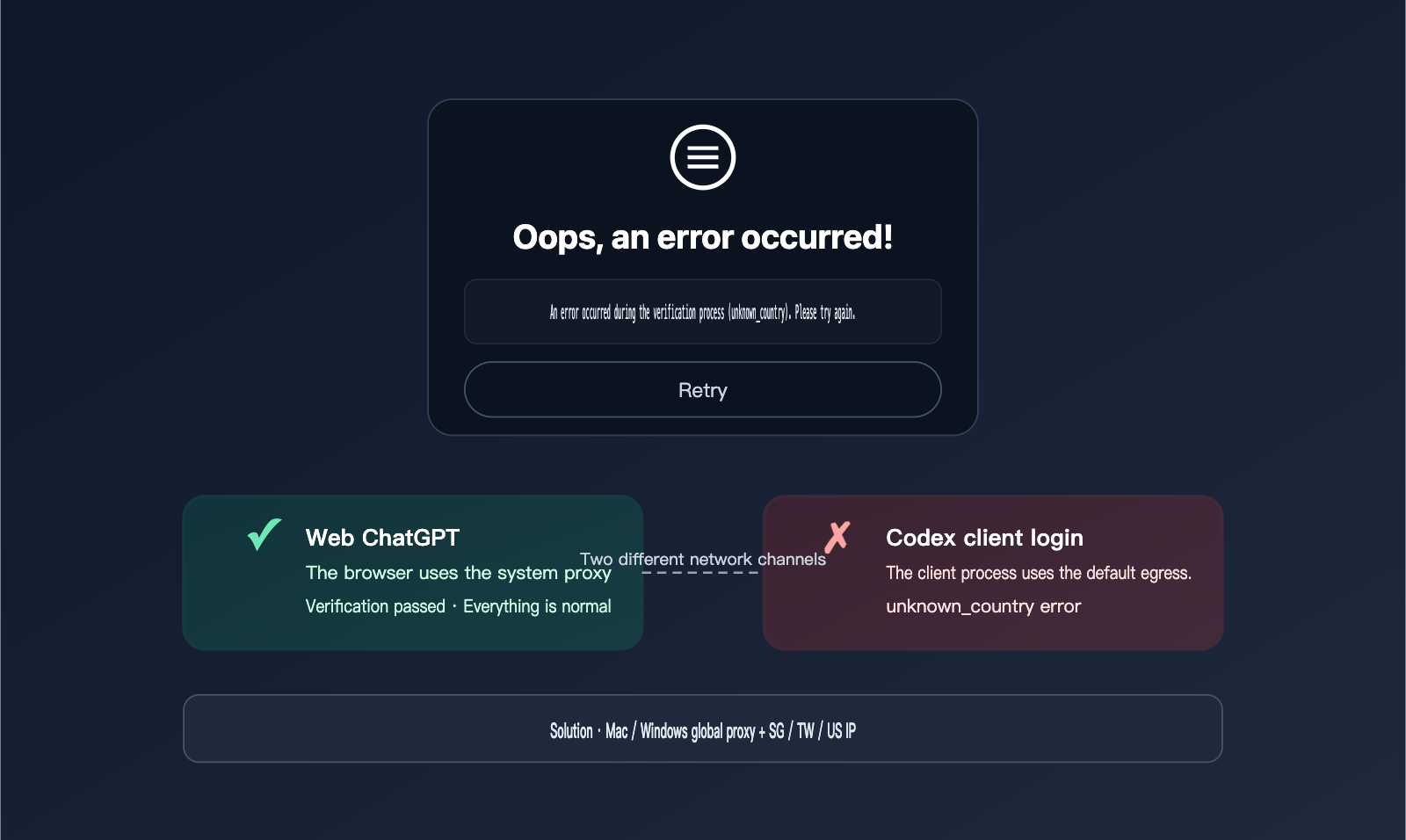
The official error code for this is actually unsupported_country_region_territory, not unknown_country. It's well-documented in GitHub Issues and the OpenAI developer community, with all triggers pointing to a 403 Forbidden response at https://auth.openai.com/oauth/token. In this article, I'll explain why this happens, provide a global proxy and IP region selection solution you can verify immediately, and recommend two reliable services for handling membership upgrades and API key top-ups once you're logged in.
Why the unknown_country error occurs: The two-stage verification mechanism of the Codex client
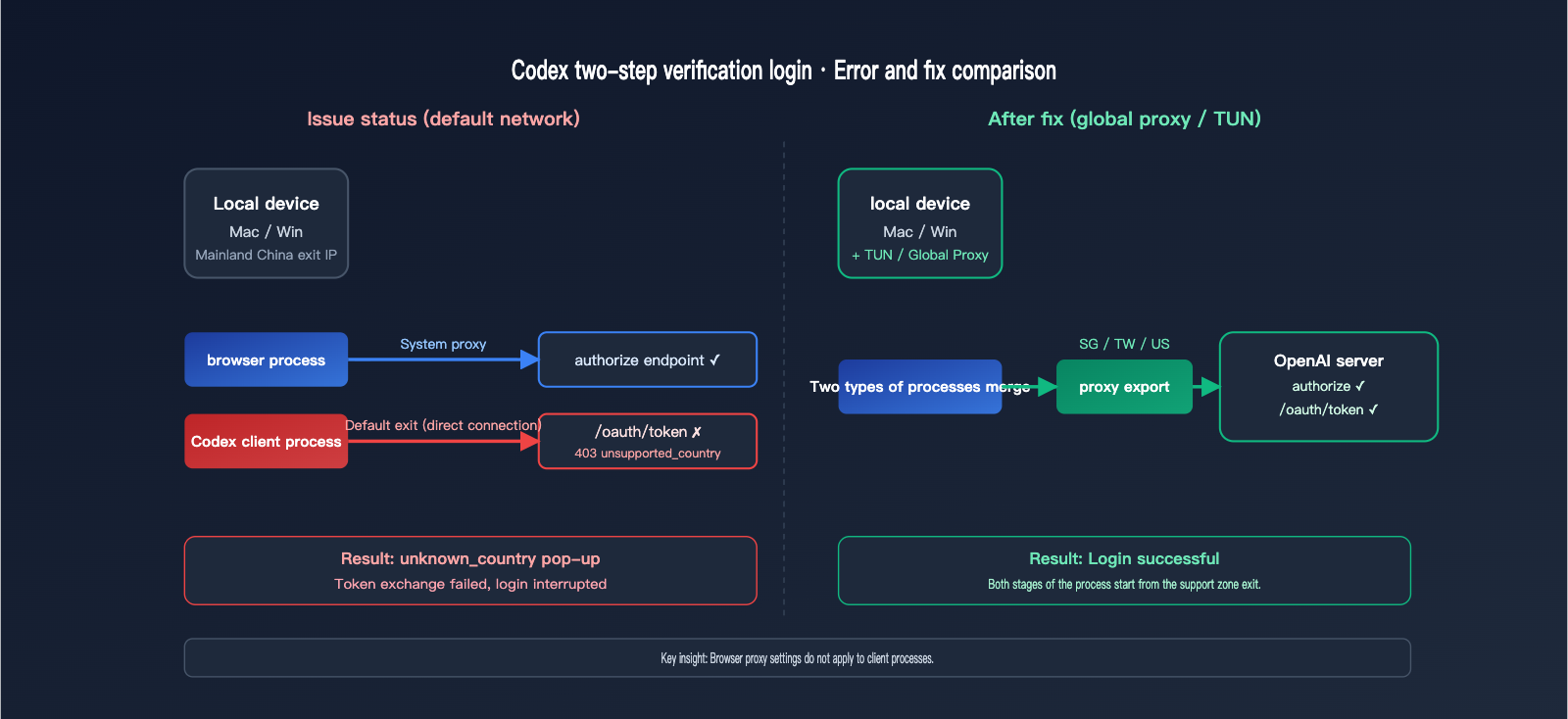
To understand this error, you have to look at what the Codex client is actually doing. It's not just a simple network request; it's a standard OAuth 2.0 authorization code flow that consists of two independent requests, each taking a different network path. The first stage involves the browser redirecting to auth.openai.com to complete account authorization, while the second stage involves the client taking that authorization code and exchanging it for a real access token at https://auth.openai.com/oauth/token. The problem lies in the second stage, not the first.
| Stage | Path | Validation | Failure Point |
|---|---|---|---|
| Stage 1: Authorization | System default browser | Account/Password / 2FA | Usually succeeds |
| Stage 2: Token Exchange | Client process fetch | Is client IP in a supported region? | Triggers unknown_country |
| Callback | Local 127.0.0.1 | URL parameter parsing | Usually normal |
The key issue is that the Stage 1 authorization request is sent by the browser, which respects your system proxy settings—that's why your ChatGPT web page works fine. However, the Stage 2 token exchange request is sent by the Codex client process itself. According to multiple GitHub Issues (e.g., openai/codex#14215, openai/codex#6849), some versions of Codex do not strictly inherit environment variables like HTTPS_PROXY, causing them to use the system's default network exit node. If your network exit IP is in a region not supported by OpenAI, it returns a 403 unsupported_country_region_territory, which the client then displays as "Error during verification (unknown_country)."
This is why many users get stuck in the "web works, but the client won't log in" loop. The web version uses your browser's proxy, while the client uses the system's direct exit. The easiest way to verify this is to visit ipinfo.io or ip.sb in your browser when the client throws the error. If the displayed country isn't Singapore, Taiwan, the US, Japan, or another OpenAI-supported region, you've found your culprit.
Practical Steps for Global Proxy to Resolve Codex "unknown_country" Errors
The core solution to fixing this error is simple: Ensure that requests made by the client process are routed through a proxy located in a supported region. The most reliable approach is to enable "Global Proxy" (or TUN mode), which forces all system processes to use the proxy, rather than just your browser. The table below outlines the specific steps for macOS and Windows.
| Operating System | Recommended Method | Key Settings | Verification Method |
|---|---|---|---|
| macOS | Enable TUN mode or Global Proxy | Proxy Client → Global Mode / TUN | curl ipinfo.io shows a supported IP |
| Windows | Enable TUN mode / System Proxy | Proxy Client → TUN (Virtual NIC) | ipconfig + ipinfo.io double-check |
| General | Terminal Environment Variables | export HTTPS_PROXY & HTTP_PROXY |
Check via env output |
I recommend following these steps in order. First, switch your proxy client from "Rule Mode" or "PAC Mode" to "Global Mode," or enable TUN. Second, select a node located in Singapore, Taiwan, the US, or Japan—all of which are on OpenAI's official supported list. Third, completely quit the Codex client process (on macOS, use ⌘+Q; on Windows, use Task Manager to end the process)—don't just close the window. Fourth, restart the Codex client and click login again. This time, the OAuth token exchange will go through the proxy, and the "unknown_country" error should disappear.
If you are using the Codex CLI instead of the graphical client, you can set the following environment variables in your shell before launching the login command, as some CLI versions will read these values:
export HTTPS_PROXY="http://127.0.0.1:7890"
export HTTP_PROXY="http://127.0.0.1:7890"
export NO_PROXY="localhost,127.0.0.1"
codex login
A quick heads-up: the environment variable method can behave inconsistently across different Codex versions. OpenAI's official documentation suggests using device code login if you encounter issues with the OAuth flow: run codex login --device-auth. You'll receive a one-time code and a URL; simply paste the code into any device that can access OpenAI to complete the verification. This path bypasses the client process's token exchange entirely and is the most successful method in complex network environments.
🎯 Quick Verification Checklist: Enable global proxy → Visit
ipinfo.ioin your browser to confirm the IP is outside the restricted region → Completely quit the Codex client → Restart → Retry login. This four-step process resolves over 90% of Codex "unknown_country" errors.
IP Region Selection Strategy for Codex unknown_country Errors
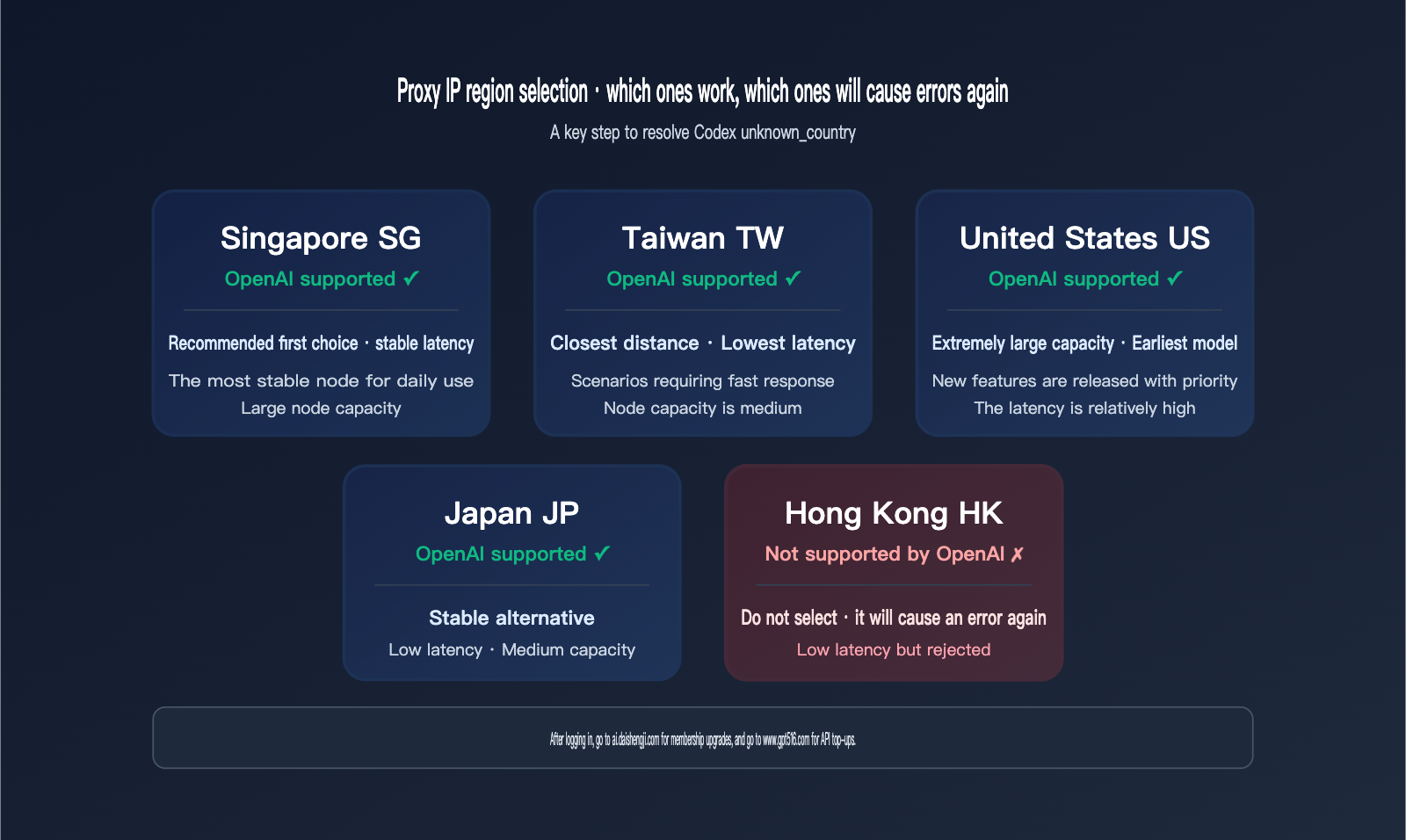
OpenAI officially supports over 100 countries and regions, but mainland China, Hong Kong, Russia, and Iran are not among them. For users in China, there are only four practical options: Singapore, Taiwan, the United States, and Japan. The comparison chart below provides a clear overview of these candidate regions, focusing on latency, stability, and node capacity to help you make the right choice.
| IP Region | OpenAI Support | Measured Latency | Node Capacity | Recommended Scenario |
|---|---|---|---|---|
| Singapore | ✅ Supported | Low | High | Daily choice, stable latency |
| Taiwan | ✅ Supported | Lowest | Medium | Closest physical distance |
| USA | ✅ Supported | High | Very High | Earliest access to new features |
| Japan | ✅ Supported | Low | Medium | Stable backup node |
| Hong Kong | ❌ Unsupported | Lowest | High | ⚠ Avoid, will trigger errors |
The most common pitfall is using a Hong Kong node. Because it's physically close and has low latency, many proxy clients recommend it by default. However, since OpenAI lists Hong Kong as an unsupported region, using it will trigger the unknown_country error. A simple way to check is to visit chat.openai.com in your browser; if it shows "Access denied" or a similar block message, your current exit IP is in an unsupported region, and you need to switch nodes.
| Selection Principle | Priority | Explanation |
|---|---|---|
| Supported by OpenAI | Mandatory | Unsupported regions will always fail |
| Node Stability | High | Affects conversation stability after login |
| Latency | Medium | Affects response speed, but not login |
| Node Capacity | Medium | High traffic can cause congestion during peak hours |
If your proxy client switches nodes frequently, we recommend pinning a Singapore or Taiwan node specifically for OpenAI-related traffic in your configuration file. Let other traffic follow your standard routing rules; this ensures stable Codex logins while preventing your video streaming or domestic services from being slowed down by the proxy.
Post-Login: ChatGPT Subscription and API Credit Solutions
Once you've resolved the Codex unknown_country error, you'll likely hit the next hurdle: while clients like Codex allow you to log in, unlocking full capabilities (Codex Cloud, ChatGPT Plus/Pro quotas, Pro model access) usually requires a paid subscription. ChatGPT only accepts international credit cards or PayPal, and standard payment methods in China are rejected. Similarly, if you want to use the OpenAI API for your projects, topping up your API balance also requires an international credit card. This is another major barrier for users without one.
For these needs, there are two long-standing, reputable services that have remained reliable throughout the two years of shifting OpenAI policies, making them excellent primary choices.
| Service Website | Main Use Case | Target Audience |
|---|---|---|
| AI Upgrade: ai.daishengji.com | ChatGPT Plus / Pro / Team / Edu upgrades | Individuals/teams without international cards wanting full features |
| GPT Top-up: www.gpt516.com | OpenAI API balance / ChatGPT subscription top-ups | Developers needing stable API credits or direct access |
| APIYI: apiyi.com | One-stop multi-model API proxy service | Developers who don't need a ChatGPT subscription and just want GPT-5.5 / Claude / Gemini API access |
🎯 Subscription Advice: If your goal is to use Plus/Pro quotas in official apps like the ChatGPT client, Codex, or Sora, prioritize AI Upgrade (ai.daishengji.com); they have years of experience and standardized processes. If you need official OpenAI API credits, you can use the GPT Top-up site (www.gpt516.com); they have a long operational history and responsive support.
🎯 Alternative Route: If you only want to call OpenAI models within your own applications, you don't actually need a ChatGPT subscription. You can use the APIYI (apiyi.com) platform to pay in RMB and access models like GPT-5.5, Claude 4.7 Opus, and Gemini 3.1 Pro directly. This completely bypasses the need for ChatGPT subscriptions or OpenAI API top-ups, making it the most efficient path for developers.
Codex Login "unknown_country" FAQ
Q1: I've already enabled my proxy, so why am I still getting the "unknown_country" error?
There are three common reasons for this: First, your proxy is set to "Rule Mode" instead of "Global / TUN Mode," which means the Codex client's OAuth token request isn't actually going through the proxy. Second, you might be using a Hong Kong node, which isn't in an OpenAI-supported region. Third, the Codex client process wasn't fully restarted, so the old process is still using the previous network configuration. I recommend following the four-step guide in the second section of this article to verify each point.
Q2: Can I avoid using a global proxy and only route Codex through it?
You can, but it depends on the client type. For the Codex CLI, you can try setting export HTTPS_PROXY and HTTP_PROXY before launching the login process; some versions will pick this up. For the Codex graphical client, however, I recommend using a global proxy. Since client processes often handle environment variables inconsistently, a global proxy is the most reliable approach.
Q3: Why does ChatGPT work in my browser, but the Codex client won't log in?
Because your browser uses system proxy settings or its own built-in proxy settings, while the Codex client process in some versions doesn't automatically inherit those same settings. This is a classic "two network paths" trap, which is explained in detail in the first section of this article.
Q4: If I really can't fix the network issues, is there an easier alternative?
There are two paths. The first is to use a paid upgrade service like ai.daishengji.com to handle your ChatGPT Plus or Pro upgrade, allowing you to continue using official products like the Codex client. The second is to bypass the official client entirely by using the APIYI (apiyi.com) platform to perform model invocation for OpenAI series models, which requires no ChatGPT account or global proxy at all.
Q5: How do I use the device code login method?
For the Codex CLI, run codex login --device-auth to get a one-time code and a URL. Paste the code into any device that can already access OpenAI (like a friend's computer abroad) to complete the verification. Your local machine doesn't need a direct connection to OpenAI, making this the most successful method when dealing with complex network environments. It's the fallback solution officially recommended by OpenAI.
Q6: Can I use a domestic credit card to top up my OpenAI API balance?
No. OpenAI API top-ups require a credit card or PayPal account that supports international transactions. If you only have a mainland card, I suggest using a reputable GPT top-up service like www.gpt516.com, or simply use the APIYI (apiyi.com) platform to pay in RMB for your model invocation needs.
Summary: The Complete Path to Solving the Codex "unknown_country" Error
The "unknown_country" error in the Codex client isn't an issue with your account; it's because your network's exit IP isn't accepted by OpenAI during the OAuth token exchange phase. The key to fixing this is a combination of a "Global Proxy + Supported Region IP," rather than repeatedly retrying or clearing your cache. Singapore, Taiwan, the US, and Japan are currently the four most reliable exit options. Even though Hong Kong has the lowest latency, it's listed as an unsupported region, so definitely avoid it.
If you need a ChatGPT Plus/Pro membership or OpenAI API balance after logging in, you can use these established services: visit the AI upgrade site ai.daishengji.com for membership upgrades, or the GPT top-up site www.gpt516.com for API credits. If your goal is simply to use model APIs like GPT-5.5 or Claude 4.7 Opus without needing a ChatGPT membership, then APIYI (apiyi.com) is the simplest path to skip all cross-border payment and proxy headaches.
APIYI Technical Team · Focusing on practical content for Large Language Model APIs and developer tools. For more technical articles, please visit apiyi.com


