

Summary: GPT-6.2 Chat has started rolling out in stages to Plus, Pro, Business, and Enterprise. This article explains how to tell whether your account has access yet, and which thinking level to choose on web and mobile once it does.
The short answer: OpenAI began a global staged rollout of GPT-6.2 in ChatGPT’s Chat tab on November 23, 2026. This wave includes Plus, Pro, Business, and Enterprise. GPT-6.2 here is the GPT-6.2 Sol version built for everyday conversation, covering Instant and Thinking. November 23 is only the rollout start date—whether a specific account can use it depends on three things at once: your account plan, the workspace you’re currently in, and the version actually shown in the Chat model selector. Enterprise users also have an extra layer of admin settings. Plus gets Instant, Medium, and High; Pro, Business, and Enterprise plans extend up to Extra High. Free, Go, and Edu are not included in this round of the Chat rollout.
If you need to call OpenAI-series models from your own programs in addition to chatting in ChatGPT, see Section 6 to connect through the OpenAI-compatible interface at APIYI apiyi.com.
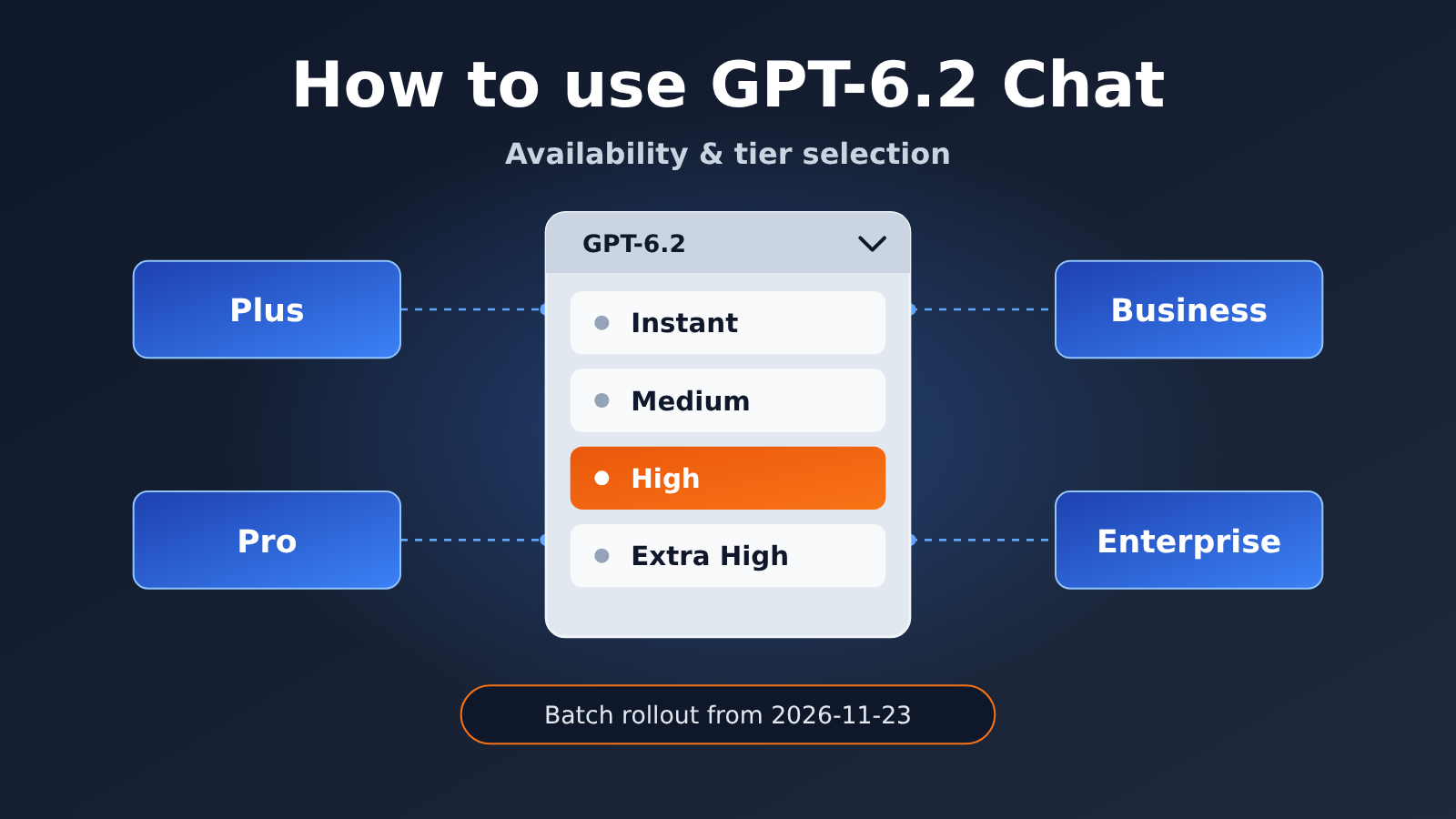
GPT-6.2 Chat Knowledge Map
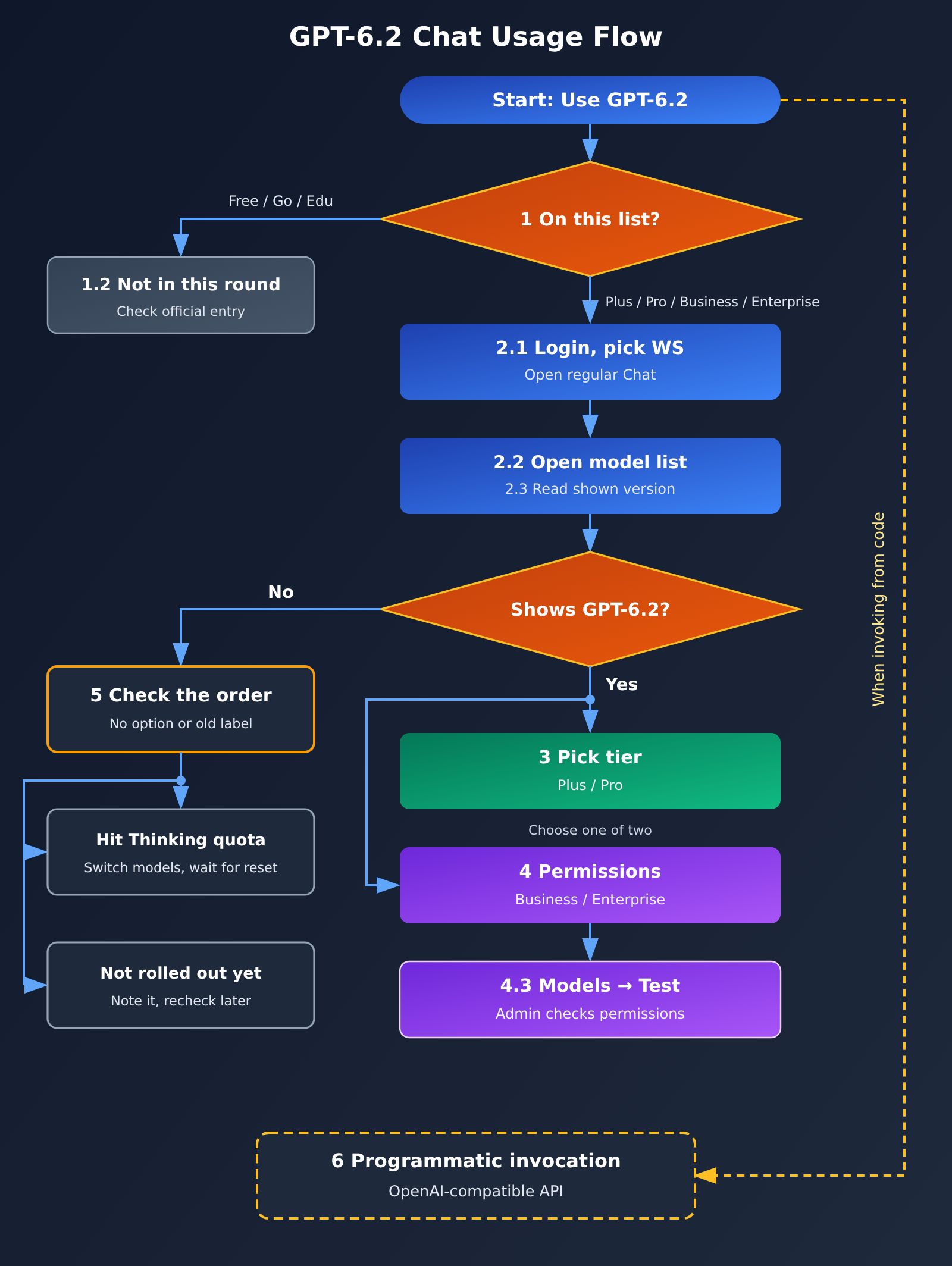
Figure notes: The diagram above is organized as “account eligibility → entry point → tier or permissions → troubleshooting.” Start with Section 1 to check whether your plan is on this round’s list, then use Section 2 to locate the selector. After that, individual users go to Section 3 and organization users go to Section 4. If options are missing, go back to Section 5. Section 6 stands apart from the flow above and is only for readers who need to write code.
Index: How to read each GPT-6.2 Chat section
- 1 Availability scope: First confirm whether your account is on this round’s list — this determines whether it’s worth hunting for the entry point at all.
- 2 Entry steps: Covers where the selector lives on web and mobile, plus the label differences between the old and new interfaces.
- 3 Plus and Pro tier selection and 4 Business and Enterprise permissions: These two sections sit side by side; read the one that matches your plan.
- 5 Troubleshooting order: Use this when you can’t find options in Sections 2–4; it separates the two signals, “not rolled out yet” and “quota used up.”
- 6 API access: Consult as needed; it’s unrelated to your ChatGPT subscription.
To Know: Essential terms for understanding GPT-6.2 Chat
| Term | Plain-language explanation |
|---|---|
| GPT-6.2 Sol | The version rolled out to the Chat tab this round for everyday conversation, covering both Instant and Thinking |
| GPT-6 Astra / 6 Pro | The separately selectable GPT-6 Pro in Chat runs on GPT-6 Astra; it’s an independent model configuration with its own usage rules |
| Instant / Medium / High / Extra High | Conversation thinking levels, stepping up from immediate answers to more reasoning |
| Latest | A label in the new selector; when it shows GPT-6.2, Latest uses GPT-6.2 across thinking levels |
| Workspace | An independent space for an individual or organization; a conversation uses the settings and permissions of whichever workspace it belongs to |
| Seat | The licensing unit for organization members; a standard ChatGPT seat differs from a Codex-only seat |
| Higher intelligence | A Business setting that controls whether extra thinking is automatically applied when Instant is selected; Plus and Pro on web no longer use it |
1 GPT-6.2 Chat availability: first check which rollout wave your account is in
1.1 GPT-6.2 Chat rollout scope for the four plans in this round
The Chat release notes from November 23 list four plans. The table below combines each plan’s entry conditions and available tiers. “Instant to Extra High” refers only to the chat tiers involved in this rollout.
| Account or workspace | Chat rollout status in this round | Primary entry point or condition | Chat tiers included in the plan |
|---|---|---|---|
| Plus | Phased rollout begins | Chat model selector | Instant, Medium, High |
| Pro | Phased rollout begins | Chat model selector | Instant, Medium, High, Extra High |
| Business | Phased rollout begins | Team seat with Chat access; select based on permissions | Instant to Extra High |
| Enterprise | Phased rollout begins | Enterprise seat with Chat access; subject to assigned roles and admin settings | Instant to Extra High |
| Free, Go, Edu | Not included in this round’s list | Determine based on each plan’s current official entry point and permissions | Not listed in this round |
“Phased rollout begins” means the plan is eligible, but individual accounts still need to wait for their batch. The interface may also update in batches depending on the app version and workspace, so two accounts on the same plan may see different options on the same day.
1.2 Free, Go, and Edu are not covered by GPT-6.2 Chat
Edu is easy to misread. Enterprise and Edu share the same admin help article, and the November 17 specialized model announcement mentioned both. But the four-plan list in the November 23 Chat release notes only includes Enterprise. These two announcements shouldn’t be read together; Edu is not on this round’s Chat rollout list.
For Free and Go, the current model help article states that their default model is transitioning to GPT-5.6 Luna, which also powers Think on Go. It’s expected that these accounts won’t see GPT-6.2, and no troubleshooting is needed.
2 How to use GPT-6.2 Chat: web and mobile entry points
2.1 Sign in and enter the right workspace
Open ChatGPT on the web (chatgpt.com) or in the official mobile app, sign in with the account that has the subscription, then go into the personal or organization workspace you want to use and open regular Chat. Organization users switch workspaces through the profile menu on the web and through the sidebar on mobile. The workspace determines the settings and permissions used in a conversation, so the same person may see different options under a personal Plus plan and a company Business plan.
For mobile, download the official app published by OpenAI from the app store and sign in with the same ChatGPT account as your subscription. For global rollout, use the regions where ChatGPT is already supported as your reference; OpenAI also has a separate list of countries and regions where it’s available.
2.2 Using GPT-6.2 Chat in the new selector
The model selector is in a different place on each platform. On the web it’s inside the message composer; on iOS and Android it’s at the top of the conversation. When the new interface shows GPT-6.2, Latest uses GPT-6.2 at the Instant, Medium, High, and Extra High levels. First check which model generation the interface displays, then choose a thinking level within what your plan allows.
2.3 GPT-6.2 Chat labels under the older selector
If you see the older interface, use the labels currently available in the selector. OpenAI’s official help says that in the old selector, GPT-6 replaces Latest, and existing selections keep the same thinking level. Conversations where you manually selected GPT-5.6 Sol will continue to use that model and won’t switch automatically. Older labels reflect differences in rollout stage and workspace interface, so judge based on the version visible in the interface.
2.4 Three conditions you can check separately
Whether you can use GPT-6.2 Chat can be split into three independent conditions. Checking them one by one helps you pinpoint the issue faster:
- App is available: The official app can be found in the app store, or the web version opens normally;
- Account can sign in: You’re signed in to the right workspace with the account that has the subscription;
- Account has received the rollout: The model selector shows GPT-6.2 or the corresponding label.
If a client only shows the older selector, open the web version in the same workspace to compare. Desktop users can also check the availability of the official entry point by using regular Chat on the web.
3 Plus vs. Pro: GPT-6.2 Chat Thinking Tier Comparison
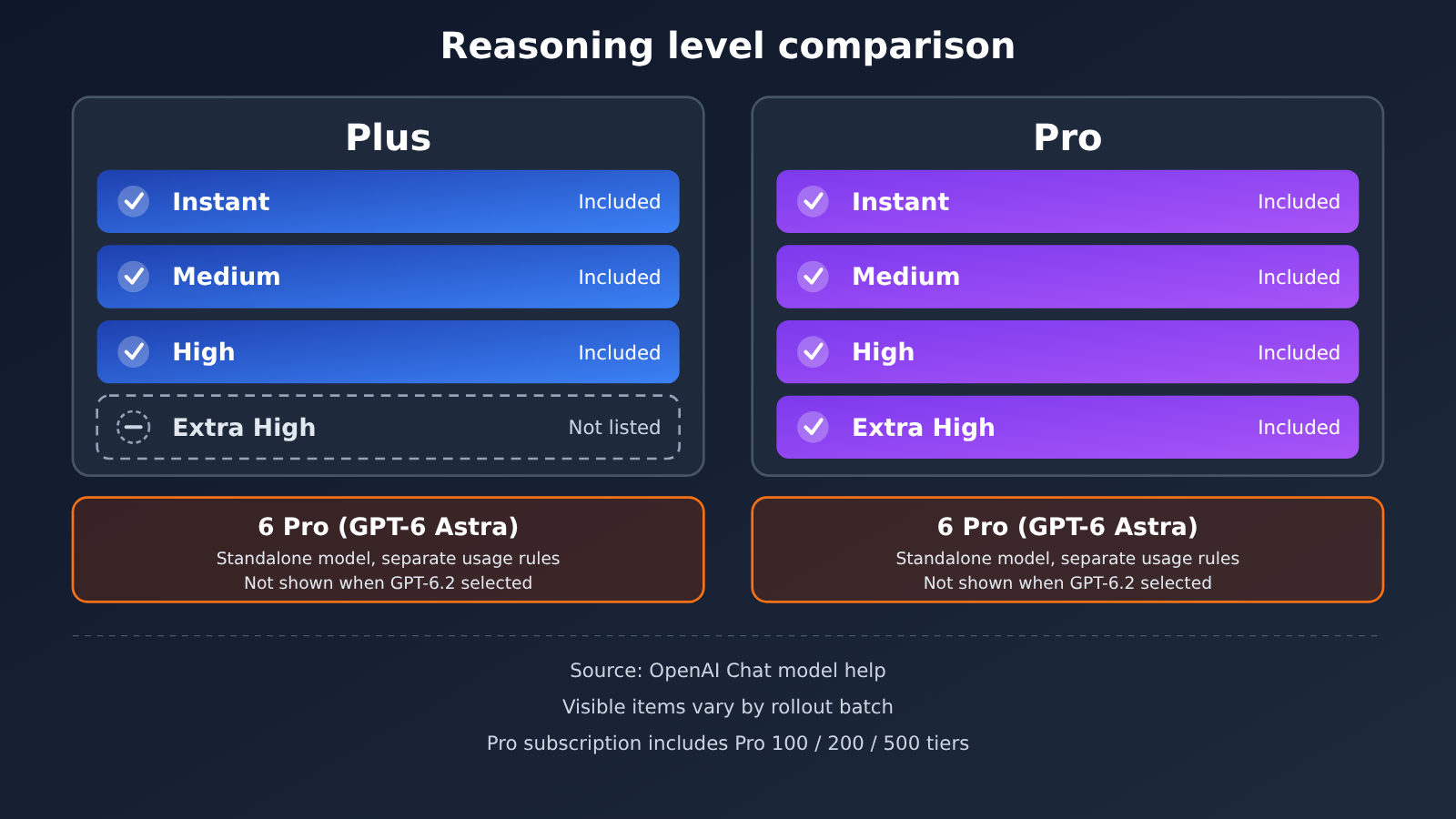
Figure note: The difference between Plus and Pro on GPT-6.2 Chat comes down to the top tier. Plus’s plan does not include Extra High; Pro’s does. 6 Pro is a separate model and belongs to a different field from “Pro” in the subscription name. If you want to run comparative tests on the same set of OpenAI models in code, you can switch between different models with one API key through APIYI at apiyi.com.
| Comparison item | Plus | Pro |
|---|---|---|
| GPT-6.2 conversation tier eligibility | Instant, Medium, High | Instant, Medium, High, Extra High |
| Thinking intensity control method | Via the model selector in the web app | Via the model selector in the web app |
| Higher intelligence web setting | No longer used for this plan | No longer used for this plan |
| 6 Pro (GPT-6 Astra) | Not listed in the plan | Available for eligible accounts, with a separate weekly quota |
| Subscription tier | Single Plus | Pro 100, Pro 200, and Pro 500, at USD 100, 200, and 500 per month respectively |
3.1 How Plus Users Choose a GPT-6.2 Chat Tier
For quick Q&A, start with Instant. For more complex reading, analysis, or planning tasks, choose between Medium and High. The Plus plan doesn’t include Extra High or the Pro reasoning tier, so it’s normal that neither appears in the interface. The official help also notes that the old Higher intelligence web setting no longer applies to Plus and Pro—thinking intensity is controlled entirely by the selector.
3.2 Pro Users: Distinguishing Subscription Pro from Model 6 Pro
Pro users are eligible for all four tiers in their plan, from Instant to Extra High, but exactly which options they see still depends on rollout progress. Here you need to distinguish between the two “Pro”s. Pro is the subscription name, while 6 Pro is the GPT-6 Pro you can select separately in Chat, which uses GPT-6 Astra. Accounts that already have access to 6 Pro have two paths: with the new selector, go Latest → 6 Pro; under the old options, go GPT-6 → Pro. The official help explicitly states that when a user selects GPT-6.2, the 6 Pro option does not appear.
On usage, the Pro subscription help lists Pro 100, 200, and 500 separately, and in the usage entry discusses the weekly quotas these three tiers have for GPT-6 Pro. GPT-6 Pro has its own usage rules; you can’t use its plan tier to infer the exact number of available messages for GPT-6.2 Chat. The plan scope for standard chats is subject to the November 23 announcement, while 6 Pro usage depends on model limits and account notices.
When switching between multiple accounts, you can confirm the current subscription in Settings → My Plan. If you’re facing a tough problem and want the model to think harder, follow these steps: first check which model generation the current selector shows, then switch to High or Extra High if your plan includes it, and resubmit the same request. That way you can confirm you’re still using GPT-6.2 and haven’t accidentally switched to 6 Pro.
🎯 Technical tip: If you’re evaluating a product plan and want to compare the experience in ChatGPT with the results of programmatic calls side by side, you can run the same batch of prompts through APIYI apiyi.com using a unified OpenAI-compatible API, making it easier to log and reproduce.
4 GPT-6.2 Chat Permission Checks for Business and Enterprise
4.1 Business Workspace: Seats, Switching, and Higher Intelligence
Business is a team workspace plan, and members need to go into the workspace where they’re actually assigned a seat. The official help docs state that both Standard and Premium seats include ChatGPT, with Premium offering higher usage. If the same account also subscribes to a personal Plus or Pro plan, check the model selector separately in the personal workspace and the Business workspace — don’t mix results from the two.
Business’s Settings → General includes a Higher intelligence setting that controls whether selecting Instant automatically invests more thinking. This toggle has nothing to do with whether the model has already been rolled out. Once enabled, Instant’s automatic extra reasoning may also consume reasoning credits, so turn it on or leave it off as needed.
On usage, the Business model help doc lists Premium’s higher included Work and Codex usage separately from each Chat model’s quota. Business Standard’s two Pro models share 15 per month, while Premium shares 50 per week — these are the existing quotas for GPT-6 Pro and GPT-5.6 Sol Pro. The new generation of regular Chat is used according to its visible models and thinking tiers, and doesn’t fall under this set of Pro quotas.
4.2 Three-Step Self-Check for Enterprise Members
Enterprise members can confirm things in order with three questions:
- Can you see Chat? Officially, standard ChatGPT seats and Codex-only seats are separated, and role authorization takes effect based on seat capabilities, so members with only a Codex seat won’t see GPT-6.2 in Chat.
- Do you have model eligibility? In regular Chat, access to the GPT-6 Sol series is tied to the existing Sol permission, while GPT-6 Pro uses a separate GPT-6 Astra toggle. The November 23 logs also make clear that the GPT-6.2 rollout in enterprise Chat is constrained by admin settings.
- Which version is currently displayed? Go back to Section 2 and read the label on the selector.
Note that in regular Enterprise and Edu workspaces without a dedicated medical routing configured, Instant won’t automatically upgrade to a higher thinking tier, and members need to select the available tier themselves.
4.3 How Admins Use Models → Test to Verify GPT-6.2 Chat Permissions
Admins can check model permissions in the workspace settings under Permissions & roles. A more direct approach is to select the actual workspace in the admin console, open Models → Test, enter the member’s name or email, and check their effective access, workspace defaults, and the roles in effect. This test reads saved settings. Roles may come from individual assignments or from the group the member belongs to, so looking at just a single role can easily miss the other rule granting access.
When admins set a starting model for Chat or carry over the user’s last selection, it’s still premised on the member’s own eligibility. The starting setting for regular Chat lives in a separate Chat control and is managed separately from model permissions.
4.4 Enterprise: What’s Selectable in the UI vs. What’s Metered by Contract
In enterprise scenarios, “can select it” and “how it’s billed” are two different things. The table below breaks down three types of settings so you can talk to IT and Finance separately.
| Dimension | Owner | Notes |
|---|---|---|
| Default model | Workspace configuration | Admins set the starting model, which must match member eligibility |
| Available models | Access permissions | Determined jointly by seat, role, and Sol / Astra toggles |
| Usage metering | Billing and contract | Eligible base models are effectively unlimited; customers on a per-token USD billing agreement pay the applicable rates, and Instant may also be billed |
When writing usage instructions for enterprise members, document the permissions and controls visible in the current workspace, and interpret the currency and units of usage according to the price list in your organization’s contract.
5 Check Order When the GPT-6.2 Chat Option Is Missing
5.1 Checklist for Individual and Organizational Users
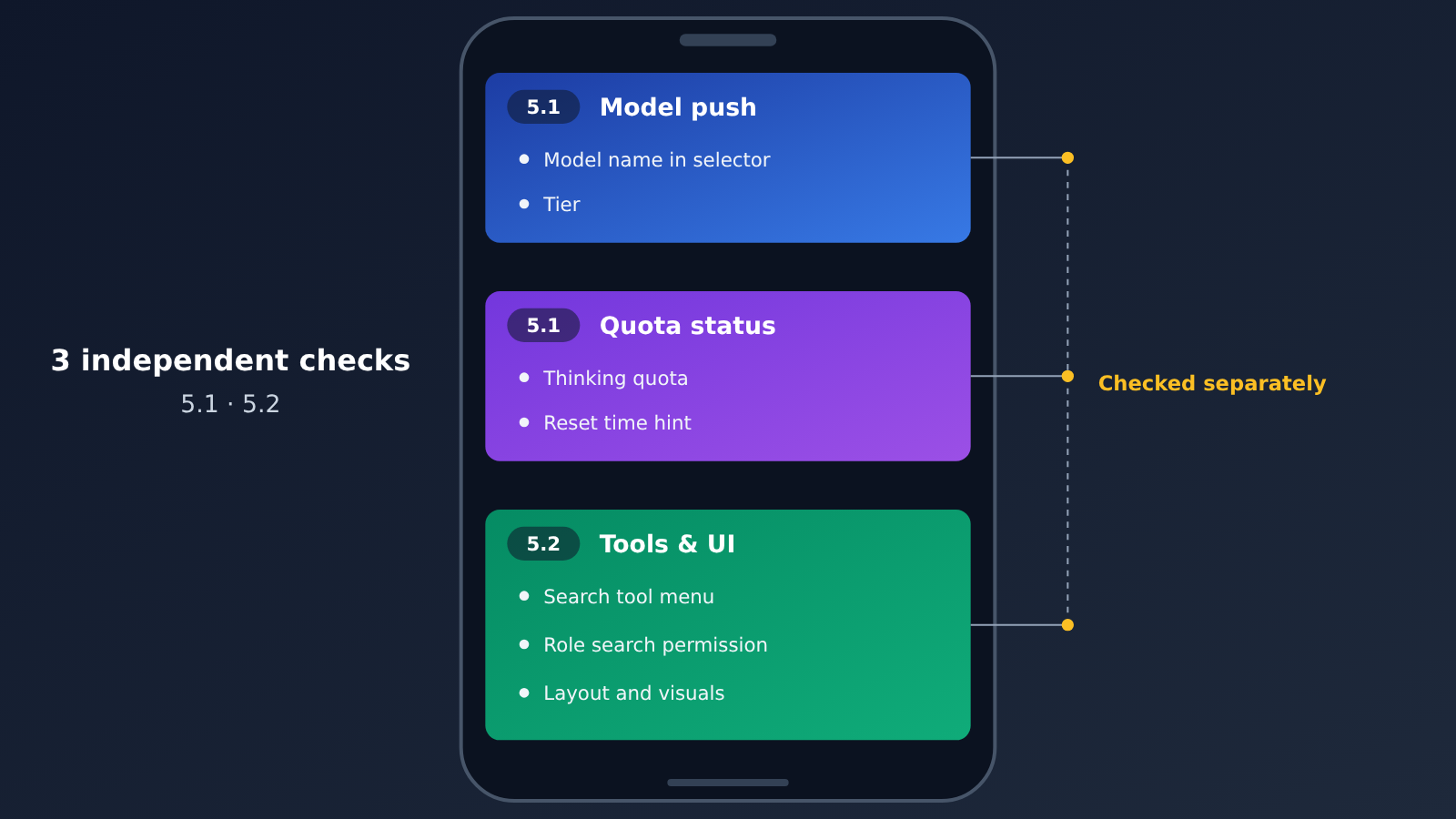
Individual users should confirm, one by one: you’re signed in with the account tied to your subscription; you’re in the regular Chat; the official mobile app is updated, or you’ve started a new conversation on the web; then check the model menu. Organizational users add three more checks on top of that: you’ve selected the right workspace, the seat supports Chat, and the admin has allowed access to that model.
Available options roll out in batches over time. If you’re seeing an older interface, it’s worth noting down the client type, workspace name, and visible labels so you can re-check later or report back to your admin.
| Signal you see | Likely cause | What to do |
|---|---|---|
| Selector only shows old labels | Rollout batch or client version is behind | Update the app, or open the web version in the same workspace to cross-check |
| No GPT-6 series at all | Plan isn’t on this round’s list, or wrong workspace selected | Go back to Section 1 and Section 2.1 to verify |
| Organizational account missing the tier | Seat or role isn’t authorized | Ask your admin to check with Models → Test |
| Was using it, then switched to another model | Hit the Thinking quota | Wait for the reset time shown in the interface |
| Can’t find 6 Pro | GPT-6.2 is currently selected | Switch using the path in Section 3.2 |
Switching to another available model after hitting the Thinking quota and the model simply not having rolled out yet are two different signals. In the former case, the interface shows a reset time when it can. Also, the November 23 rollout targets the Chat tab throughout, while the Astra and Sol professional entry points on November 17 have their own release notes — don’t mix the two when verifying.
5.2 Checking Tools and Interface Features Separately in GPT-6.2 Chat
Model rollout and tool availability should also be checked separately. Say you want to search the web — look for Search in the tool menu in the input area. If it’s missing, check the app version, plan limits, and your organization role’s search permissions. That has nothing to do with whether GPT-6.2 has rolled out.
Layout and visuals under Settings on the web can tone down the visual layout of Intelligent UI. The official notes say this kind of display capability opens up gradually on supported web versions and updated apps, and older desktop apps don’t have the same interface features. The safer order is: first confirm this round’s rollout using the visible model names and tiers, then confirm features against each tool’s own requirements.
6 How developers call OpenAI models via the API
A ChatGPT subscription solves the problem of “using it inside the chat interface.” If you want to plug model capabilities into your own product, script, or automation workflow, you need to go through the API. APIYI apiyi.com is an AI Large Language Model API aggregation platform: one API key lets you call OpenAI, Claude, Gemini, and other mainstream models, the interface is compatible with the OpenAI format, and billing is pay-as-you-go. The reference material doesn’t say whether GPT-6.2’s API is available yet, so for the exact model names you can call, check the model list in the platform console.
6.1 A minimal example
import openai

client = openai.OpenAI(
    api_key="YOUR_API_KEY",
    base_url="https://api.apiyi.com/v1"  # APIYI OpenAI-compatible endpoint
)

response = client.chat.completions.create(
    model="gpt-4o-mini",  # Replace with a model name from the console's model list
    messages=[{"role": "user", "content": "用三句话解释什么是工作区权限"}]
)
print(response.choices[0].message.content)
View the full implementation code: multi-model comparison test
import openai
from typing import Optional, List

client = openai.OpenAI(
    api_key="YOUR_API_KEY",
    base_url="https://api.apiyi.com/v1"  # One key switches between multiple providers
)

def ask(
    prompt: str,
    model: str,
    system_prompt: Optional[str] = None,
    max_tokens: int = 800
) -> str:
    """Call a single model and return the text result"""
    messages = []
    if system_prompt:
        messages.append({"role": "system", "content": system_prompt})
    messages.append({"role": "user", "content": prompt})
    try:
        resp = client.chat.completions.create(
            model=model,
            messages=messages,
            max_tokens=max_tokens
        )
        return resp.choices[0].message.content
    except Exception as e:
        return f"Error: {e}"

def compare(prompt: str, models: List[str]) -> None:
    """Compare outputs for the same prompt across multiple models"""
    for m in models:
        print(f"===== {m} =====")
        print(ask(prompt, m, system_prompt="你是严谨的技术顾问"))
        print()

if __name__ == "__main__":
    # Model names are subject to the console list
    compare(
        prompt="为一家 200 人公司设计 AI 助手的权限分级方案",
        models=["gpt-4o-mini", "claude-sonnet-4", "gemini-2.5-flash"]
    )
🚀 Quick start: New users can register at APIYI apiyi.com to get free trial credits. Get the endpoint working with the minimal example above first, then expand to multi-model comparison as needed.
References
- ChatGPT Release Notes: GPT-6.2 rollout scope in Chat on November 23
- Link:
help.openai.com/en/articles/6825453-chatgpt-release-notes
- Link:
- GPT-6 and other models in ChatGPT: plan table, thinking levels, old and new model selectors, and FAQs
- Link:
help.openai.com/en/articles/20001354-gpt-6-and-other-models-in-chatgpt
- Link:
- ChatGPT Enterprise and Edu models and limits: where to find the selector, effective permission testing, metering notes
- Link:
help.openai.com/en/articles/11165333-chatgpt-enterprise-and-edu-models-and-limits
- Link:
- ChatGPT Business models and limits: Standard and Premium quotas, Higher intelligence
- Link:
help.openai.com/en/articles/12003714-chatgpt-business-models-and-limits
- Link:
- ChatGPT Pro subscription tiers: Pro 100, 200, 500
- Link:
help.openai.com/en/articles/9793128-about-chatgpt-pro-tiers
- Link:
- Enterprise workspace settings and role-based access control
- Link:
help.openai.com/en/articles/8411955-managing-workspace-settings-in-chatgpt-enterprise - Link:
help.openai.com/en/articles/11750701-managing-feature-access-with-role-based-access-control-in-chatgpt
- Link:
- Supported countries and regions
- Link:
help.openai.com/en/articles/7947663-chatgpt-and-openai-api-supported-countries-and-territories
- Link:
Author: APIYI Technical Team
Technical inquiries: If you’d like to connect mainstream Large Language Models through an API in your business, come visit APIYI at apiyi.com and get in touch. For more integration docs, see docs.apiyi.com


